









How to
An Invoice email can carry up to four kinds of file: the Invoice itself, a Job document, files attached to the email template, and files you tick from the Invoice's attachments. Each is controlled in a different place.
This article is for office and accounts staff.
Check what will be sent
Open the Invoice and select Email Invoice.
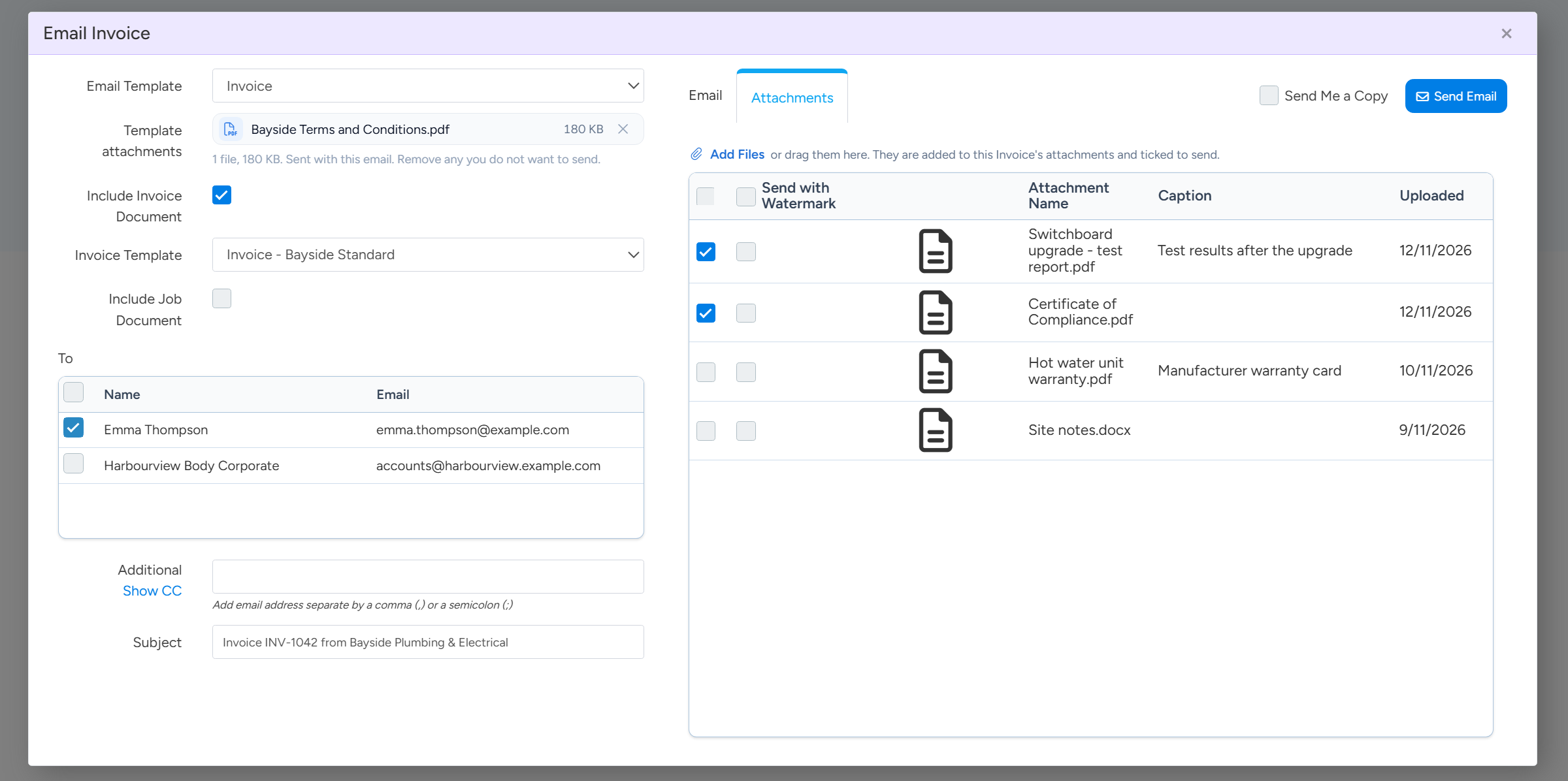
On the left, check Template attachments.
These files come with the email template chosen in Email Template. Select the cross beside one to leave it out of this email.
Check Include Invoice Document and Invoice Template.
The tick attaches the Invoice as a PDF, produced with the template shown. Changing the template here applies to this email only.
Tick Include Job Document if you also want a Job document, and choose its template.
Open the Attachments tab on the right and tick any other files to send.
The tab lists the Invoice's attachments, all unticked to start with. Add Files uploads another file and ticks it.
Template attachments and Include Invoice Document are on the left. Tick any other files to send on the Attachments tab. Sample data. Select Send Email.
Tick Send Me a Copy first if you want one.
If terms or another file go out every time
- It is attached to the email template. Go to Administration > Templates > Email Templates, open the Invoice template and look under Attachments. Remove the file there to stop it for every email.
- It is your company's Terms and Conditions. These are added as pages at the end of the Invoice PDF, not as a separate file. Untick Show Terms on Invoice/Statement on the Invoicing tab of Administration > Company Details.
- To leave terms off for one customer only, tick Do Not Append Terms and Conditions to Invoices on that Customer.
The email wording and the link to the Invoice
The wording comes from the email template. Under Administration > Templates > Email Templates, the Invoice category holds your Invoice emails, and one is marked as the default.
The fields Invoice Link and Invoice Link As Plain Text put a link to the online Invoice in the email. Fields for the order numbers, such as the Client Order Number and Purchase Order Number, can be added in the same way.
Was the Invoice emailed?
- On the Invoice, Invoice Originally Emailed On shows the date of the first email.
- The Invoice's History tab lists each email with who it went to and copies of what was attached.
- On the Invoices list, the columns Last Invoice Sent, First Viewed Online and Last Viewed Online can be shown. Viewed means the customer opened the online Invoice from the link. Ascora does not track whether the email itself was opened.
Common questions
Can I send a proforma invoice?
There is no proforma type. You can create a document template laid out as a proforma and choose it in Invoice Template for that email.
Is there a BCC?
No. Select Show CC to add a CC address, or tick Send Me a Copy.
Can I change the order number after the Invoice is created?
Yes, on the Invoice's Details, unless the Invoice has been locked for editing. The numbers are copied from the Job when the Invoice is created.
How large can the attachments be?
Keep the total under 10 MB.