









Guide
The Job Profitability table on a Job compares what the Job is worth with what it has cost and is expected to cost. It is a read-only summary: every figure comes from the Supplies, Labour & Callout, Purchase Order, Supplier Invoice and Timesheet records on the Job.
This article is for office staff and managers who review Job costs.
Where to find it and who can see it
Open the Job and look in the right-hand column of the Details tab, under Job Profitability. Below it, Job Invoicing Summary shows what has been invoiced, what is left to invoice, and payments received.
What you see depends on three permissions on your user: Can View Supply Costs shows the supplies rows, Can View Timesheet Costs shows the labour rows, and Can View Sell Prices shows the value rows. The profit rows need all three. With none of them, the table is hidden.
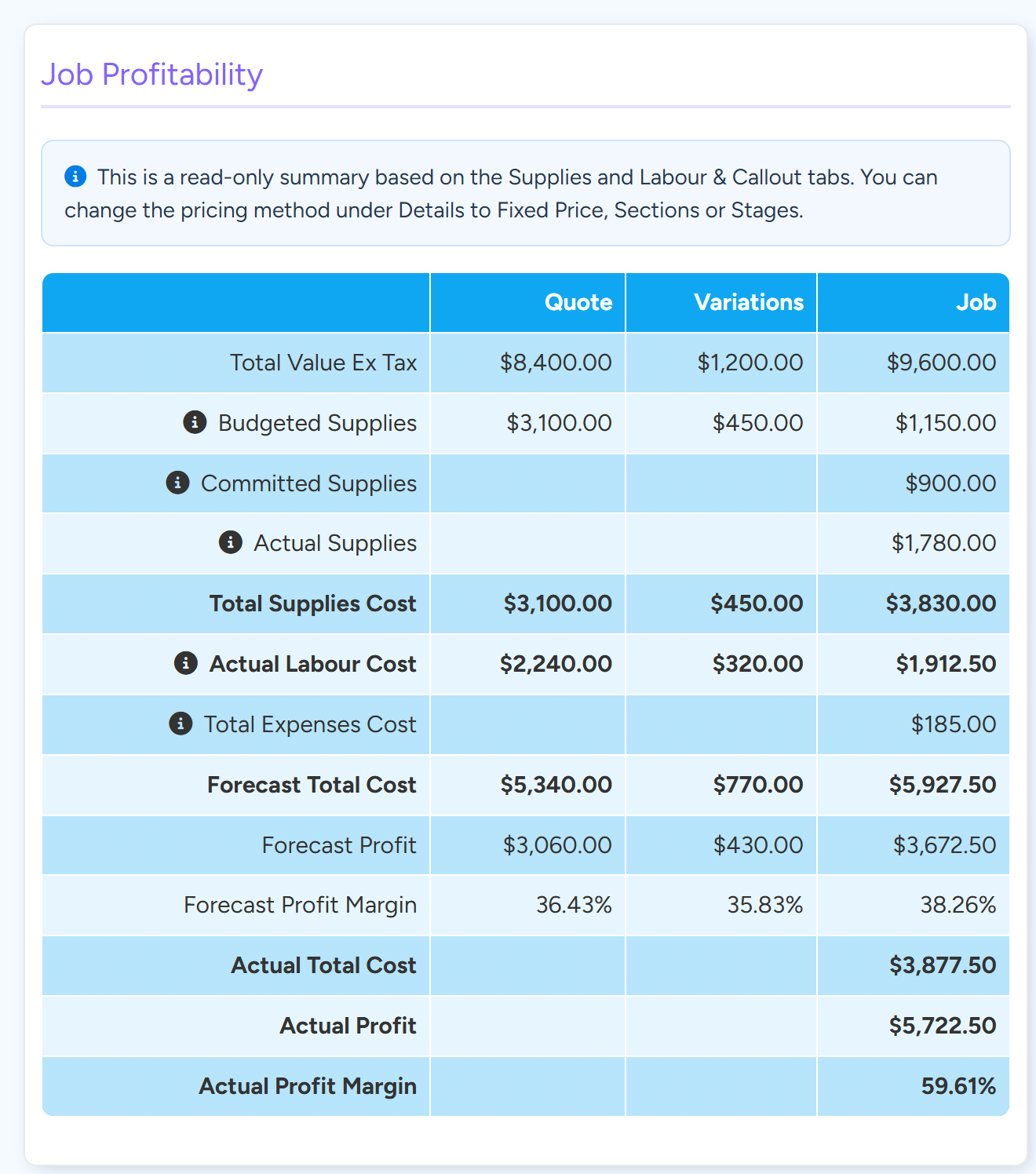
What each row means
- Total Value Ex Tax. The value of the Job before tax.
- Budgeted Supplies. Supplies on the Job that have not yet been ordered or used, at the unit cost on the Job's Supply line.
- Committed Supplies. Supplies on Purchase Order lines that have not yet been invoiced by the supplier.
- Actual Supplies. Supplies on accepted Supplier Invoice lines allocated to the Job, plus stock recorded as used, plus Supplies marked as not to be ordered.
- Total Supplies Cost. Budgeted plus Committed plus Actual.
- Actual Labour Cost. The total cost of the Timesheet entries on the Job.
- Actual Allowance Cost. Timesheet allowances. The row shows only when there are some.
- Total Expenses Cost. Accepted Supplier Invoices that are flagged as an expense and allocated to the Job.
- Forecast Total Cost, Forecast Profit and Forecast Profit Margin. All supplies (Budgeted, Committed and Actual), labour, allowances and expenses, compared with the Job's value. This is where the Job is expected to finish.
- Actual Total Cost, Actual Profit and Actual Profit Margin. The same without Budgeted and Committed Supplies. This is where the Job stands on costs incurred so far.
Note
As a Supply moves from needed, to ordered, to invoiced, its cost moves from Budgeted to Committed to Actual. It is counted once, not three times. The Quote, Variations and Job Template columns show the estimates the Job started with and appear only when the Job came from a Quote, has an accepted Variation, or was made from a Job Template.
Why Actual Labour Cost is zero or low
Labour cost comes only from Timesheets. A labour charge line added on the Labour & Callout tab sets what the customer is charged. It does not add hours or cost. Add a Timesheet entry for the time worked.
A Timesheet entry costs the user's hourly cost multiplied by the hours. The hourly cost is Pay Rate plus Employment Cost, set on the user's Pay Template tab under Hourly Rates. If both are blank, every Timesheet for that user costs nothing.
After entering rates, use Backdate Pay Rates on the same tab to apply them to Timesheets from a date you choose. Job costs are updated to match.
Why supplies cost is not what you expected
- A Purchase Order that has not been invoiced sits in Committed Supplies, so it is in Forecast Total Cost but not in Actual Total Cost.
- A Supplier Invoice counts only once it has been accepted.
- A Supplier Invoice line that does not match a Supply already on the Job is added as a new line, on top of what was quoted.
- Supplies taken from stock count as Actual once they are recorded as used or marked as not to be ordered.
- The supplies rows use the unit cost on the Job's Supply line.
Jobs with Sections or Stages
On a parent Job, the table is the sum of its Sections or Stages. Archived and cancelled Sections are left out. Enter Supplies, labour and Timesheets on each Section, not on the parent.
The other way to show it
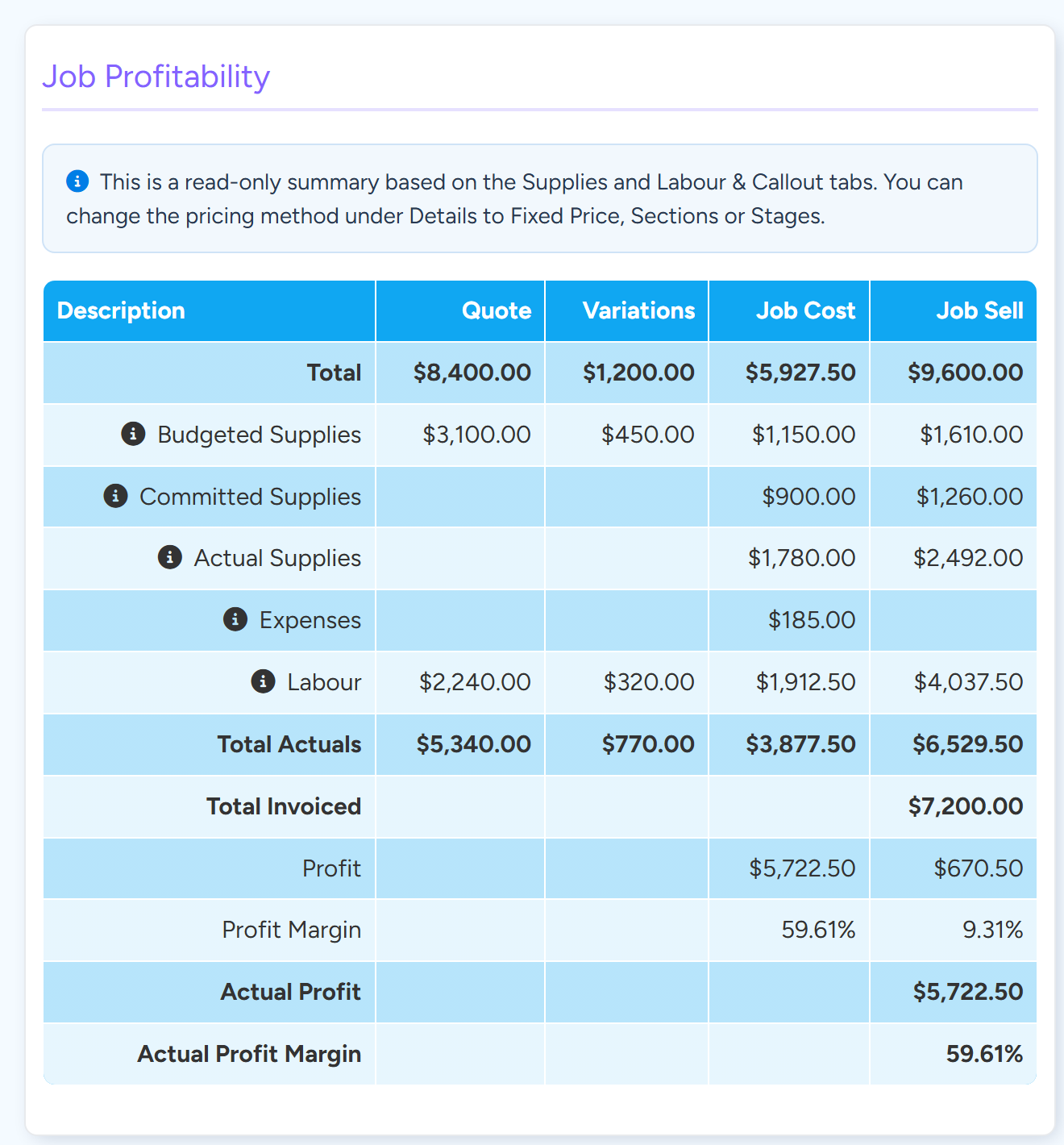
Under Administration > Job Settings, Job Profitability Display can be Stacked Jobs Data, shown above, or Split Jobs Cost and Jobs Sale Value.
The split display has a Job Cost and a Job Sell column and a Total Invoiced row. Profit in the Job Sell column is worked out from what has been invoiced so far, so it changes as you invoice the Job.
Common questions
Is profit worked out from the Job's value or from what I have invoiced?
In the stacked display, from the Job's value. Invoiced amounts are in the Job Invoicing Summary underneath. In the split display, the Job Sell column uses Total Invoiced.
Can I type over a figure in the table?
No. Change the Supplies, labour, Timesheets, Purchase Orders or Supplier Invoices it is built from.
I cannot see the table at all.
It is hidden on a new Job until it is saved, and from users with none of the three cost and price permissions.