









How to
A Route is a saved run of customer sites in the order you visit them. You build it once, see the drive on a map, and when the day comes you apply it from the Scheduler. Ascora then creates a new Job at every stop and books each one, in order, for the people you choose.
This article is for schedulers and office staff who book the same run of sites again and again, such as a regular testing or maintenance round.
Before you start
- Routes is switched on account by account. If you do not see Routes in the Scheduler menu, contact Ascora Support and ask for it to be turned on.
- To open the Routes page you need permission to view Bookings.
- To save a route, or to apply one, you need permission to edit Bookings. Without it the Routes page can be read but not changed, and Apply Route is not shown on the Scheduler.
- Each stop is a Customer. A stop uses the Customer's Site Address, so check that the address is right on the Customer first.
Build a route
Go to Scheduler > Routes.
Routes sits straight after Map Scheduler in the menu. Your saved routes are listed on the left under Saved routes.
Select + New route and type a name for it.
Under Yard, where the run starts, start typing the address and choose it from the suggestions.
A new route starts with your company address. Choosing the address from the suggestions places the yard on the map. An address typed by hand has no place on the map, so the drive from and to the yard is left out until you choose a suggestion.
Set the Usual start time and choose a Colour for the route.
Under Each stop creates a job from, select Job Type or Job Template.
With Job Type, choose the Job Type and type a Job summary. Each stop becomes a plain job of that type. With Job Template, choose the template and it supplies the labour, supplies and checklists. The site, the people and the duration always come from the route.
Leave Return to the yard at the end ticked if the day finishes back at the yard.
Untick it and the day ends at the last stop.
Under Add stop, search for a Customer and select them.
Their site joins the end of the run. Repeat for each stop. A route holds up to 25 stops, and the same site can be added more than once.
Set the time on site for each stop with the minus and plus buttons.
The time changes in 5 minute steps, from 5 minutes up.
Select Save.
The Unsaved changes marker goes away once the route is saved.
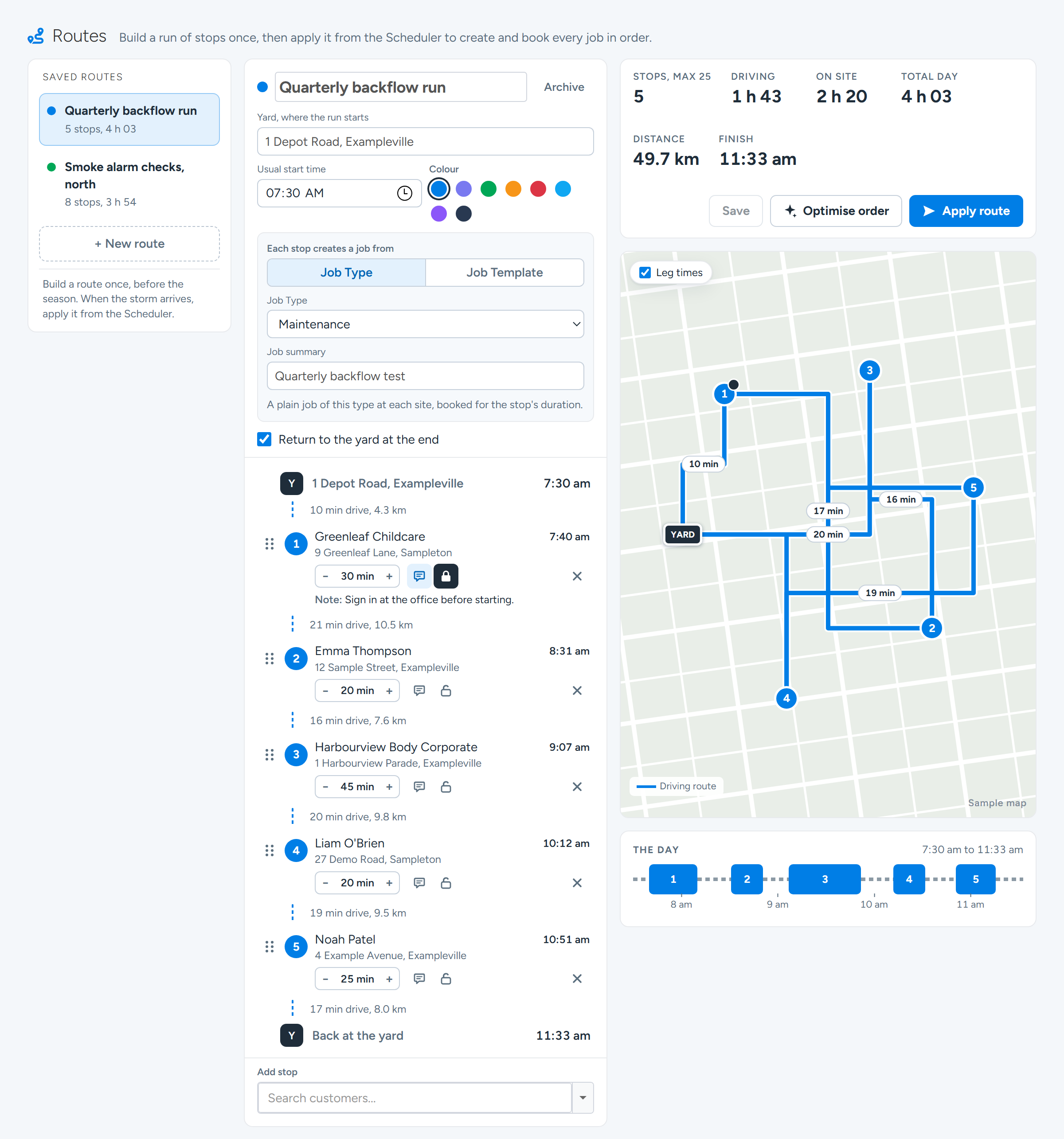
A route of five stops: the run in the middle, the totals for the day, the drive on the map and the day as a timeline. Stop 1 is locked and has a note. Sample data.
What you can do with each stop
- Move it. Drag a stop up or down the list to change the order.
- Add a note. Select the note button on the stop and type a note for the people doing the run. The note is saved on the bookings the route creates for that stop.
- Lock it. Select the lock button to keep the stop at its number. Optimise order then works around it.
- Remove it. Select the cross at the right of the stop. Undo is offered for a few seconds.
- Open the Customer. Select the stop's name to open the Customer in a new tab.
The day at a glance
The bar above the map shows Driving, On site, Total day, Distance and Finish for the route, and how many stops it has. Distance is shown in kilometres or miles to suit your account.
The map shows the yard and each stop as a numbered pin, with the drive between them. Tick Leg times to show the drive time on each leg. The day, under the map, lays the stops out as a timeline from the start time to the finish.
If a stop's address has not been located on the map, the stop says so. It is left out of the driving route and its drive time is not counted until the address is fixed on the Customer.
Find the shortest order
Lock any stop that must stay at its number.
Select Optimise order.
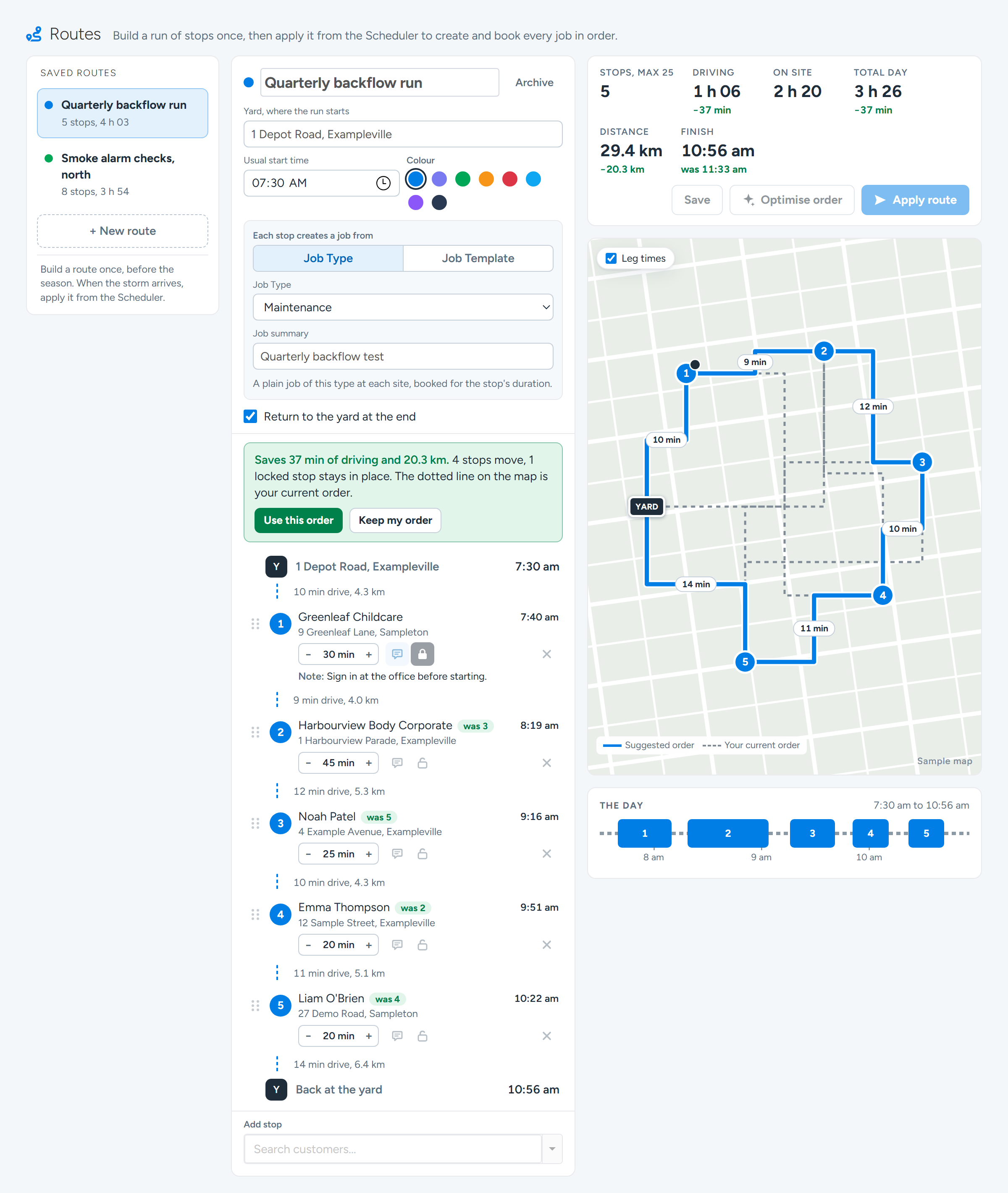
Ascora works out the shortest drive and shows what it would save in driving time and distance. Nothing has changed yet. Each stop that would move shows the number it had, and the map draws the suggested order over your current order, which is shown as a dotted line.
Optimise order shows the saving before anything changes. Each stop shows the number it had, and the dotted line on the map is the current order. Sample data. Select Use this order to take the suggestion, or Keep my order to leave the route as it was.
After Use this order, Undo is offered for a few seconds. If the route is already in the shortest order, Ascora tells you so and nothing changes.
Select Save.
Apply a route from the Scheduler
Go to Scheduler > Scheduler and show the day you want to book.
Select Apply Route at the top right of the Scheduler.
The Apply a route window opens on the day the Scheduler is showing.
Choose the Route, and check the Date and the Start time.
The start time begins as the route's usual start time. A route can be applied from yesterday onwards, up to a year ahead.
Under Who is doing the run, select one or more people.
Add All Users In Group adds everyone in the same Scheduler Group as the first person you chose.
If the roads will be slow, select +15% or +30% under Travel buffer for conditions.
This adds that much to every drive for this run.
Untick any stop you want to skip this time.
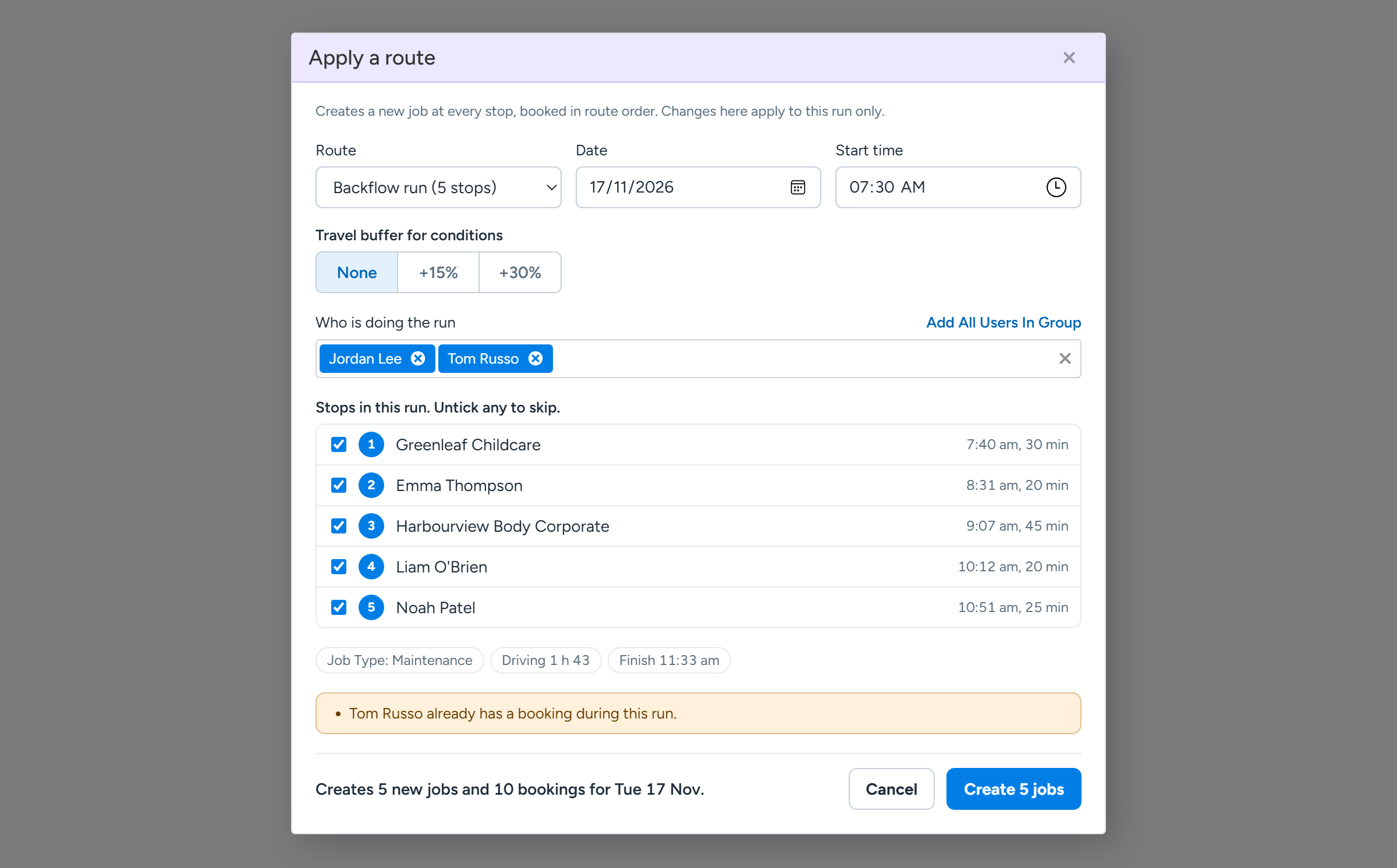
The list shows each stop with its arrival time and its time on site. The window also shows the total driving and the finish time, and tells you if one of the people already has a booking during the run.
Apply a route: the date, the start time, who is doing the run, and what will be created. Sample data. Read the line at the bottom of the window, then select the Create button.
The line says how many jobs and bookings will be created, and the button says how many jobs it will make, for example Create 5 jobs. Ascora makes a new Job at every stop and books each one, in route order, for everyone you chose.
Select View on Scheduler to see the day the run was booked on, or Done to close the window.
The window lists each new job with its job number and times.
Note
Changes you make in the Apply a route window, such as skipped stops, the start time and the travel buffer, apply to that run only. The saved route stays as it is.
If the run cannot be created
When a run cannot go ahead, the window shows This run cannot be created yet. with the reason, and the Create button stays off until it is fixed. This happens when a stop falls outside the restricted working hours of one of the people you chose, or when the route's Job Type or Job Template is no longer available.
A run is created all together or not at all. If any part cannot be saved, no jobs or bookings are created, so there is never half a run to tidy up.
A stop whose Customer has been archived shows Customer archived and is left out of the run. Remove the stop from the route on the Routes page.
Common questions
I cannot see Routes in the Scheduler menu. Why?
Routes is turned on for each account by Ascora. Contact Ascora Support to have it turned on. You also need permission to view Bookings to see the Scheduler menu.
Can I start applying a route from the Routes page?
Yes. Open the route and select Apply route in the bar above the map. If the route has unsaved changes, Ascora asks to save them first. The same Apply a route window opens.
Does applying a route change jobs that already exist?
No. Applying a route always creates new jobs. To find a shorter day for jobs that are already booked, use Optimise Schedule on the Scheduler.
Can I apply the same route twice on one day?
Yes, but each time creates a new set of jobs. If the same run, with the same day, start time, people and stops, is sent again within about a minute, Ascora stops it and asks you to check the Scheduler first.
How do I remove a route I no longer use?
Open the route and select Archive beside its name. It is no longer offered when you apply a route. Jobs already created from it are not changed.