









Guide
When a user says a button is missing or a page says Access Denied, the cause is nearly always a permission on their user. This article lists the usual cases and the permission to check for each.
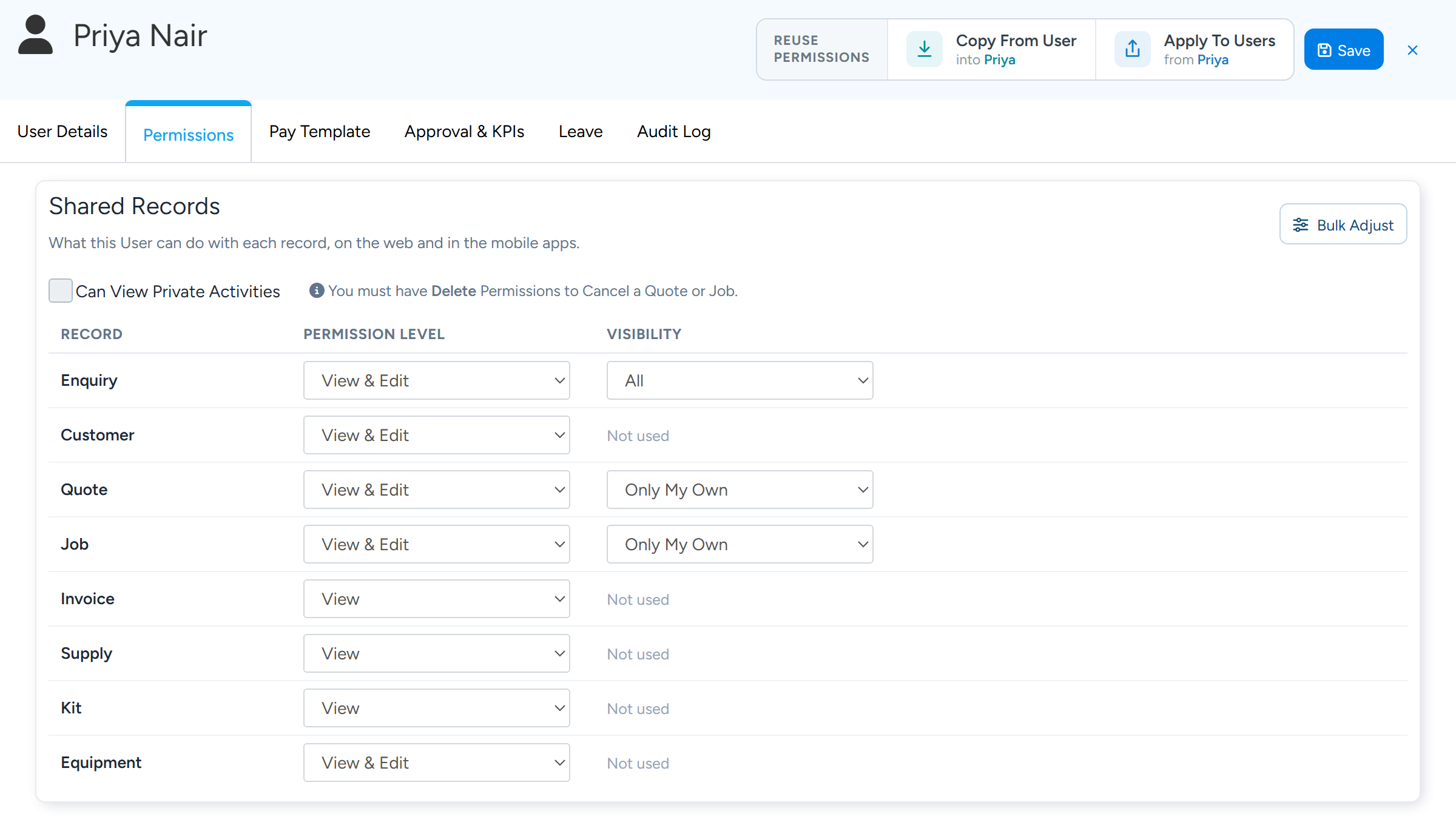
It is for Administrators. Open the user under Administration > Users and go to the Permissions tab.
How the Permissions tab is laid out
Sign-in and Access sets whether the user can sign in to the website and the apps.
Shared Records sets, for each kind of record, a Permission Level (None, View, View & Edit, or View, Edit & Delete) and a Visibility (All, Only My Own, or Anything For My Team). These apply on the website and in the apps.
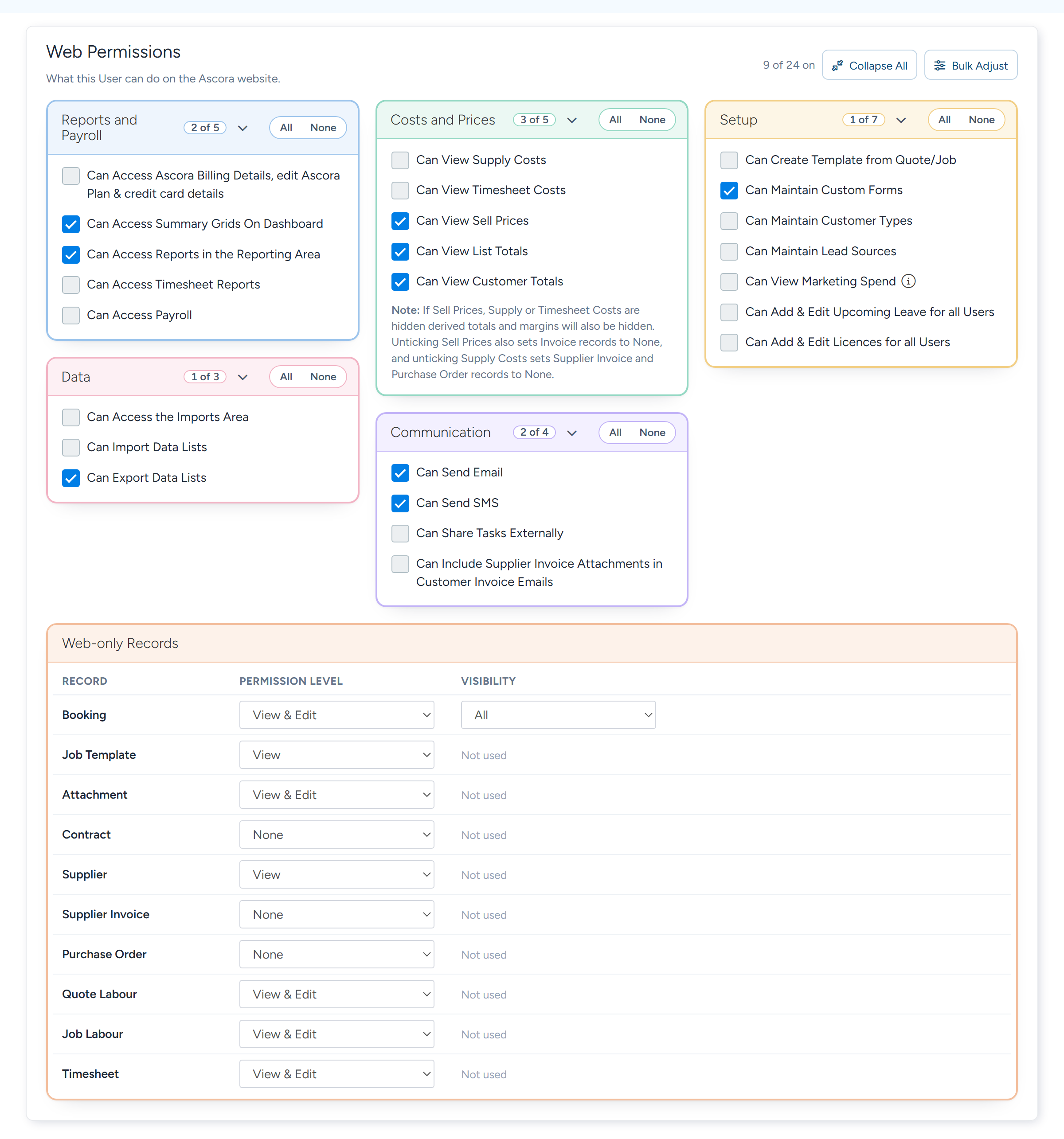
Web Permissions holds tick boxes in cards, and a Web-only Records table for records such as Attachment, Timesheet and Purchase Order.
Mobile App Permissions holds the tick boxes for the apps.
On the website
- No Send Email or Send SMS button on a Job or Quote. The user needs Can Send Email or Can Send SMS (Web Permissions > Communication) and also Can View Sell Prices (Costs and Prices). On Customers, Invoices and Enquiries only the first is needed.
- Access Denied when opening Jobs. The Job row in Shared Records is set to None. Set it to View or higher.
- The Jobs list is empty or short. Check Visibility on the Job row. Only My Own shows only Jobs where the user is the Assigned User; being booked on a Job is not enough. Anything For My Team shows Jobs for the user's team.
- Cannot add or edit a Timesheet on a Job. Needs Job at View & Edit and Timesheet (Web-only Records) at View & Edit. Adding labour needs Job Labour at View & Edit.
- No Attachments tab, or cannot upload. Attachment in Web-only Records: View shows the tab, View & Edit allows uploads, and View, Edit & Delete allows deleting.
- Custom Forms and Completed Forms are missing from the menu. Tick Can Maintain Custom Forms (Web Permissions > Setup).
- Cannot cancel a Quote or Job. Cancelling needs View, Edit & Delete on that record.
- Cannot reopen a completed Job or change its Pricing Method. Both need Job at View & Edit.
In the mobile apps
- Cannot sign in to the app. Check Allow Mobile Access under Sign-in and Access.
- Cannot send an SMS or email. Mobile App Permissions > General: Can send SMS and Can send emails, such as Quote or Invoice emails.
- Cannot add photos or attachments. Quotes & Jobs: Can add or edit Attachments (this includes Job photos).
- Cannot see the Jobs list or other people's bookings. Check Can view the Jobs List, Can view the Schedule of Quotes/Jobs assigned to other Users, Can view the Schedule of all Users regardless of Team, Can View Unscheduled Quotes/Jobs and Can view Past Quotes/Jobs on Schedule.
- Cannot reopen a finished Job. Quotes & Jobs: Can unlock Ready To Invoice or Closed Jobs.
- Cannot change the Pricing Method. Supplies, Prices & Invoicing: Can update the Pricing Method on Quotes/Jobs.
Note
After changing a mobile permission, ask the user to sync the app, or sign out and in again.
A Job will not complete
This is usually a requirement, not a permission. A custom field marked Required must be filled in before the Job will save. A Job Type can list Required Forms that the apps ask for before travel, at check-in or at completion, and a form question can be marked Must Be Filled Out.
Copy permissions from a user who is set up correctly
Open the user who needs the permissions and go to the Permissions tab.
At the top right, under Reuse permissions, select Copy From User.
Choose the user to copy from and select Copy Permissions.
The Web Role, every tick box, every Permission Level and Visibility, and the web and mobile access are copied. Name, email, password, pay rates, team and licences are not.
Select Save.
Tip
To push one user's permissions out to several others, open that user and select Apply To Users, tick the users and select Save & Apply. Bulk Adjust sets many rows or tick boxes at once on the user you have open.