









How to
A Quote can ask for a deposit when your customer accepts it online. You set the deposit as a percentage of the Quote total or as a fixed amount, and choose whether it has to be paid before the customer can accept. A deposit paid online is credited to the Job's first invoice.
This article is for office staff who prepare and send Quotes, and for Administrators who set up payments.
Before you start
- Your user needs permission to edit Quotes.
- To take the deposit by card, a payment gateway must be set up. Go to Administration > Payments & Tax and, in the Real-Time Credit Card Payments box, set Payment Gateway to eWay or Stripe and complete its details.
- Without a payment gateway, your customer still sees the deposit amount on the online quote, but cannot pay it there.
- Your customer pays on the online quote, so the Quote has to be sent to them with a link to it. See the article on online quote viewing and acceptance.
Add a deposit to a Quote
Open the Quote.
Select More in the tab bar, then Options & Deposit.
The tab sits under More unless you have pinned it with Customize tabs.
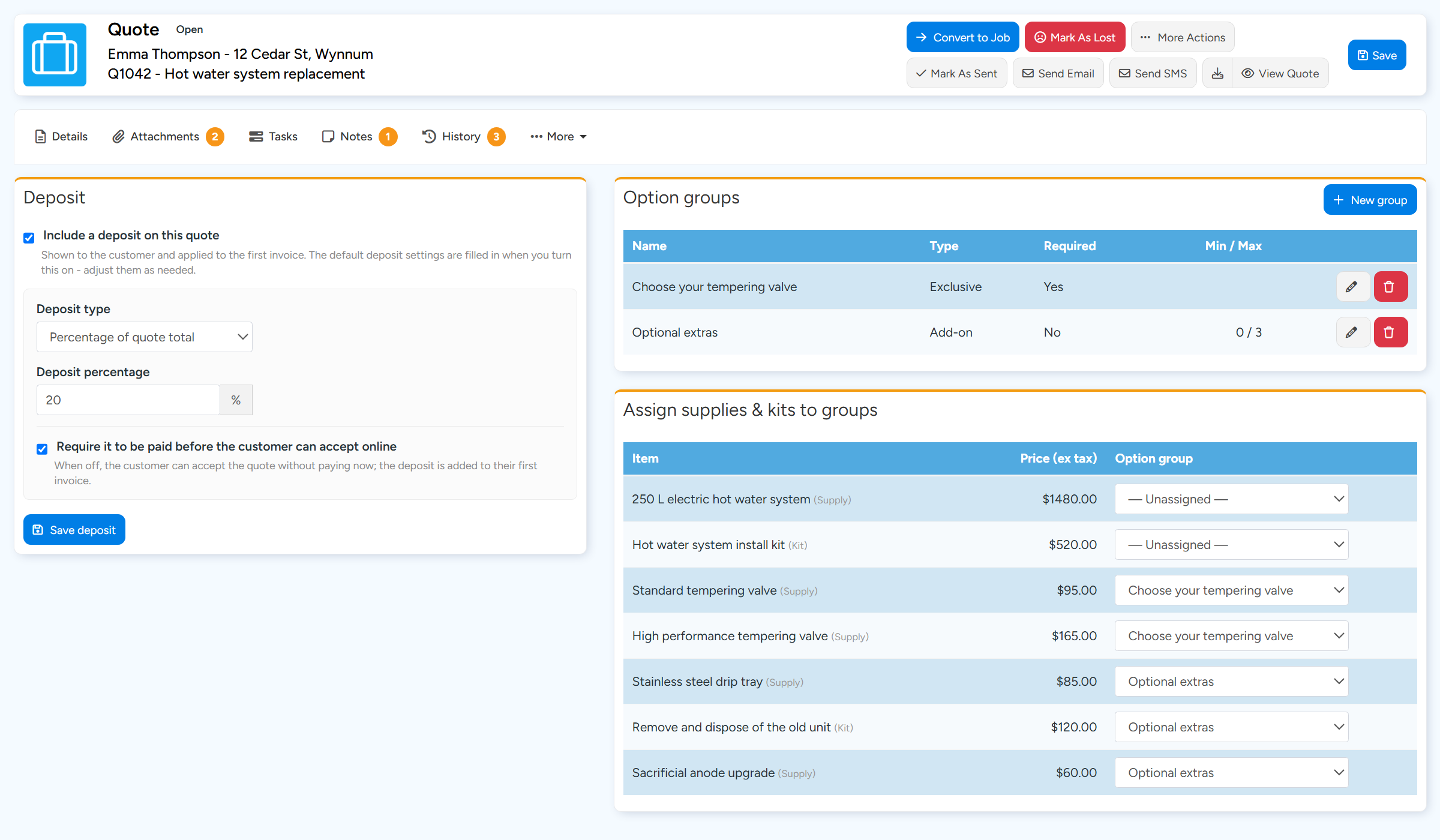
In the Deposit box, tick Include a deposit on this quote.
The deposit fields appear, filled in with your default deposit settings.
The Deposit box on the Options & Deposit tab. Sample data. Choose the Deposit type: Percentage of quote total or Fixed amount.
Type the Deposit percentage, or the Fixed deposit amount.
A percentage is taken of the Quote total including tax. A fixed amount includes tax. The deposit is never more than the Quote total.
Tick Require it to be paid before the customer can accept online if the customer must pay the deposit to accept.
Left unticked, the customer can pay the deposit when they accept, or accept without paying it.
Select Save deposit.
Set your default deposit
Go to Administration > Quotes and open the Online Options & Deposits tab. In the Online Quote Deposits box, set the Deposit Type, the Deposit Percentage (%) or Fixed Deposit Amount (inc tax), and Require it to be paid before the customer can accept online. These values fill the deposit fields when you turn a deposit on for a Quote.
Tick Include a deposit on new Quotes by default to have the default deposit added to Quotes for you. It is added when a Quote is created, and the first time a Quote is sent to the customer if it has no deposit settings yet. Changing the defaults later does not change Quotes that already carry a deposit.
What your customer sees
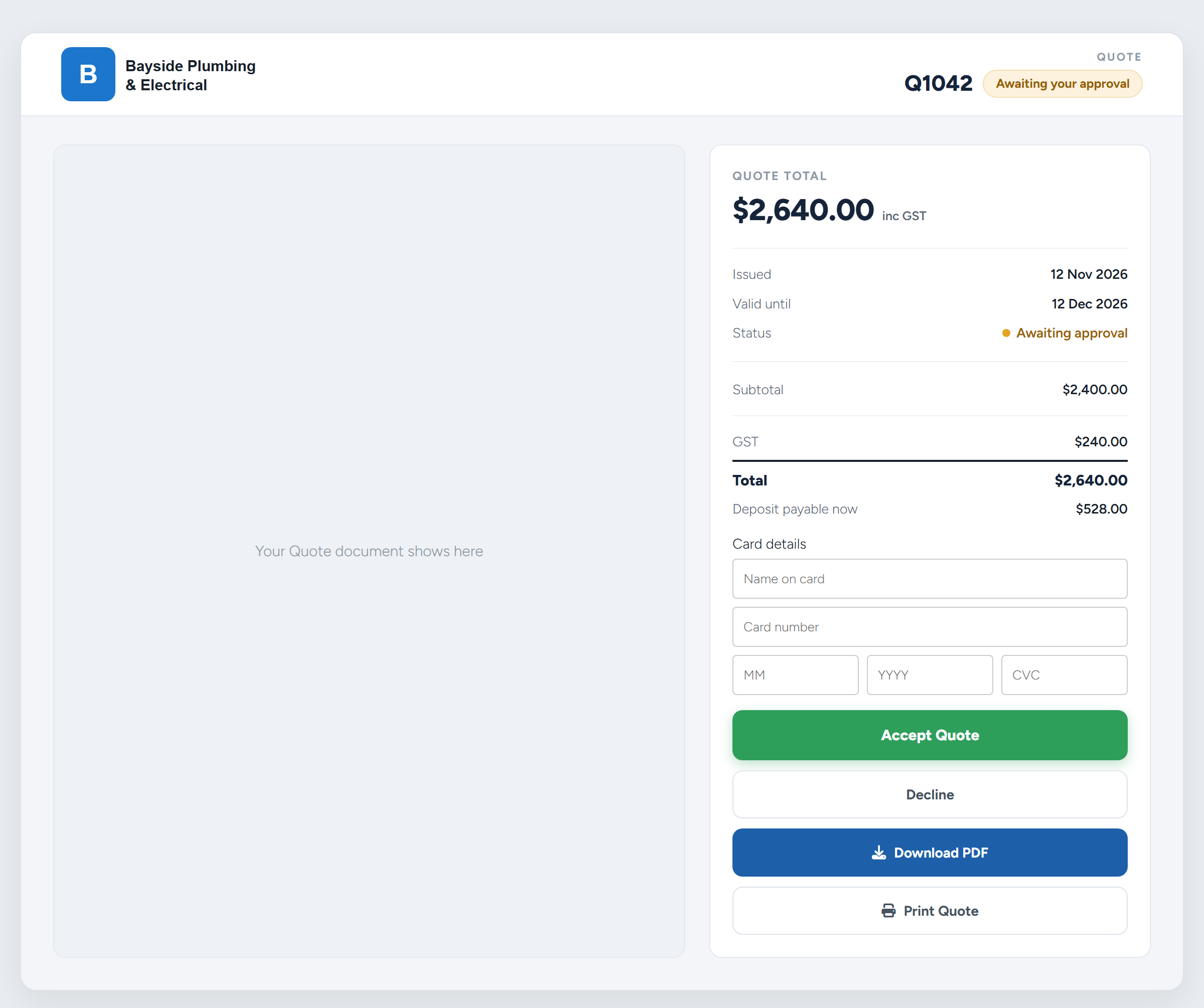
While the Quote is waiting for the customer's decision, the online quote shows the deposit under the Total.
When the deposit must be paid to accept, the line reads Deposit payable now and the Card details fields show. The customer enters their card, selects Accept Quote, then signs and enters their name. The card is charged and the Quote is accepted.
When the deposit does not have to be paid to accept, the customer sees a Pay the deposit now tick box. Ticking it shows the card fields. If they leave it unticked they accept without paying.
If no payment gateway is set up, no card fields show. For a deposit that must be paid to accept, the line reads Deposit required and the page tells the customer they can accept without paying online and should contact you to arrange the deposit payment.
If your credit card payment methods carry a surcharge, the surcharge is shown beside the deposit once the customer starts entering their card, and is charged on top of the deposit.
After the deposit is paid
The user the Quote is assigned to gets a Deposit paid online notification. If the Quote is not assigned to anyone, it goes to the user who created the Quote.
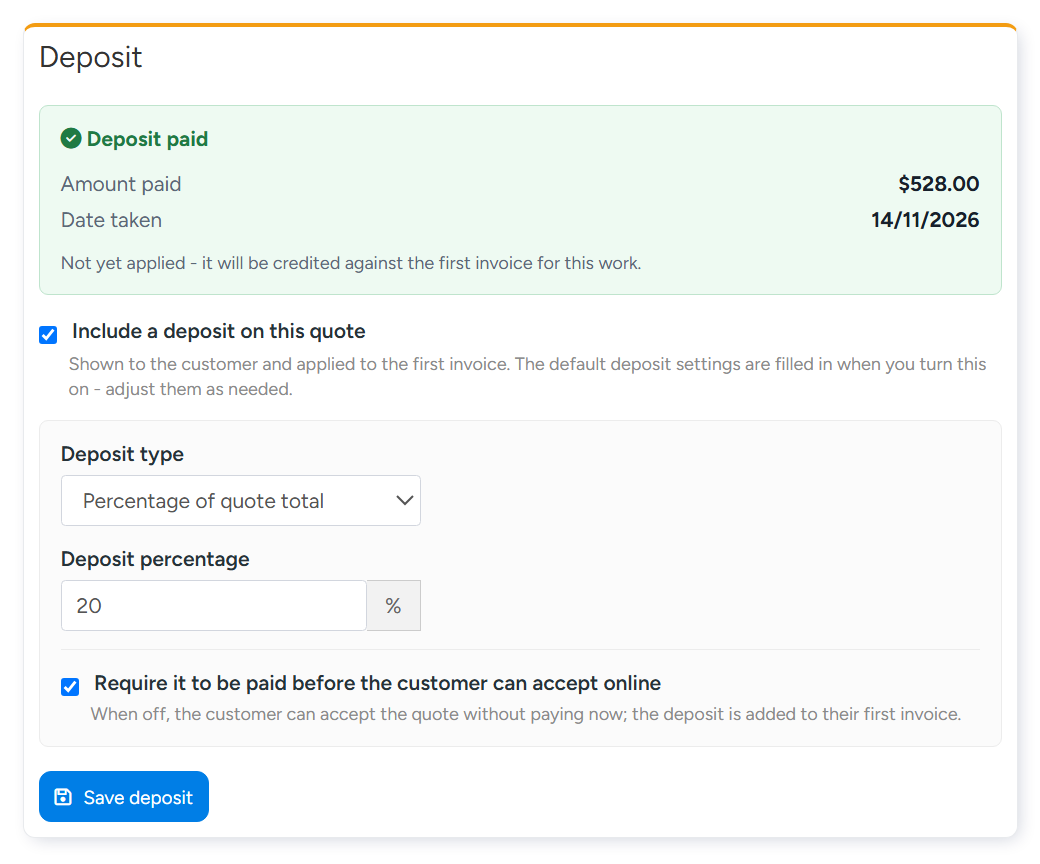
On the Quote's Options & Deposit tab, a green Deposit paid panel shows the Amount paid and the Date taken, with the card and any card surcharge when there is one. Until the deposit has been credited to an invoice, the panel says it is not yet applied.
No invoice is created when the deposit is paid. The deposit is held against the Quote until the work is invoiced.
On the Job and its invoices
After you convert the Quote to a Job, the Job Invoicing Summary shows the deposit as Total Deposit Received.
When you create the Job's first invoice or progress claim, Ascora adds the deposit to it as a payment, with the comment "Deposit paid online at quote acceptance". The balance owing on the invoice goes down by that amount. If the deposit is more than the invoice, the rest is credited to the Job's next invoices until it is used up.
The deposit payment goes to your accounting package in the same way as other invoice payments. Once it has been credited, the Deposit paid panel on the Quote shows Applied to invoice with the amount and date.
Ascora credits a deposit only when it was paid on the online quote. If the customer accepted without paying, no deposit payment is recorded, and the invoice is for the full amount.
Deposits with Option Groups and Tiered Quotes
A percentage deposit is worked out after the customer's choices. On a Quote with Option Groups, it is a percentage of the total including the options they chose, and the deposit line updates as they choose.
On a Tiered Quote, set the deposit on the Tiered Quote itself. The deposit is worked out from the total of the tier the customer chooses.
A fixed amount stays the same whatever the customer chooses, up to the Quote total.
Common questions
Where can I check whether a deposit has been paid?
Open the Quote and go to More > Options & Deposit. A paid deposit shows in the green Deposit paid panel at the top of the Deposit box.
Can I show the deposit on my Quote and Invoice documents?
Yes, with merge fields in your templates. Quote templates have deposit fields such as DepositAmountIncTax and DepositPercentage, and invoice templates have DepositPaid and LessDeposit. See the Document Template User Guide for how merge fields work.
The customer accepted, but I see no deposit. Why?
The deposit was not paid online. This happens when the deposit was not required to accept and the customer did not tick Pay the deposit now, or when no payment gateway is set up.
Does a deposit work on a service agreement proposal?
Yes. A deposit paid on a Quote that becomes a service agreement is credited to the agreement's first invoice.