









How to
Ascora emails an invoice for your subscription each month. Every past invoice is also kept on the Subscription page, where you can open it as a PDF at any time.
This article is for the person who looks after your Ascora account or its bookkeeping.
Before you start
- You need the permission Can Access Ascora Billing Details, edit Ascora Plan & credit card details. An Administrator ticks it on your user, on the Permissions tab under Reports and Payroll.
- Without it, the My Account button and the Subscription page are not shown to you.
View or download an invoice
Select your name at the top right, then My Account.
You can also go to Administration > Subscription. Both open the Subscription page.
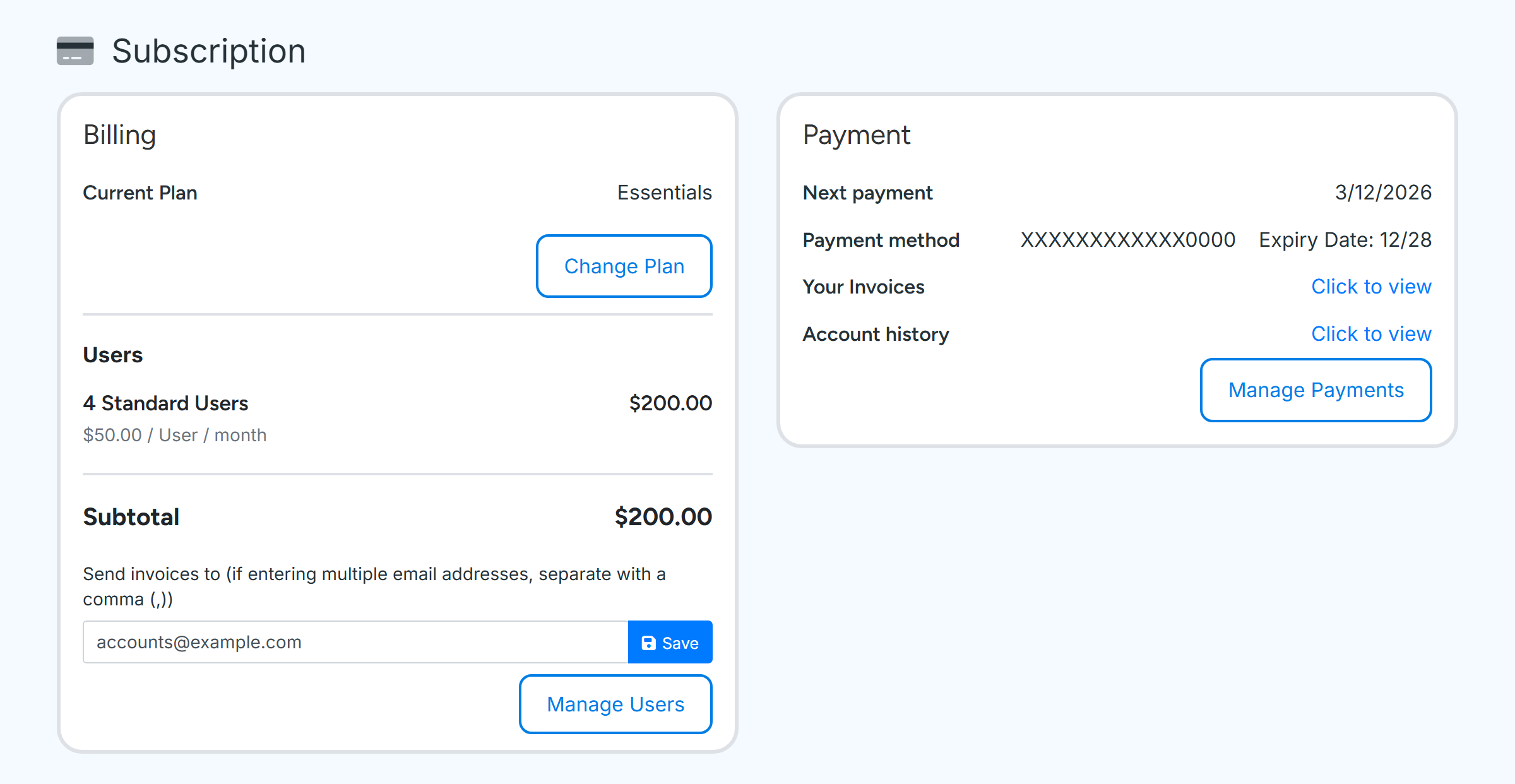
In the Payment card, find Your Invoices and select Click to view.
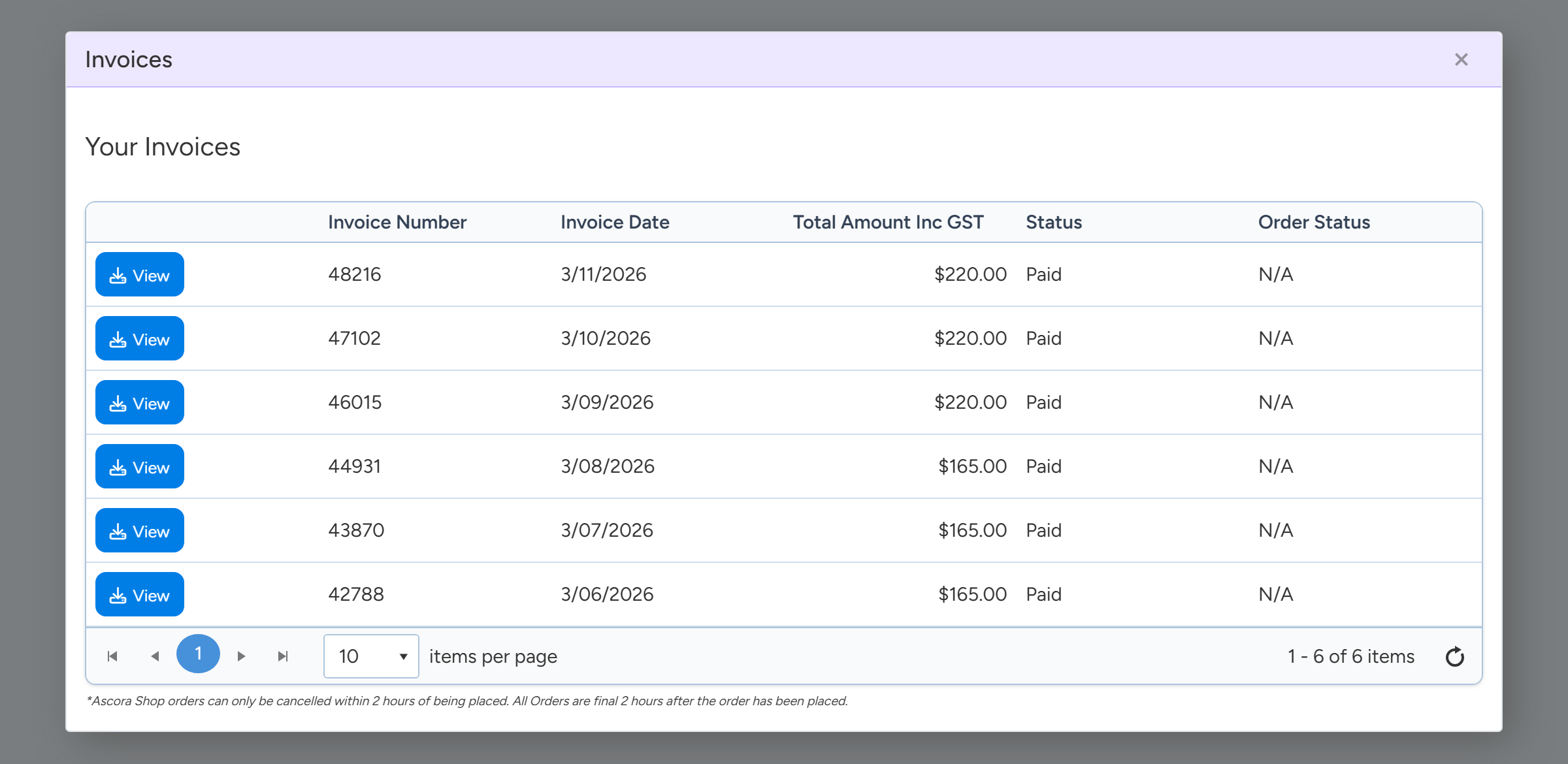
Your Invoices is in the Payment card. The address that receives each monthly invoice is set in the Billing card. Sample data, not Ascora's prices. Select View on the invoice you want.
The invoice opens as a PDF that you can save or print. Invoices are listed newest first, ten to a page. Status shows Paid or Outstanding.
Select View on a row to open that invoice as a PDF. Sample data.
Choose who receives the monthly invoice
On the Subscription page, find Send invoices to in the Billing card.
Type the email address. For several addresses, separate them with commas.
Select Save.
The next monthly invoice goes to these addresses.
Note
If Send invoices to is empty, the invoice is emailed to every user who has the billing permission and web access. If the monthly email is going to someone who has left, enter the right addresses here.
The monthly email
The email has the subject Ascora Monthly Invoice and the invoice attached as a PDF. It is sent when your monthly payment is taken.
If the payment does not go through, an email with the subject Issue Processing Ascora Monthly Invoice goes to the same addresses.
Update your card
On the Subscription page, select Manage Payments in the Payment card.
Enter the new card details and select Update Details.
Note
If your account has been locked for payment, a window opens on every page asking for card details. Any user can enter them there. Enter the card and select Subscribe Now.
Common questions
Can I get all of last year's invoices at once?
There is no bulk download. Open each invoice with View and save the PDF.
Can the invoice go to our accountant as well?
Yes. Add their address to Send invoices to, separated from yours by a comma.
What is Account history?
It is the second Click to view link in the Payment card and opens a history of your invoices.
I cannot see My Account under my name.
Your user does not have the billing permission. Ask an Administrator to tick it.