









How to
Ascora can read supplier invoices from a mailbox and create them as Supplier Invoices for you. When an email does not turn into a Supplier Invoice, the reason is recorded and you can read it.
This article is for office and accounts staff. Changing the mailbox needs an Administrator.
What must be in place
- The mailbox is connected. Under Administration > System Settings > Supplier Invoices from Email, Enable Supplier Invoice Importing is ticked and a mailbox is connected with Connect to Office 365 or Use Own Email Server.
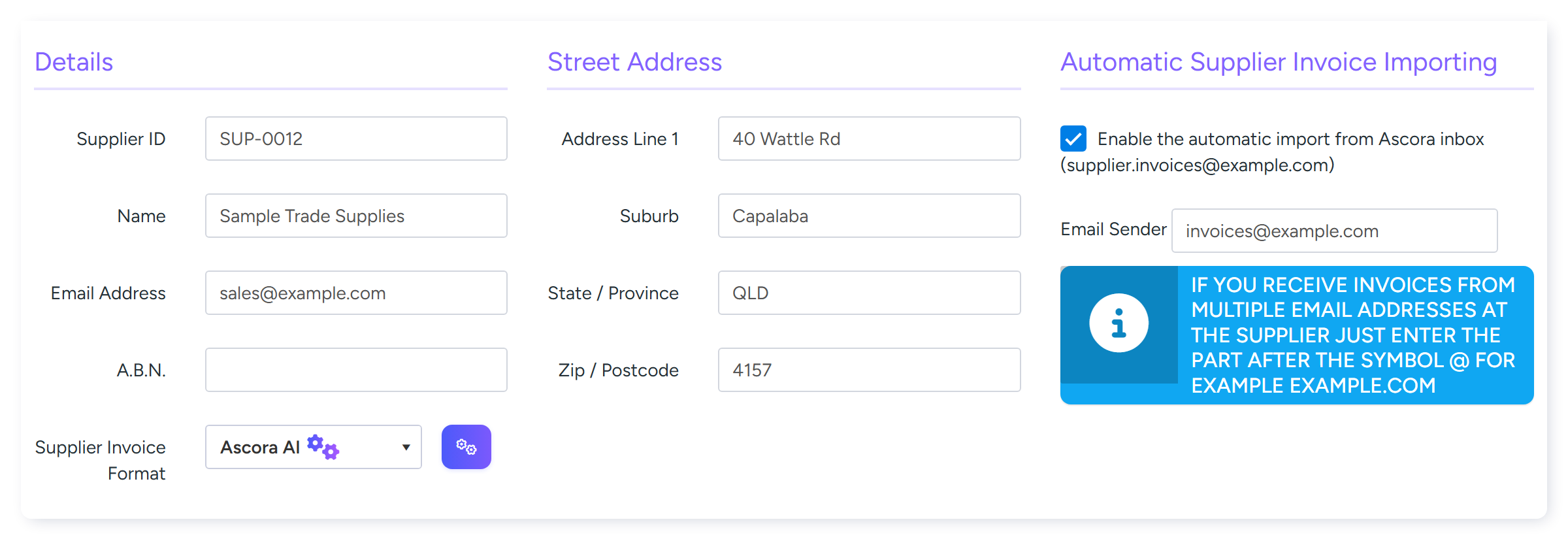
- The Supplier is switched on. On the Supplier's Details, under Automatic Supplier Invoice Importing, the tick box Enable the automatic import from Ascora inbox is ticked.
- Email Sender is filled in on the Supplier, with the address the invoices come from.
- Supplier Invoice Format is chosen on the Supplier, so Ascora knows how to read the file.
Warning
Use a mailbox kept only for supplier invoices. Every email in that mailbox is permanently deleted after each import run, whether or not it was imported.
How an email is matched to a Supplier
Ascora matches on the sender's email address only. It does not use the ABN, the Supplier's name or the account number on the invoice, and it does not use the Supplier's ordinary Email Address field.
Email Sender holds one value. Enter the full address for an exact match, or only the part after the @ to match any address at that supplier. A list of several addresses is not supported.
The email's reply-to address is checked first, then its from address. If you forward a supplier's email to the mailbox yourself, the sender becomes you, and it will not match.
Exactly one Supplier must match. If two Suppliers have the same Email Sender, the email is not imported.
See why an email did not import
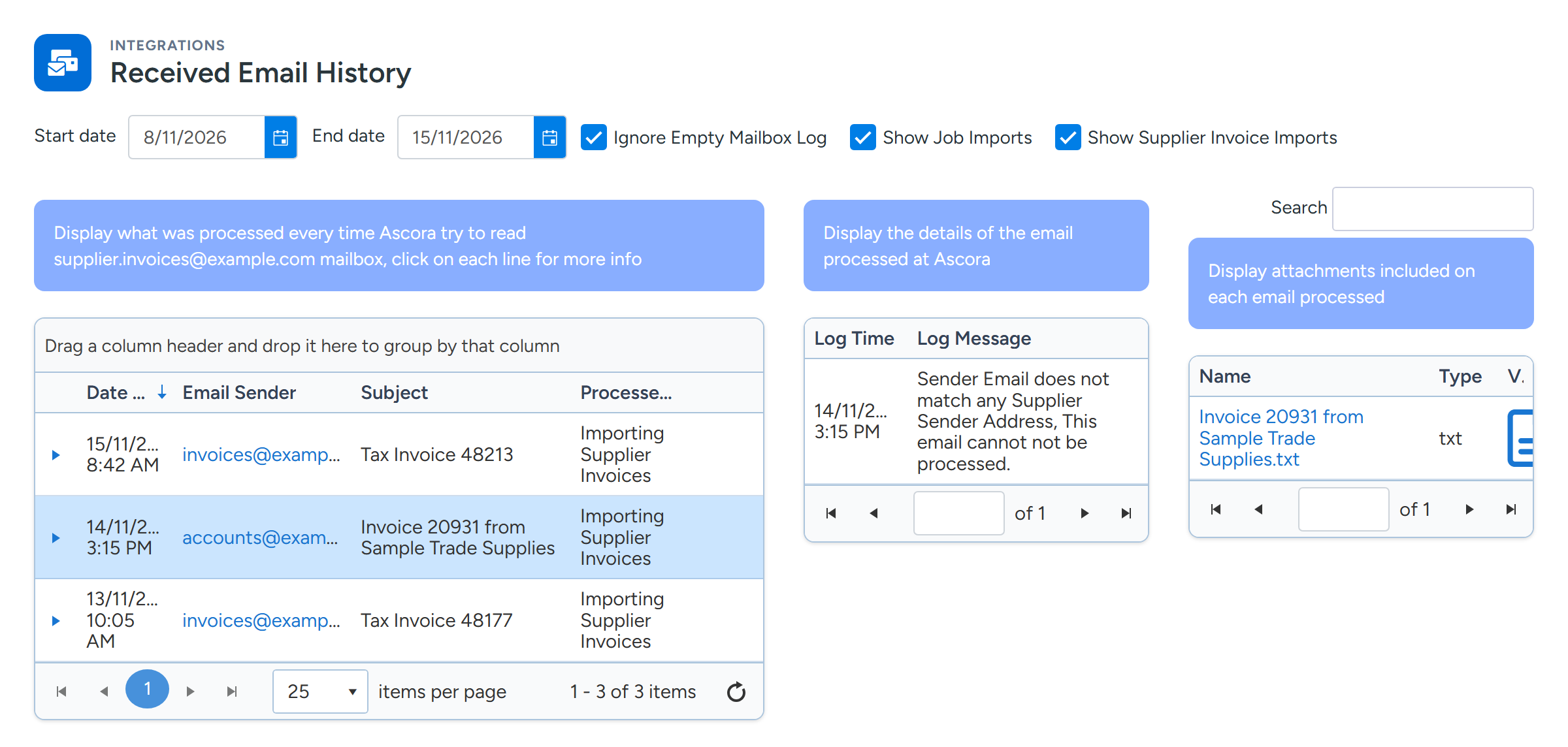
Go to Administration > Integrations > Received Email History.
Set the dates and make sure Show Supplier Invoice Imports is ticked.
Select the email in the list.
Log Message shows what happened to it, and its attachments are listed beside it.
Select an email to see why it was not imported in Log Message. Sample data.
What the log messages mean
- Sender Email does not match any Supplier Sender Address. No Supplier has this address or domain in Email Sender, or the Supplier's import tick box is off.
- Found multiple Supplier Sender Email Address matches. More than one Supplier has the same Email Sender. Change one of them.
- Email has no attachments. The invoice must be attached as a file. An invoice in the body of the email, or behind a link, is not read.
- The received file type doesn't match what Ascora can process. The Supplier Invoice Format chosen on the Supplier cannot read that kind of file, for example a CSV sent to a PDF format.
- The Supplier has no supplier invoice template setting. Choose a Supplier Invoice Format on the Supplier.
- No invoice number could be read from this document. The format could not read the file. Try Ascora AI as the format, or contact Ascora Support with a sample file.
- Duplicate Invoice already exists. That invoice number is already in Ascora for the Supplier.
- Created Supplier Invoice Reference. The import worked. The message links to the Supplier Invoice.
How the invoice is matched to a Purchase Order or Job
Ascora reads the reference or order number on the supplier's document. If it carries your Purchase Order or Job number with its prefix, it is matched to that. A plain number is tried as a Job or as a Purchase Order first, according to Allocate number as Job or PO under Administration > Defaults > Supplier Invoicing, and then as the other.
The Purchase Order must belong to the same Supplier and must not be archived.
When nothing matches, the Supplier Invoice is still created, but it is not allocated. Open it and use Click Here to Allocate PO or Click Here to Allocate Job on its lines. The log message says why no match was found.
Import a supplier invoice yourself
Go to Purchasing > Supplier Invoices and select Import.
Select the Supplier, then how to process the file.
Drag the PDF or CSV file onto the upload area.
One file can hold many invoices.
Choose whether to receive stock into inventory and whether to convert write-ins to Supplies, then select Import.
Common questions
Can I retry an email from Received Email History?
Not for supplier invoices. Fix the cause, then ask the supplier to send it again or import the file yourself.
Can I get the attachment back from an email that did not match?
No. When the sender does not match a Supplier, only the body of the email is kept. Use the original file.
A supplier sends from several addresses. What do I enter?
Enter only the part after the @, so any address at that supplier matches.
Are imported invoices accepted automatically?
That depends on Accept Imported Supplier Invoice under Administration > Defaults, which can be No, Yes, or only when a Job is allocated or the lines match.
Which file types can be read?
PDF, CSV, TXT and XLSX attachments, depending on the Supplier Invoice Format chosen.