









How to
An Option Group is a set of supplies or kits on a Quote that your customer chooses from when they view the Quote online. Use one to offer a choice between alternatives, such as two models of the same product, or a list of extras they can add. The total updates as they choose, and only what they chose goes onto the Job.
Before you start
- Your user needs permission to edit Quotes.
- Add the supplies and kits you want to offer to the Quote first, on the Supplies & Labour tab. Labour cannot be put in an Option Group.
- Your customer chooses on the online quote, so the Quote has to be sent to them with a link to it. See the article on online quote viewing and acceptance.
Create an Option Group
Open the Quote.
Select the Options & Deposit tab.
If you cannot see it in the tab bar, select More first. You can pin it to the tab bar with More > Customize tabs.
In the Option groups box, select New group.
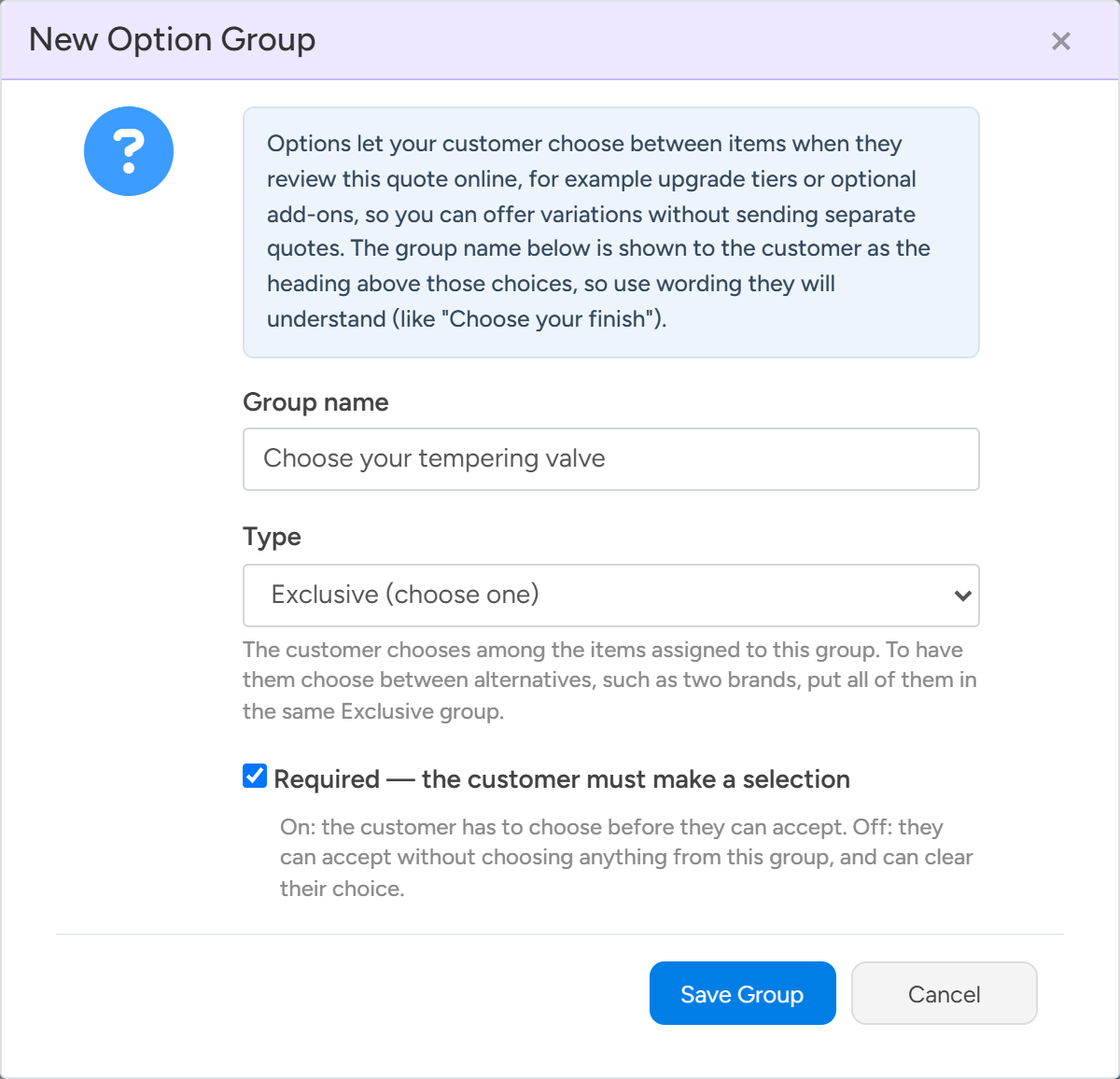
Type a Group name.
Your customer sees this name as the heading above the choices, so use words they will understand, such as "Choose your finish".
The New Option Group window. The group name is the heading your customer sees. Sample data. Choose the Type.
Exclusive (choose one) lets the customer pick one item from the group. Add-on (choose many) lets them tick any number of items.
Tick Required if the customer must pick one item from an Exclusive group before they can accept.
Left unticked, the customer can accept without choosing anything from the group.
For an Add-on group, type the Min selections and Max selections if you want to limit how many items the customer can tick.
Both are optional. A minimum of 1 or more means the customer has to tick at least that many before they can accept.
Select Save Group.
Put items in the group
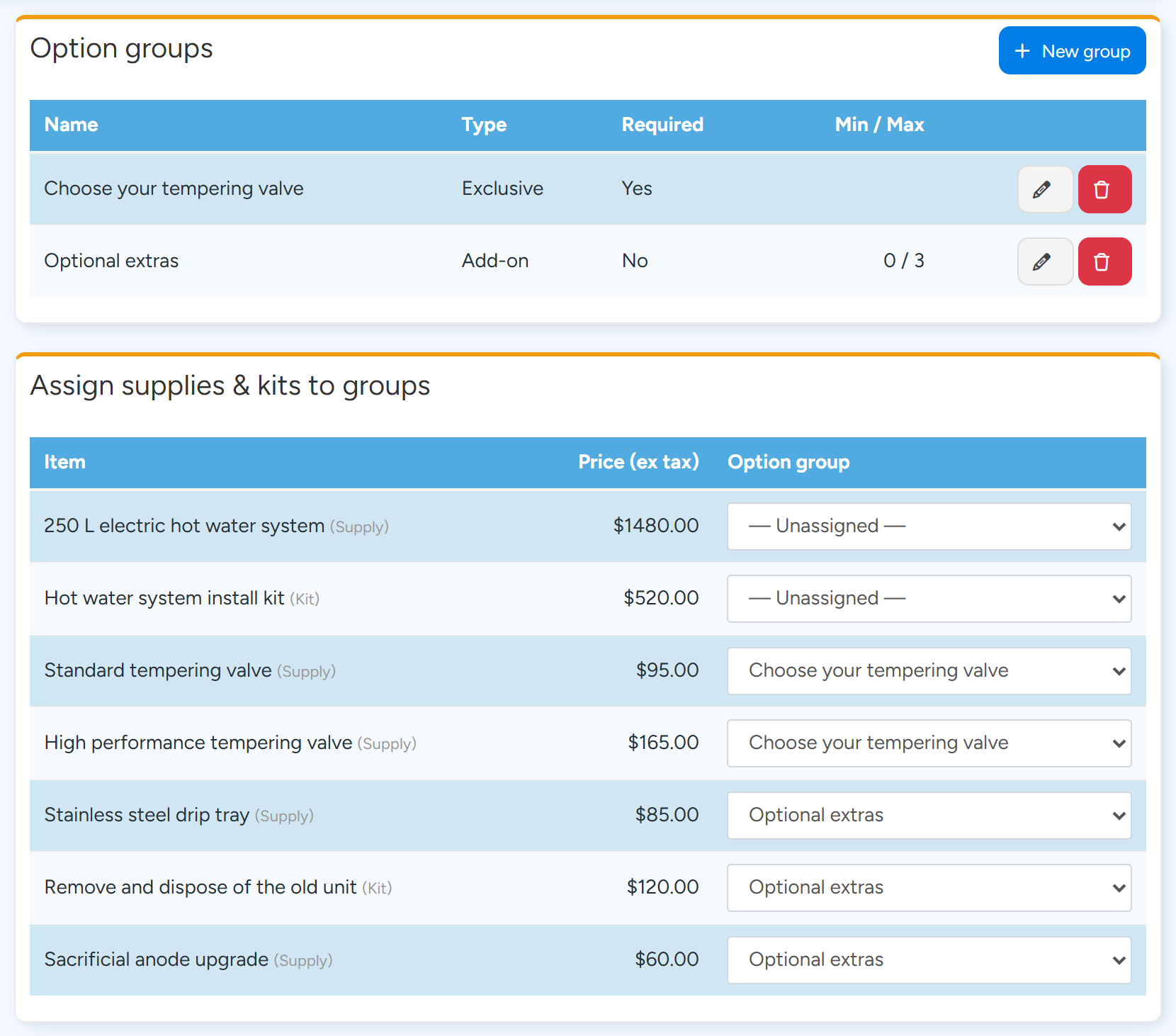
On the Options & Deposit tab, find the item in the Assign supplies & kits to groups box.
The box lists the supplies and kits on the Quote, in the order of the Supplies & Labour tab.
Each supply or kit is put in a group from its Option group list. Sample data. Choose the group in the Option group list on that row.
The change saves straight away. The item becomes optional, so it is left out of the Quote total until the customer chooses it.
Repeat for each item you want to offer in a group.
To take an item out of a group, choose Unassigned on its row.
Tip
To have the customer choose between alternatives, put all of them in the same Exclusive (choose one) group. An Exclusive group with only one item shows a warning on the tab, because the customer can only take that item or leave it.
Set the group from the Supplies & Labour tab
You can also set an item's group on the Supplies & Labour tab. Change the item's Optional column to Yes, then choose a group in the Group column. + New group... in that list creates a group and puts the item in it.
An item marked Optional with no group is still offered to the customer online, as a single tick box of its own.
What your customer sees
While the Quote is waiting for the customer's decision, the online quote lists each group under its name, with each item's description and price. In an Exclusive group the customer picks one item. In an Add-on group they tick the items they want. A Required Exclusive group has an asterisk after its name.
An Exclusive group that is not Required shows the line "Optional. Choose one, or choose it again to clear it.", and a group like that with a single item shows as a tick box.
Each time the customer changes a choice, the Subtotal, tax and Total update. The line Optional extras included shows the value of what they have added. Any deposit set as a percentage follows the new total.
If the customer selects Accept Quote before making a required choice, the group is highlighted and they are asked to choose, for example "Please choose one option for" followed by the group name. They then sign and enter their name as on any online quote. Once the Quote is accepted, the choices can no longer be changed online.
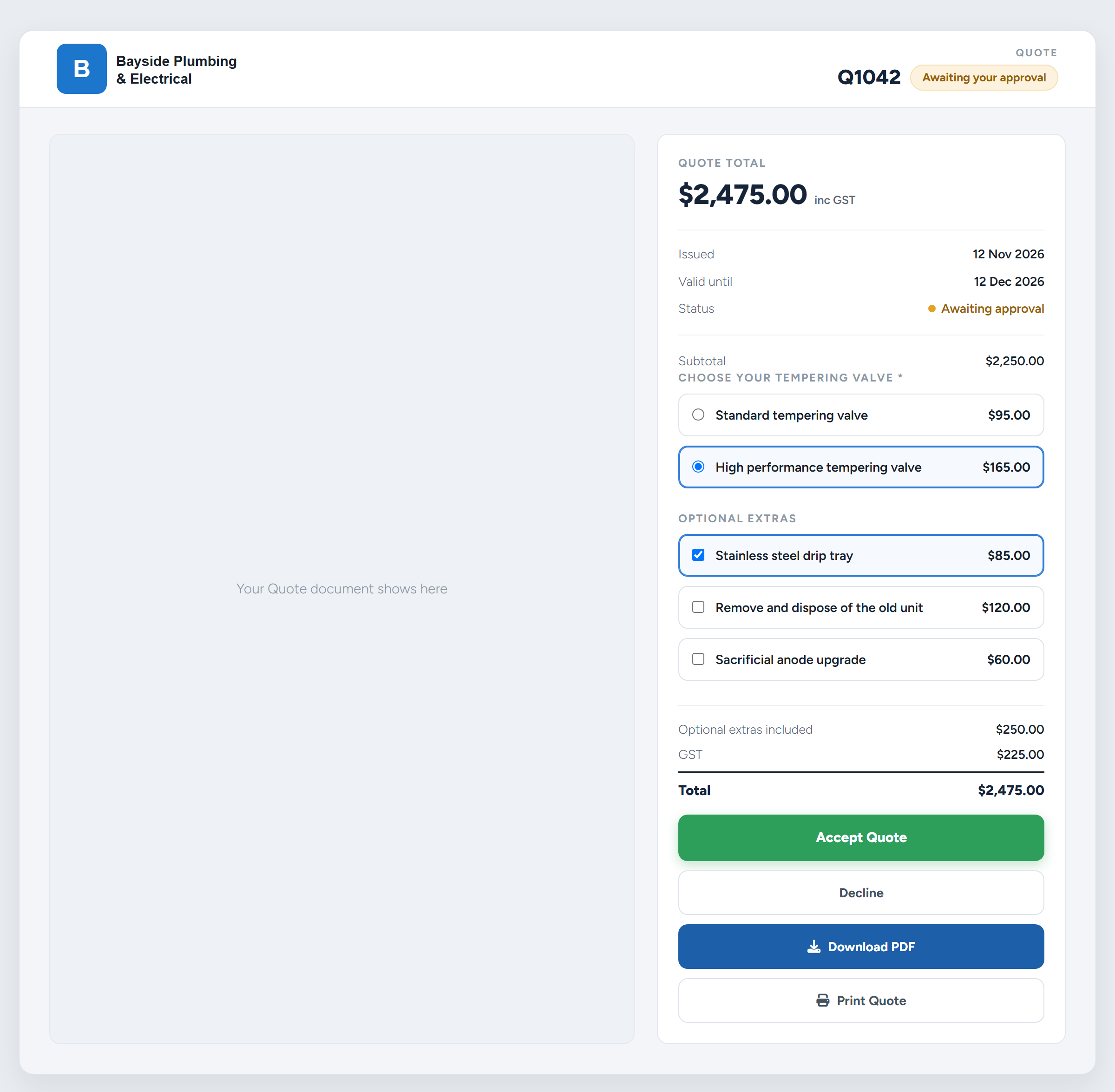
How the online options look
Two settings control how each option is shown. Go to Administration > Platform > Quotes and open the Online Options & Deposits tab. In the Online Quote Options box, tick Show item images next to the options to show each item's image, and Show item annotations under the options to show its annotation under its name.
After the customer chooses
On the Supplies & Labour tab, an item the customer chose shows Chosen online in the Optional column and is included in the Quote total. Items they did not choose stay on the Quote as optional and are not in the total.
When you select Convert to Job, the items that are not optional and the options the customer chose go onto the Job. Options that were not chosen stay on the Quote and are left off the Job.
Option Groups on the Quote document
A Quote document lists Option Groups only when its template includes the Option Group tables. The tables print each group with its name and rule, and each option with its price and a mark against the ones chosen. The Document Fields guide lists the tables and their fields.
On a template without those tables, optional items print wherever the template shows optional supplies. See the article on adding optional items to a Quote.
Option Groups on a Tiered Quote
Each tier of a Tiered Quote opens as a quote of its own, with its own Options & Deposit tab. Set up a tier's Option Groups there. Online, your customer is offered the options of the tier they choose and no other tier's.
Common questions
Can I change or remove a group?
Yes. On the Options & Deposit tab, select the pencil button on the group's row to edit it, or the bin button to remove it. Removing a group takes its items out of the group. The items stay on the Quote.
Why did the Quote total drop when I put an item in a group?
An item in a group is optional, and optional items are not counted in the Quote total until the customer chooses them.
Can I put labour in an Option Group?
No. The Assign supplies & kits to groups box lists supplies and kits only. To offer labour as part of a choice, include it in a kit.
What happens to the groups when I duplicate the Quote?
The copy keeps the groups and their items. Any choices the customer made on the original are cleared on the copy.