









How to
You enter your business name, registration numbers and bank details once, in Company Details. Document templates then print them through fields. When a change in Company Details does not appear on an Invoice, the cause is almost always the template. This article is for Administrators and accounts staff.
Enter or change your details
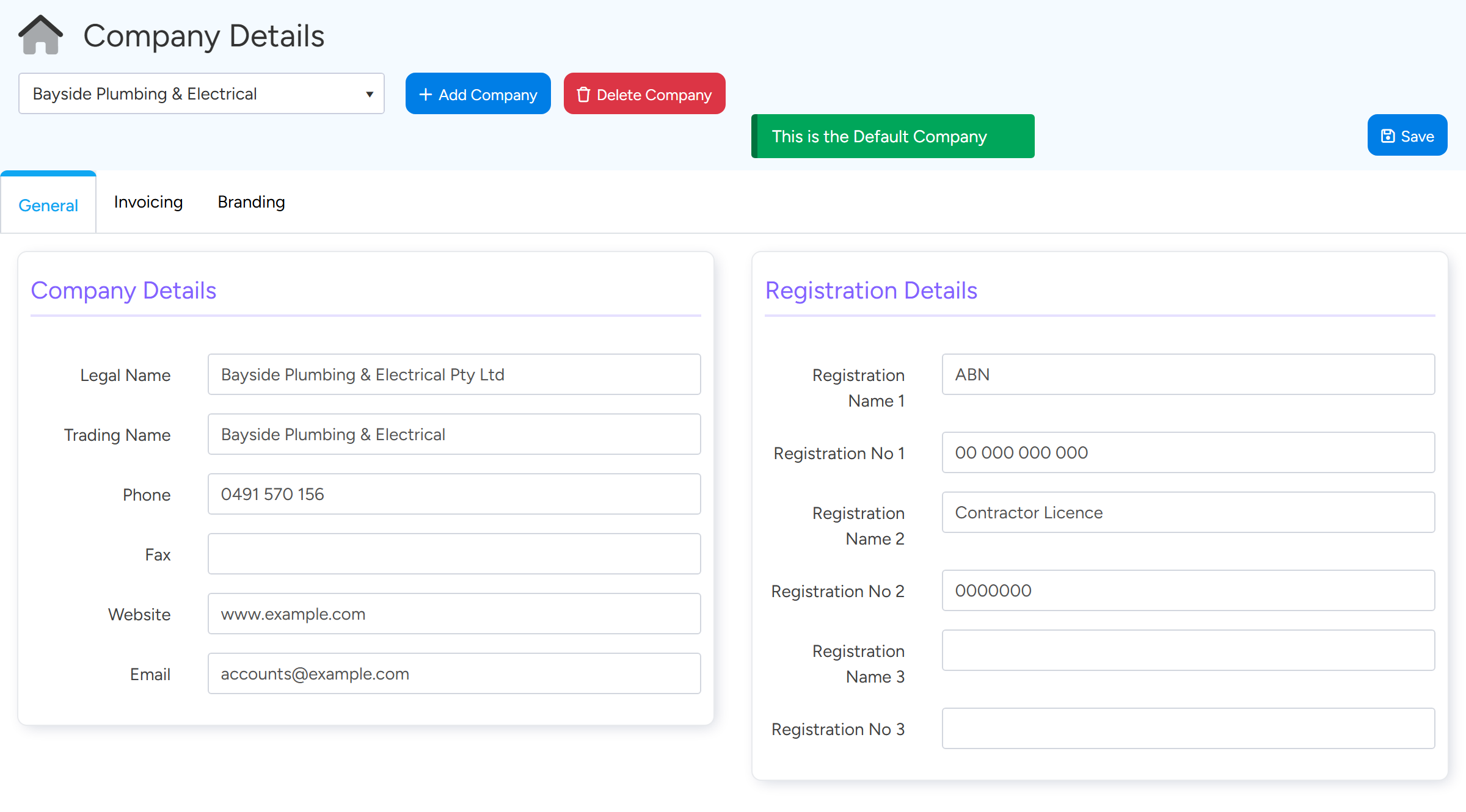
Go to Administration > Company Settings > Company Details.
If you have more than one company, choose it in the list at the top first.
On the General tab, check Legal Name, Trading Name, Phone, Email and the addresses.
Under Registration Details, type the label in Registration Name 1 (for example EIN or ABN) and its related number in Registration No 1.
There are three pairs, for numbers such as a contractor license.
Registration Name 1 and Registration No 1 hold the label and number that print on documents. Sample data. Select the Invoicing tab.
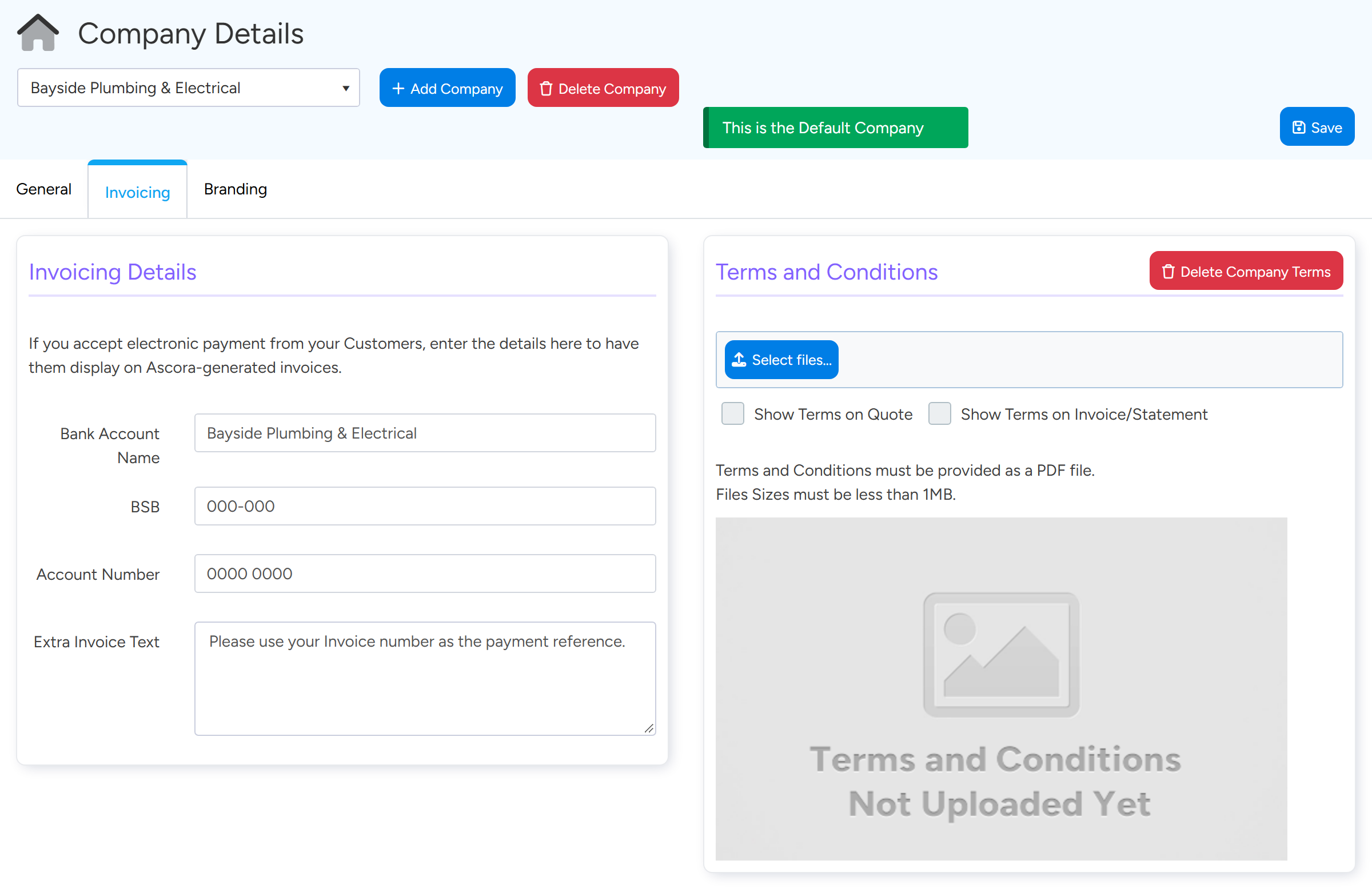
Enter Bank Account Name, BSB and Account Number.
Extra Invoice Text is a free line that templates can print, for example how to reference a payment.
Bank details entered here print wherever a template uses the bank account fields. Sample data. Select Save.
The fields that print them
- Trading Name:
CompanyName. Legal Name:CompanyLegalName. - Phone, email and website:
CompanyPhone,CompanyEmail,CompanyWebsite. - Registration label and number:
CompanyReg1NameandCompanyReg1, and the same with 2 and 3. - Bank details:
BankAccountName,BankAccountBSBandBankAccountNumber. - Extra Invoice Text:
ExtraInvoiceText.
If a change does not show on the Invoice
- The details are typed into the template. Download the template from Administration > Templates > Document Templates and look at the footer. If it shows a typed account number in place of the fields above, the Invoice will not follow Company Details. Replace the typed text with the fields, or correct the text, and upload the template again.
- The Invoice uses a different template from the one you checked. On the Invoice, Invoice Template under Details shows the template it prints with. A Customer can have its own default (the Default Templates button on the Customer), and the account default is under Administration > Platform > Invoices, in Default Document Templates.
- The Invoice belongs to another company. With more than one company, an Invoice prints the details of its own company, shown in the greyed Company field on the Invoice. Check you changed the right company.
- The template has no bank fields at all. Add them where you want them to print.
Tip
The Invoicing tab also holds your Terms and Conditions PDF, with tickboxes to show it on Quotes and on Invoices and Statements. The Branding tab holds your logo.
Common questions
Do I need to change every template when our bank account changes?
No, provided the templates use the bank fields. Change Company Details once. Only templates with the number typed in need editing.
Can each of our companies have its own bank details and logo?
Yes. Each company in the Company Details list has its own General, Invoicing and Branding tabs.
Do Statements use the same details?
Yes. A Statement takes its address and bank details from the company's record.