









How to
Ascora can read a mailbox and turn each email into a Job or a Quote. This suits work orders that arrive by email from a property manager, an insurer or a builder.
This article is for Administrators setting it up and office staff checking why an email was not imported.
Warning
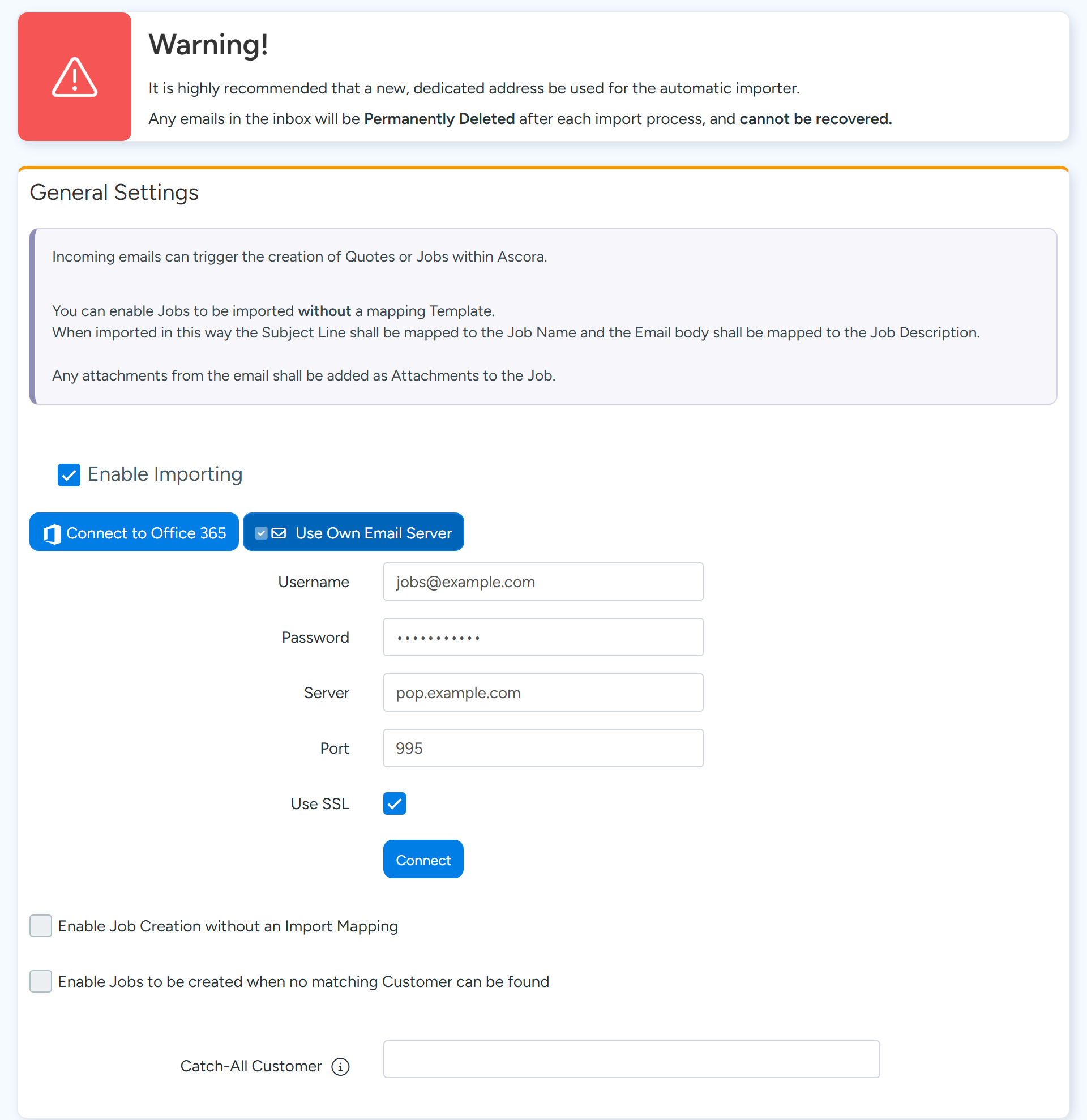
Use a new mailbox kept only for this. Every email in its inbox is permanently deleted after each import run, whether or not it became a Job, and cannot be recovered.
Connect the mailbox
Go to Administration > Integrations & API > Job Import from Email.
Import from Email on the Jobs and Quotes lists opens the same page.
Tick Enable Importing.
Select Connect to Office 365, or Use Own Email Server and enter the mailbox details.
Your own server must offer POP3, usually on port 995 with SSL. IMAP is not supported, and there is no Gmail option.
Use a dedicated mailbox: every email in its inbox is deleted after each import. Sample data. Select Connect, tick the box confirming the address has nothing else in it, and select Proceed.
Two ways an email becomes a Job
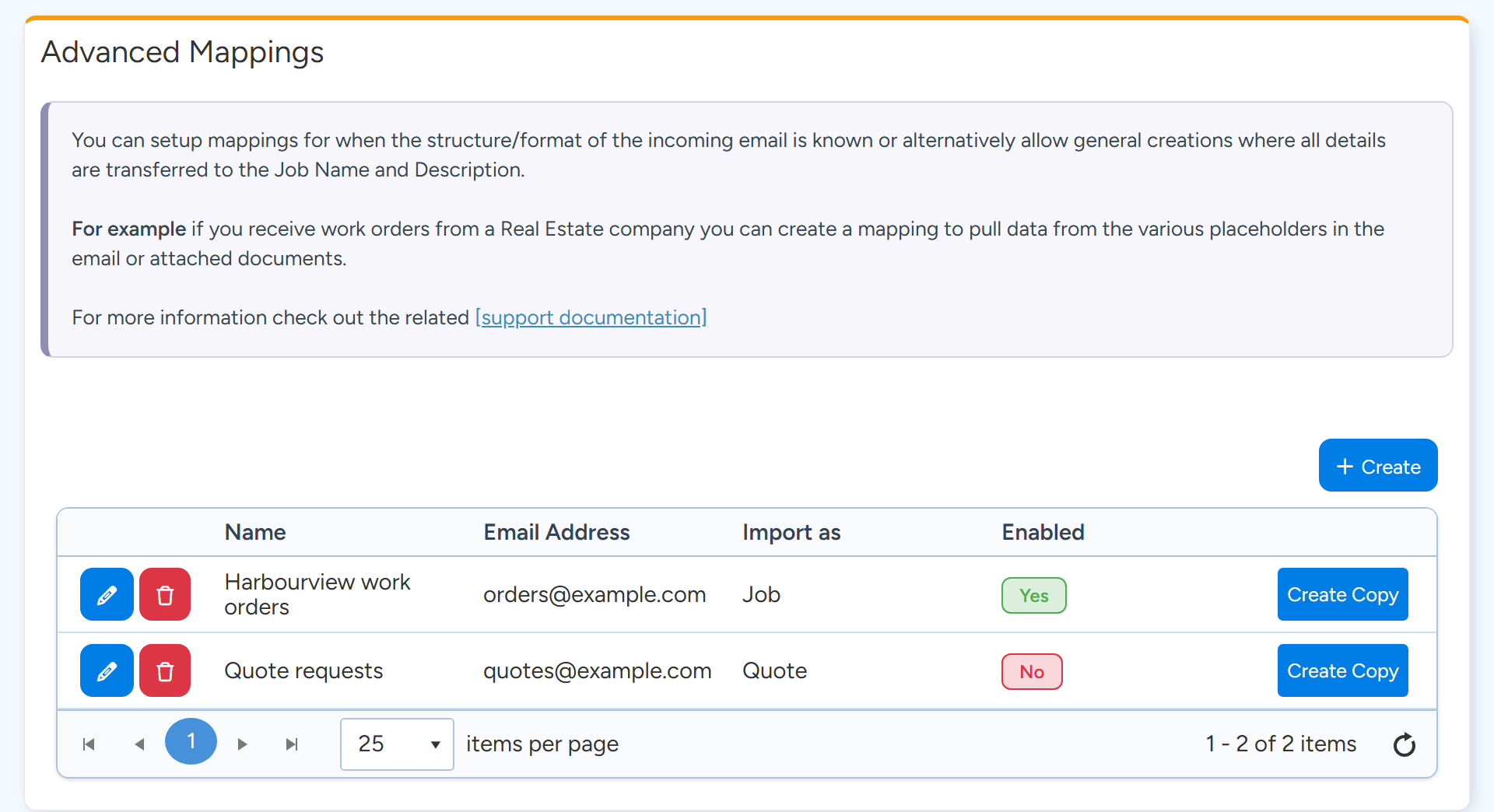
With an import format. A format tells Ascora where to find the customer, address, order number and other details in the email or its attachment. Formats are listed under Advanced Mappings. Use Create to add one, and Create Copy to start from an existing one.
Without a format. Tick Enable Job Creation without an Import Mapping. The subject becomes the Job Name, the body becomes the Description, and attachments are added to the Job.
How an email is matched to a format
- By the sender's address. The format's Email Address must be the exact address the emails come from, or only the domain (the part after the @) to match anyone at that sender.
- The reply-to address is checked before the from address. An email you forward yourself comes from you, not from the original sender.
- Only one enabled format is used for each sender address.
- Import As on the format sets whether the email becomes a Job, a Quotation, or either, decided by a keyword in the subject or document.
- Import Priority sets whether the attachment or the email body is read first.
How the customer is found
- With a format, the customer named in the email is matched exactly on company name, or on first and last name. If Site Customer Based On Address is ticked, the site address is matched instead.
- If no match is found, a customer can be created or the format's own Customer is used.
- Without a format, the sender's address is matched to a Contact, then to a Customer. If neither matches, the Catch-All Customer is used, when one is set and Enable Jobs to be created when no matching Customer can be found is ticked.
- An imported Job needs a site customer, a billing customer and a first address line. If the format cannot find them, the email is not imported.
See why an email was not imported
Go to Administration > Integrations & API > Received Email History.
Set the dates and tick Show Job Imports.
Select the email to read its Log Message.
For example: the sender does not match any Job import format, no site customer was found, or an attachment could not be read because it is damaged or password protected.
Fix the cause, then select Retry on the row.
Retry is offered on Job import emails that were processed but not imported.
Duplicates
On a format, tick Has To Be Unique on the Purchase Order Number or Client Order Number row. When an email arrives with a number already on a Job, no second Job is made. The email and its attachments are added to the existing Job or Quote.
Common questions
How long does an email take to import?
The mailbox is checked every few minutes, and up to 10 emails are imported on each check. A large backlog takes several checks.
Which attachments can be read for details?
PDF, text and HTML attachments. Other attachments are added to the Job without being read.
Can I be told when a Job is created?
Yes. Use the Notifications box on the Job Import from Email page, which has settings for Job creation and Quote creation.
Can an email create an Enquiry?
No. An imported email becomes a Job or a Quote.
The mailbox row says Authentication Error or Could not connect to mailbox.
The mailbox password or connection has changed. Connect the mailbox again on the Job Import from Email page.