









🔍 Creating Follow Ups for Completed Jobs
Automated follow-ups in Ascora help you stay engaged with your clients by sending timely reminders about outstanding quotes. This guide explains how to set up a follow-up process for quotes using the Follow Ups (Auto) feature in Ascora. You can choose to send follow-up notifications via email or SMS, and use automatic fields to dynamically populate relevant quote details. Follow the steps below to create, configure, and save your automated follow-up reminders.
📽 Watch the video guide ⤵
1. Go to Administration → Follow Ups
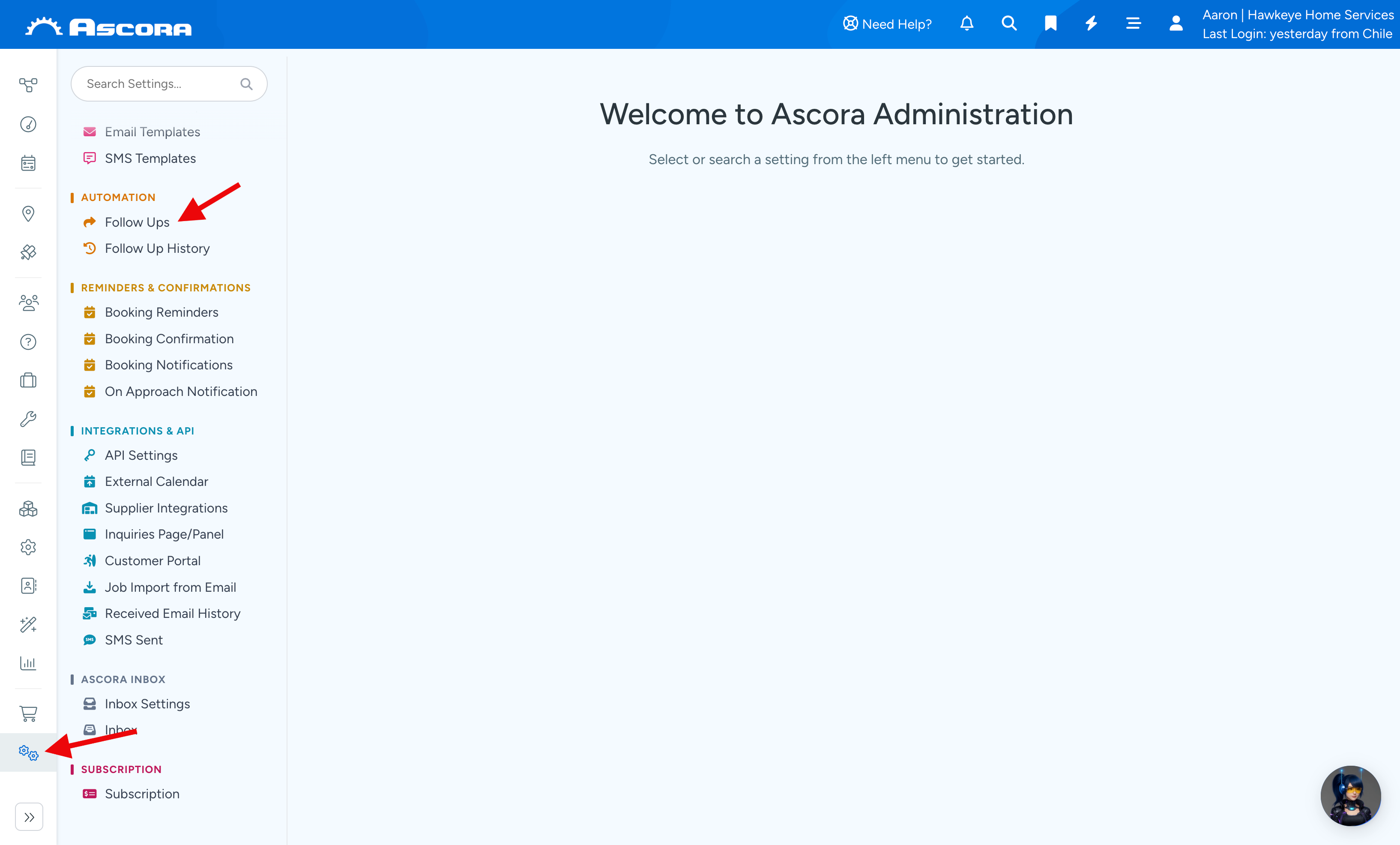
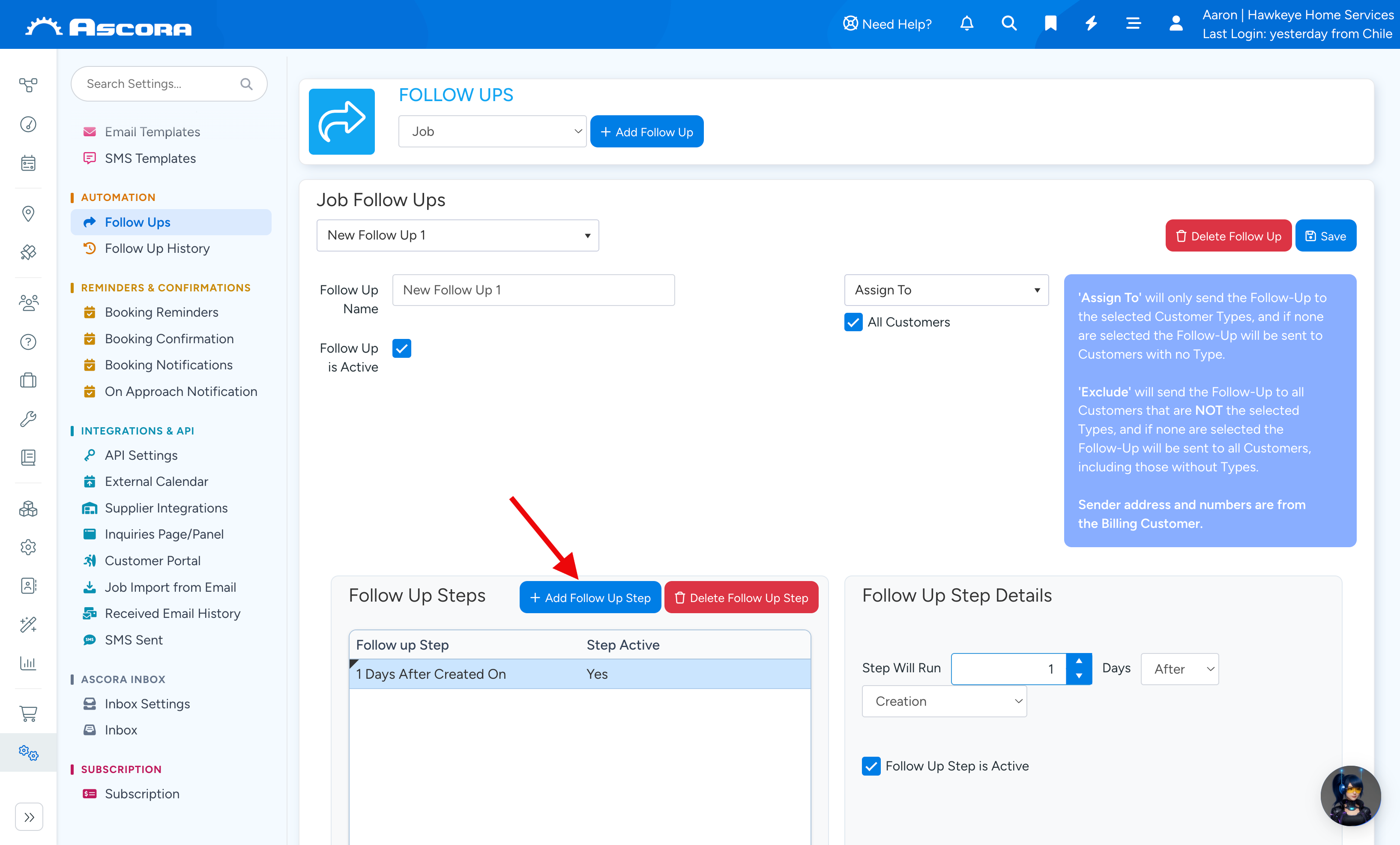
2. Select Job from the drop down list and click + Add Follow Up then tick the box beside Follow Up is Active and select your specific customer or select All Customers.
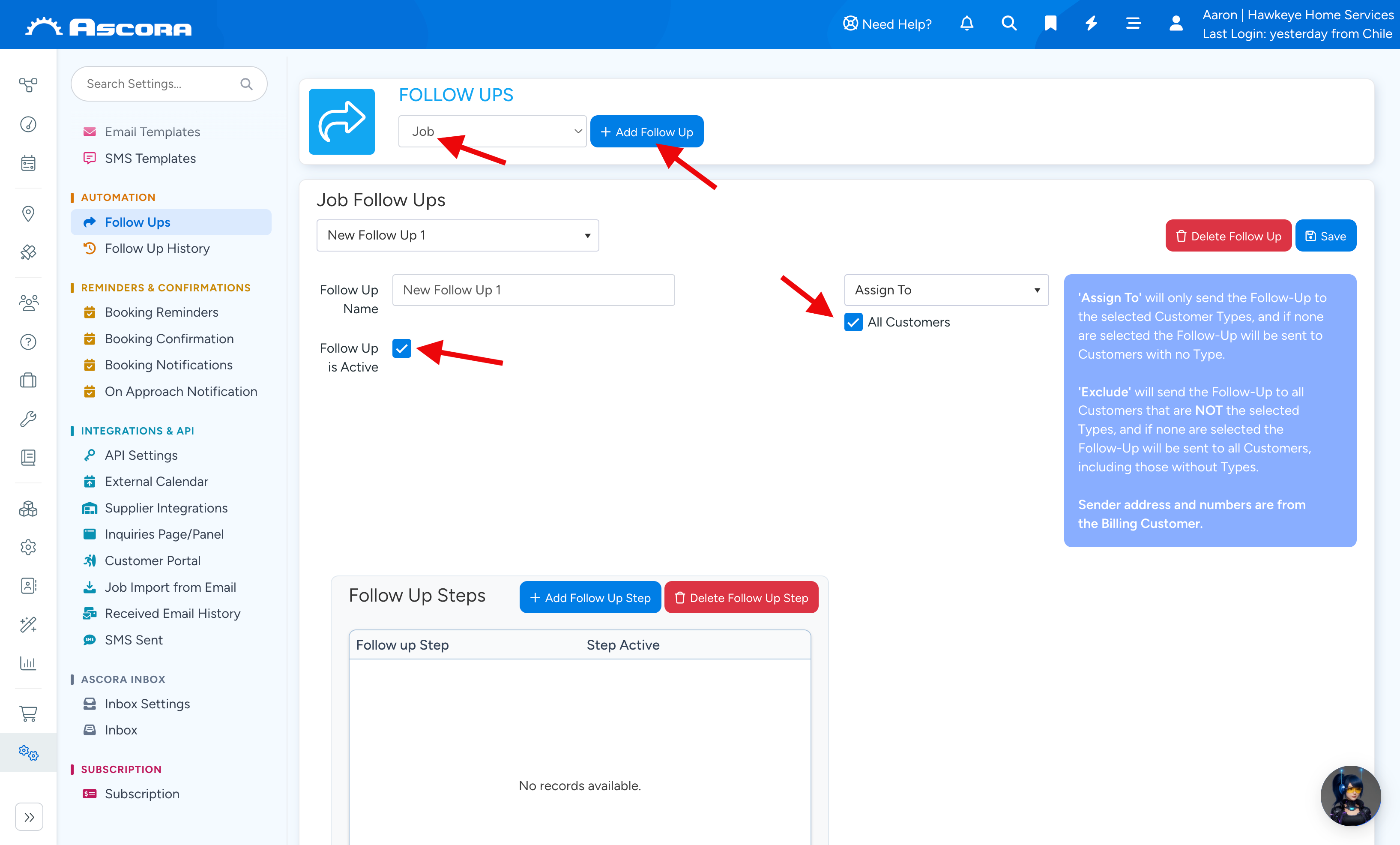
Next is to set up the details under Follow Up Step Details
- Here you can set up an X number of days after Job Date Creation.
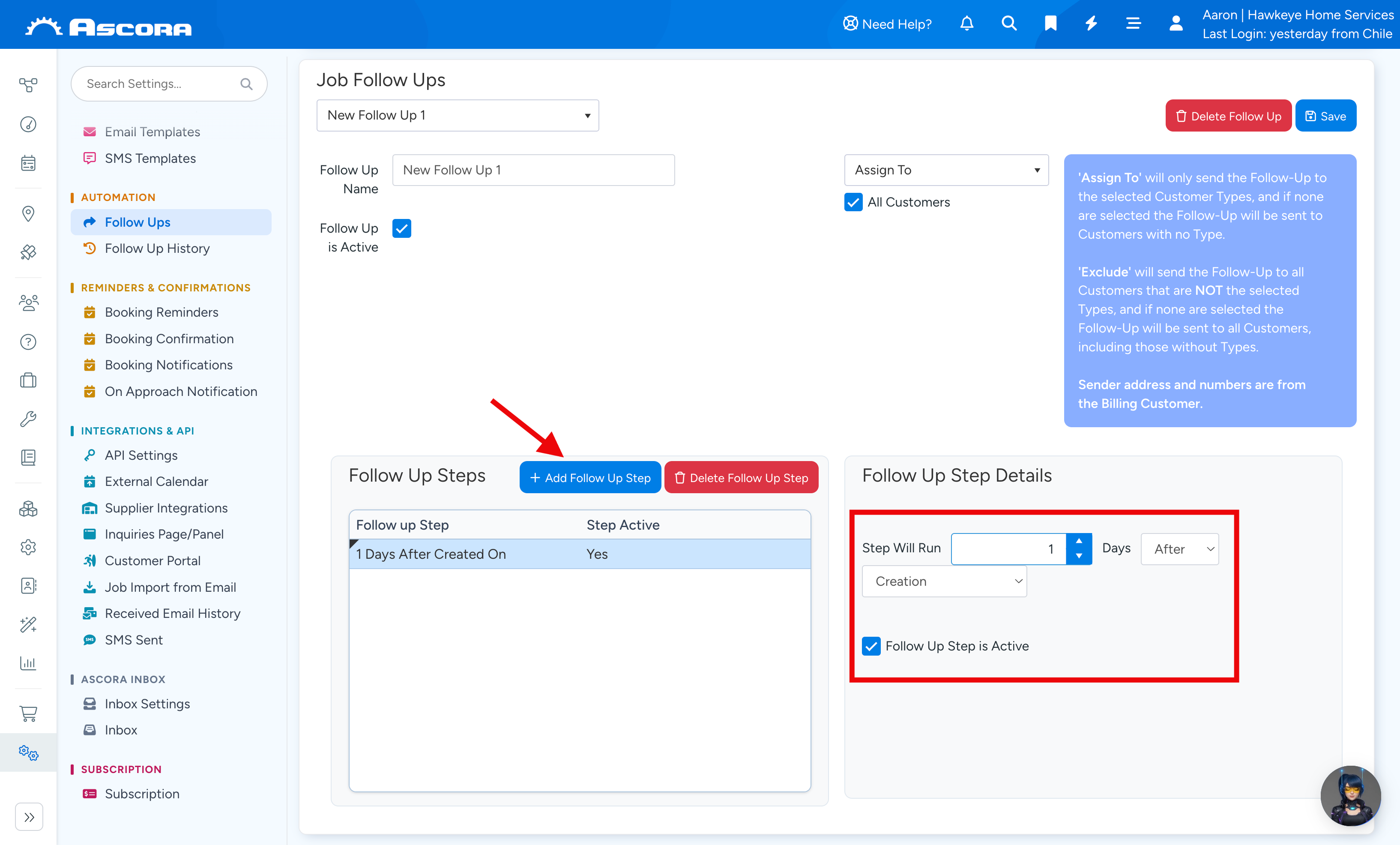
3. You have the option to select Email Template or SMS Template for your automated quote follow up.
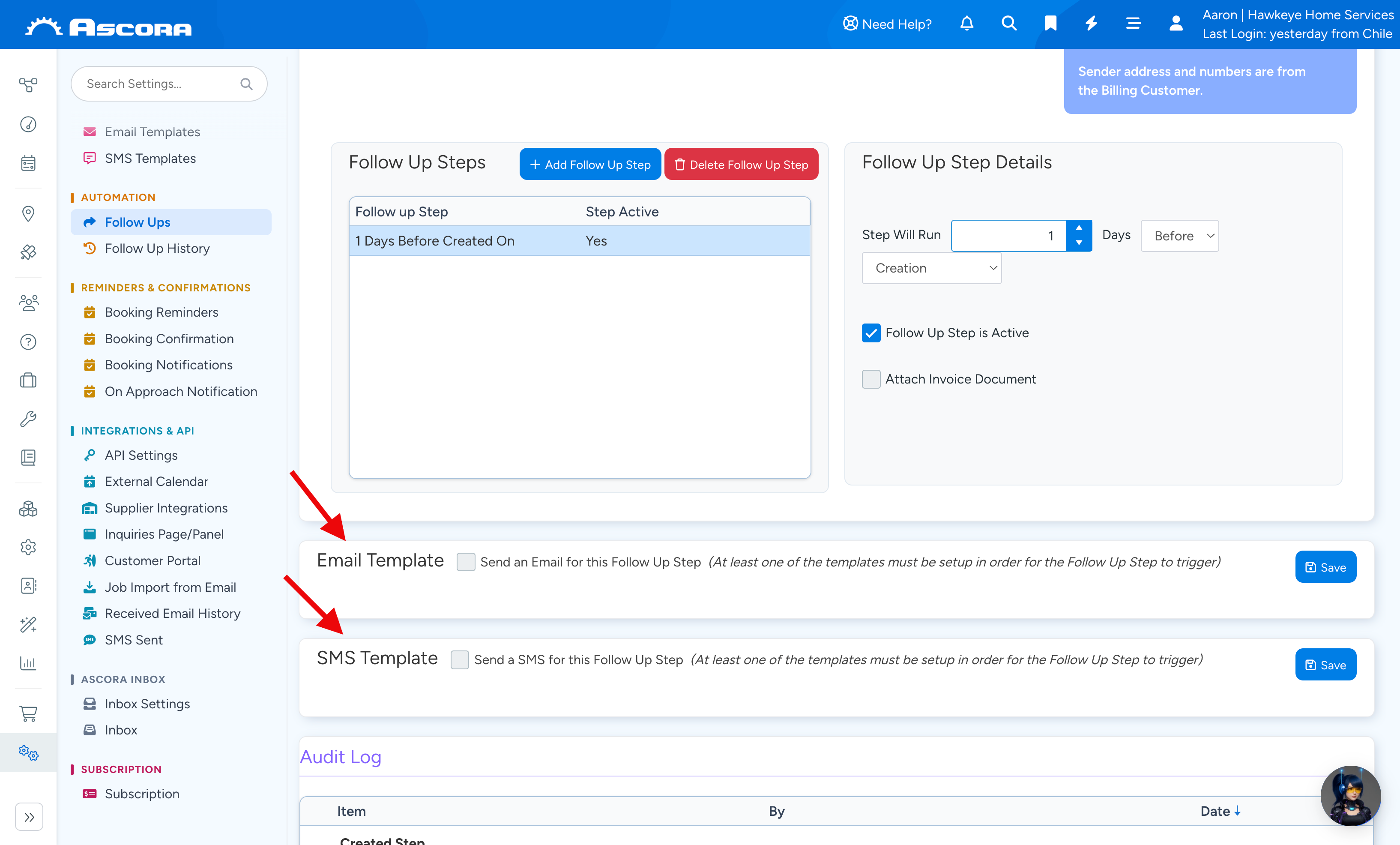
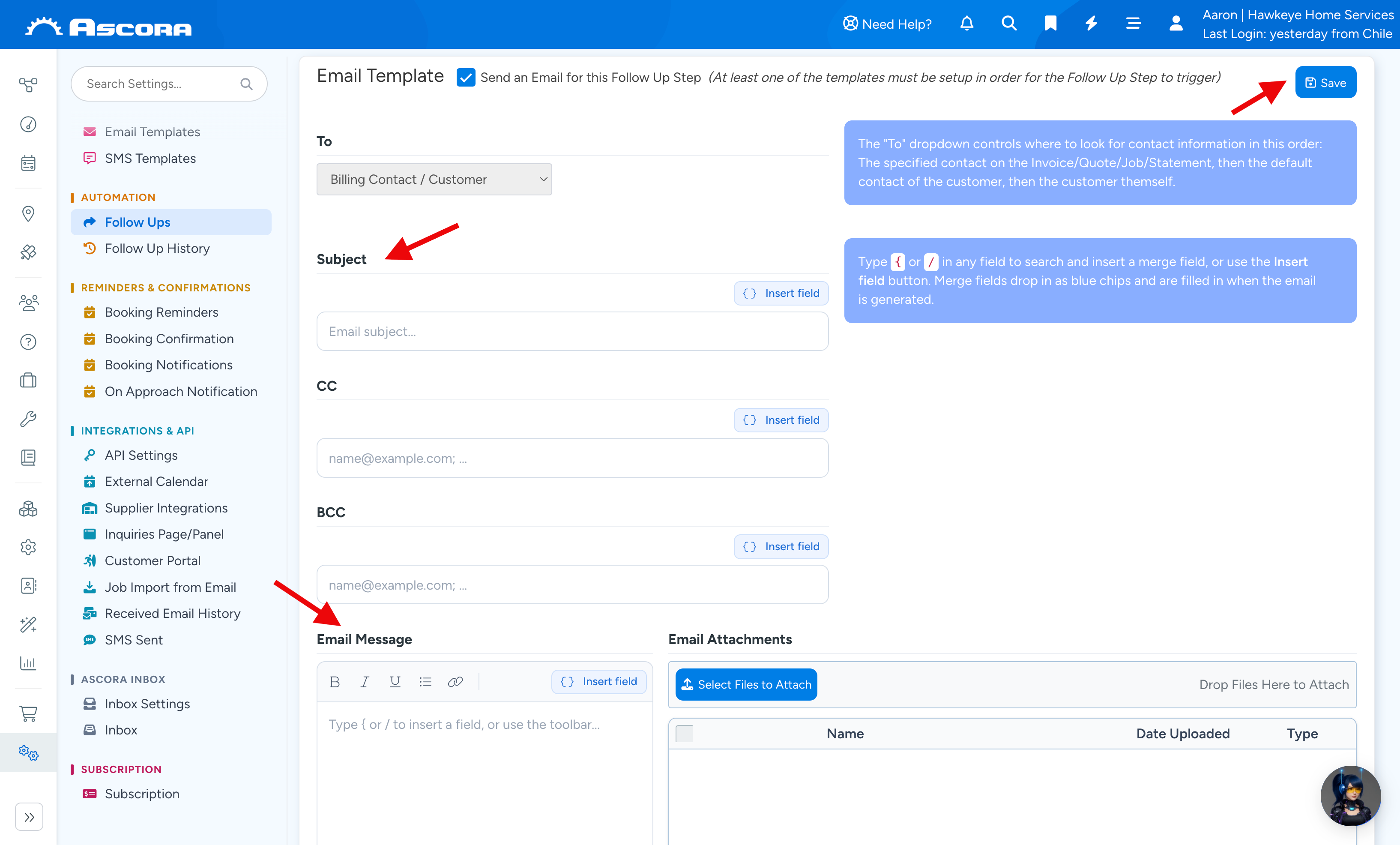
4. When you select Email Template, enter the necessary details such as subject, email message.
Note: You can use the Automatic Fields to auto populate quote related information.
Once ready to proceed, click Save.
5. When you select SMS Template, enter the necessary details such as mobile number or email address to receive replies, SMS message.
Note: You can use the Automatic Fields to auto populate quote related information.
Once ready to proceed, click Save.
6. After entering all necessary information and to proceed with the set up, click Save button located beside Delete Follow Up button.
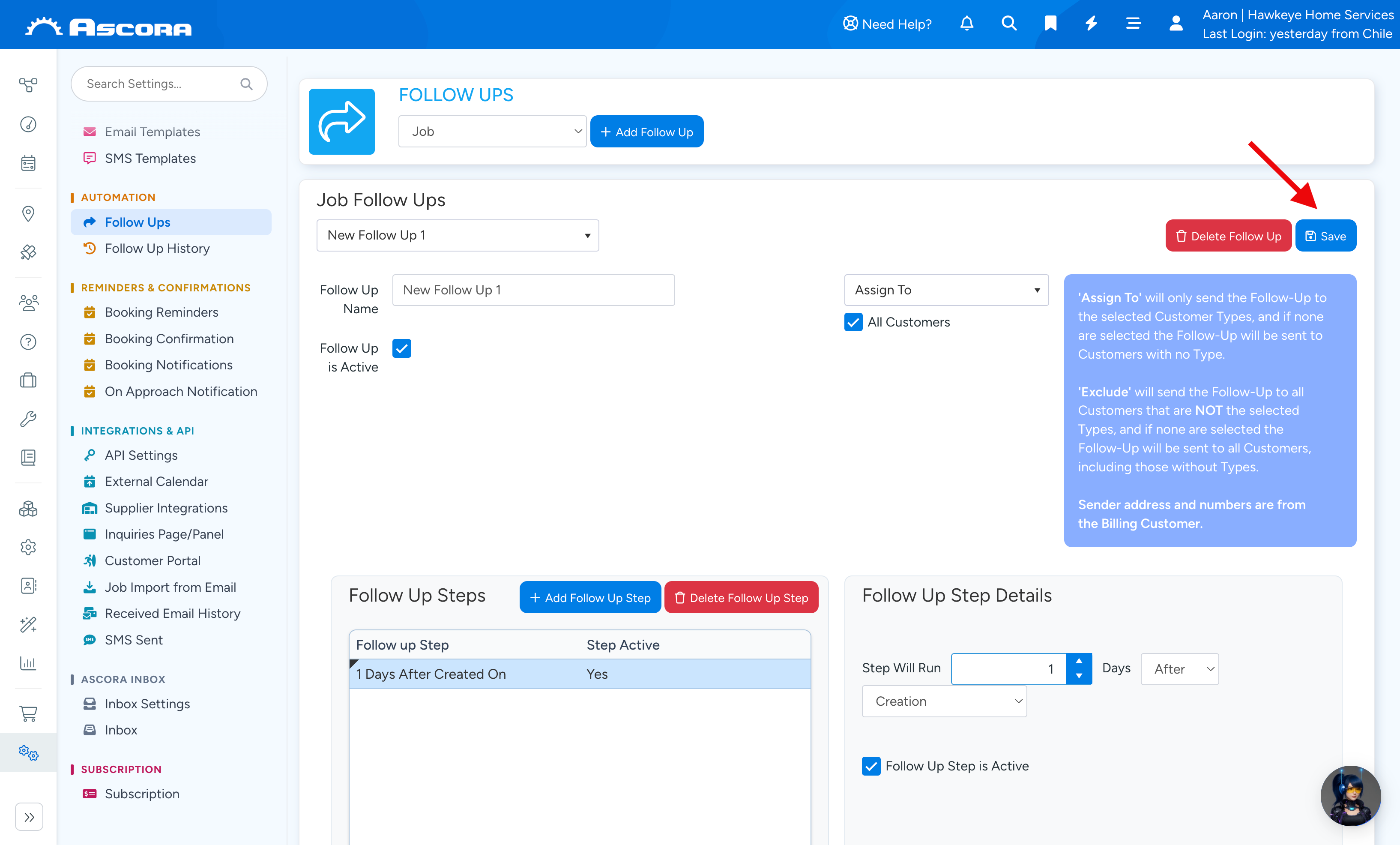
ℹ We've now completed the steps in creating automated quote follow up.
Note: You can repeat the above steps to set up a new follow up or simply set up a follow up step.
Sub Pages
Got a question?
Submit an Idea
💡 Go to Ideas Portal
Was this article helpful?
Contact support