









How to
Ascora sends your Quotes, Invoices and other emails through the email connection chosen in System Settings. An email that will not send, and an email that sends but never arrives, have different causes.
This article is for Administrators and office staff.
How your company's email is sent
Go to Administration > System Settings and find Email Settings. One of four connections is in use: Connect to Gmail, Connect to Office 365, Use Ascora Email or Use Own Email Server.
Under Email Options, each area (Quotes, Jobs & Purchase Orders, Invoices & Statements) is set to Send From Default, Send From User or Send From a typed address. The default is the Email Address under Enquiry Options.
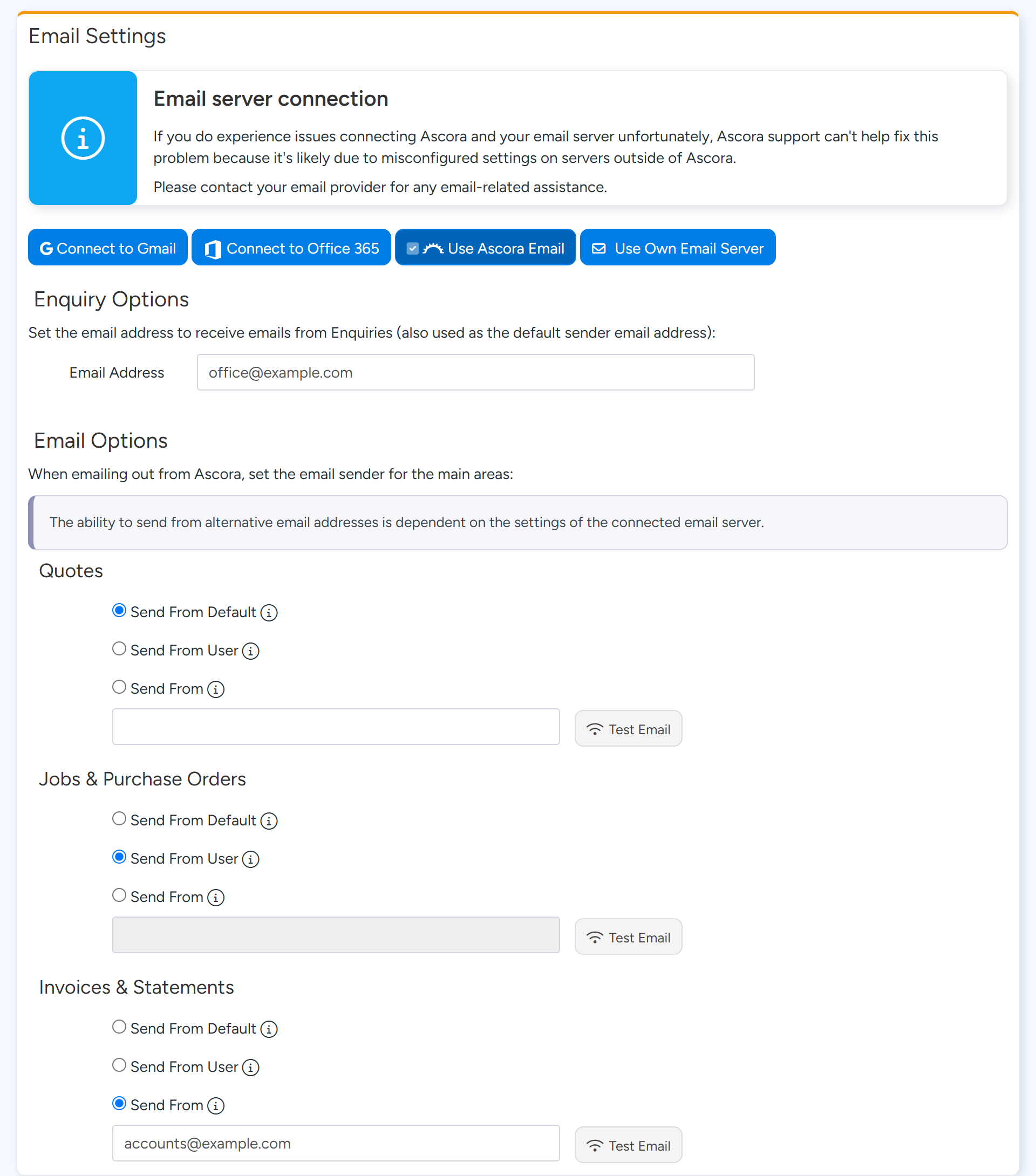
Who the email appears to come from
- Gmail or your own email server. The email comes from the sender chosen for that area. Your mail server must allow your account to send as that address. In Gmail, add it under Send mail as.
- Office 365. The email always comes from the connected mailbox. The sender chosen for the area is used as the reply address only.
- Use Ascora Email. The email comes from an Ascora address, showing your name or trading name. Replies go to the sender chosen for the area.
Test the connection
Go to Administration > System Settings > Email Settings.
Select Test Email beside the area that is failing.
The button turns green and shows Test Email - Passed, or a window opens with the reason it failed. The test email is not sent to you, so do not expect one in your inbox.
If it fails on Gmail or Office 365, disconnect, then connect again, and test again.
What the common messages mean
- Email Settings have not been configured. No connection is chosen. Choose one in Email Settings.
- The Gmail connection has expired, or could not be verified. Disconnect from Gmail and connect again.
- Your Office 365 connection has expired or was revoked. Disconnect and reconnect the account.
- Ascora does not have permission to do this in your mailbox. Your Microsoft 365 administrator needs to approve Ascora sending mail, or the account needs reconnecting.
- The connected account does not have a mailbox. The Office 365 account needs an Exchange Online licence.
- The mailbox is full. Free up space in the connected mailbox.
- The email settings are set to use a specific address, but no address has been set. An area is set to Send From with the address box empty. Type an address or choose another option.
- Email sending rate limit reached. Too many emails were sent in a short time. Try again later.
- Unable to send, check entered details and total attachment size. Check the recipient addresses and keep attachments under 10 MB in total. If both are fine, reconnect your email.
- A message in your mail provider's own words comes from Gmail or your own server. Your email provider can explain it.
Note
Ascora Support cannot change settings on your mail server. For a connection that fails after reconnecting, your email provider or IT support is the right contact.
The email sent, but the customer did not get it
Open the Job, Quote or Invoice and look at the History tab. An email listed there was accepted by the mail server. Ascora does not track delivery or bounces after that point.
Ask the customer to check their junk folder and the address you used. If you send through Gmail or your own server from an address on your own domain, your domain's email records need to allow that server to send for it. Your IT provider can check this.
With Use Ascora Email, mail comes from an Ascora domain and your own domain's records are not involved.
A new user did not get their invitation or password reset
These emails are not sent through your company's email connection. They come from Ascora's own addresses, on the domains notify.ascora.io and ascora.com.au.
If one does not arrive, check the junk folder, check the user's email address on their user record, and ask your IT provider to allow mail from those two domains.
Common questions
Is there a list of emails that failed?
No. A failed email shows its error when you send it. The History tab lists emails that were sent.
How large can attachments be?
Keep the total under 10 MB. An Email Template can carry up to five files and 10 MB in total.
Why do replies go to a different address from the one I sent from?
On Office 365 and Use Ascora Email, the sender set for the area is the reply address. Check the Email Options for that area.
Emails from one user fail but others work.
The area is probably set to Send From User. On Gmail or your own server, the connected account must be allowed to send as that user's address.