









The Customer Portal Settings in Ascora allow you to control how customers interact with their Jobs and Quotes online. This includes managing notifications, setting visibility rules, and configuring job-related alerts.
To access these settings go to Administration → Customer Portal
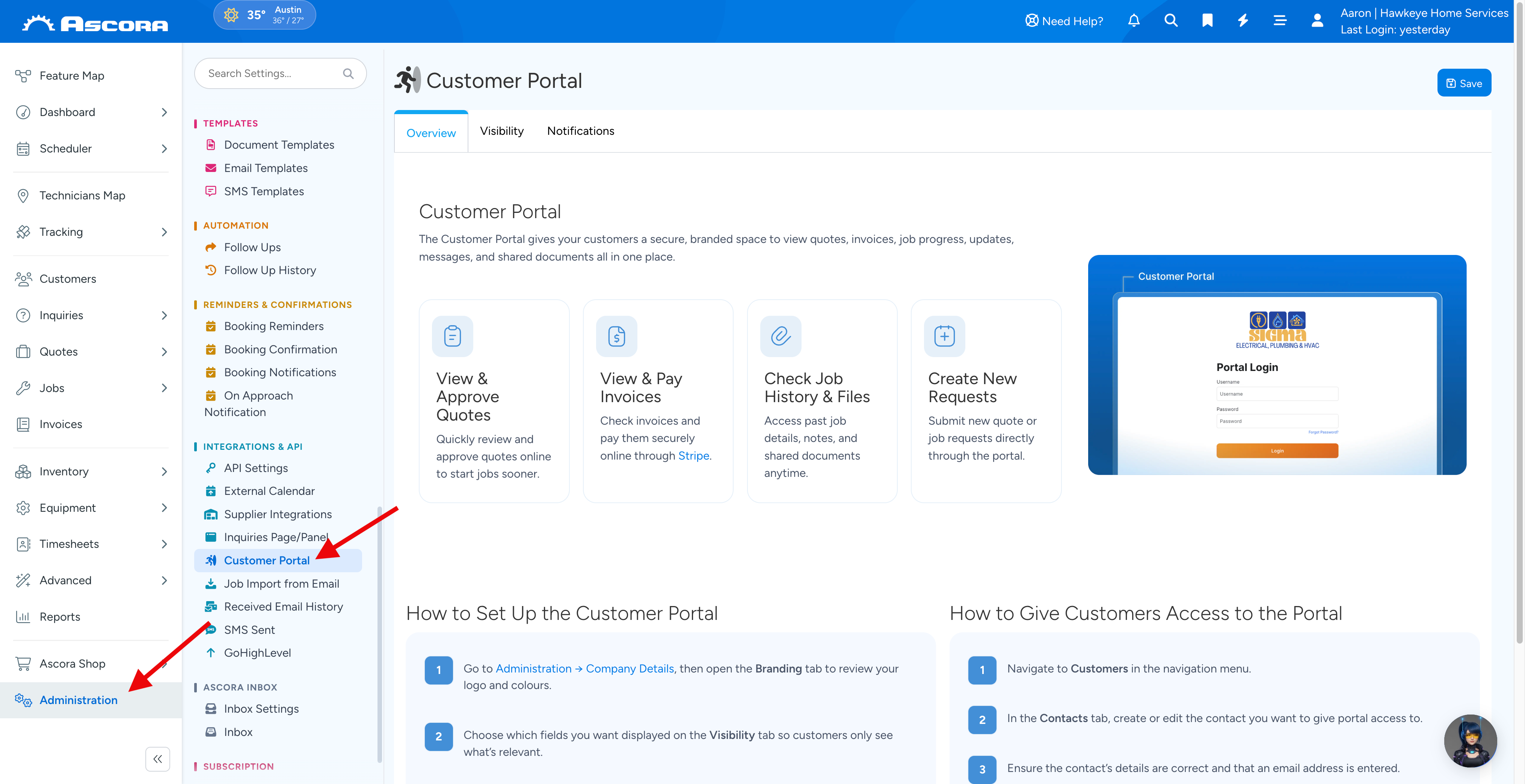
This guide covers:
✅ Setting up Contact Notifications
✅ Adjusting Visibility Settings
✅ Configuring Job Notifications
📽 Watch the video guides ⤵
Contact Notifications
📩 Granting Portal Access Notifications
- When a customer is granted Customer Portal access, an email can be automatically sent to them with login details.
- This ensures they receive clear instructions on how to access and use the portal.
📩 Internal Notifications for Access Changes
- You can assign a company user to receive email alerts whenever a customer's portal access is granted, modified, or removed.
This helps your team stay informed about customer access changes without needing to check manually.
Visibility Settings
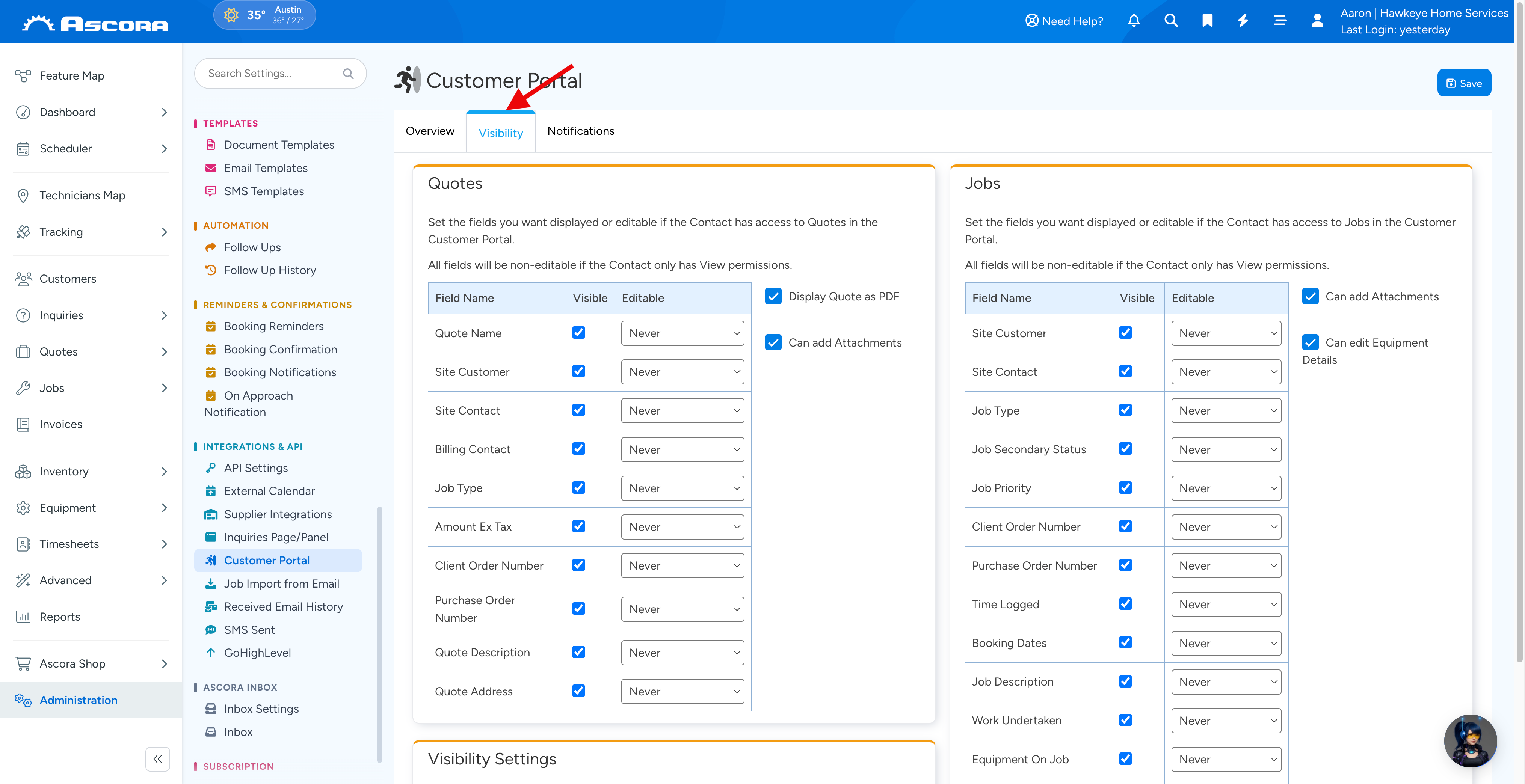
👁 Restrict Jobs Based on Age
- Prevent older Jobs from being visible in the Customer Portal.
- If enabled, a box appears where you can specify the number of years to hide older jobs from customer view.
🛠 Hide the Task Area
- Remove the Tasks section from the Customer Portal to simplify what customers see.
- This is useful if you prefer to keep internal job-related details private.
🔐 Hide the Admin Area
- Hide administrative details (such as invoicing preferences) from the Customer Portal.
- Ensures customers only see relevant job and quote information.
Job Notifications
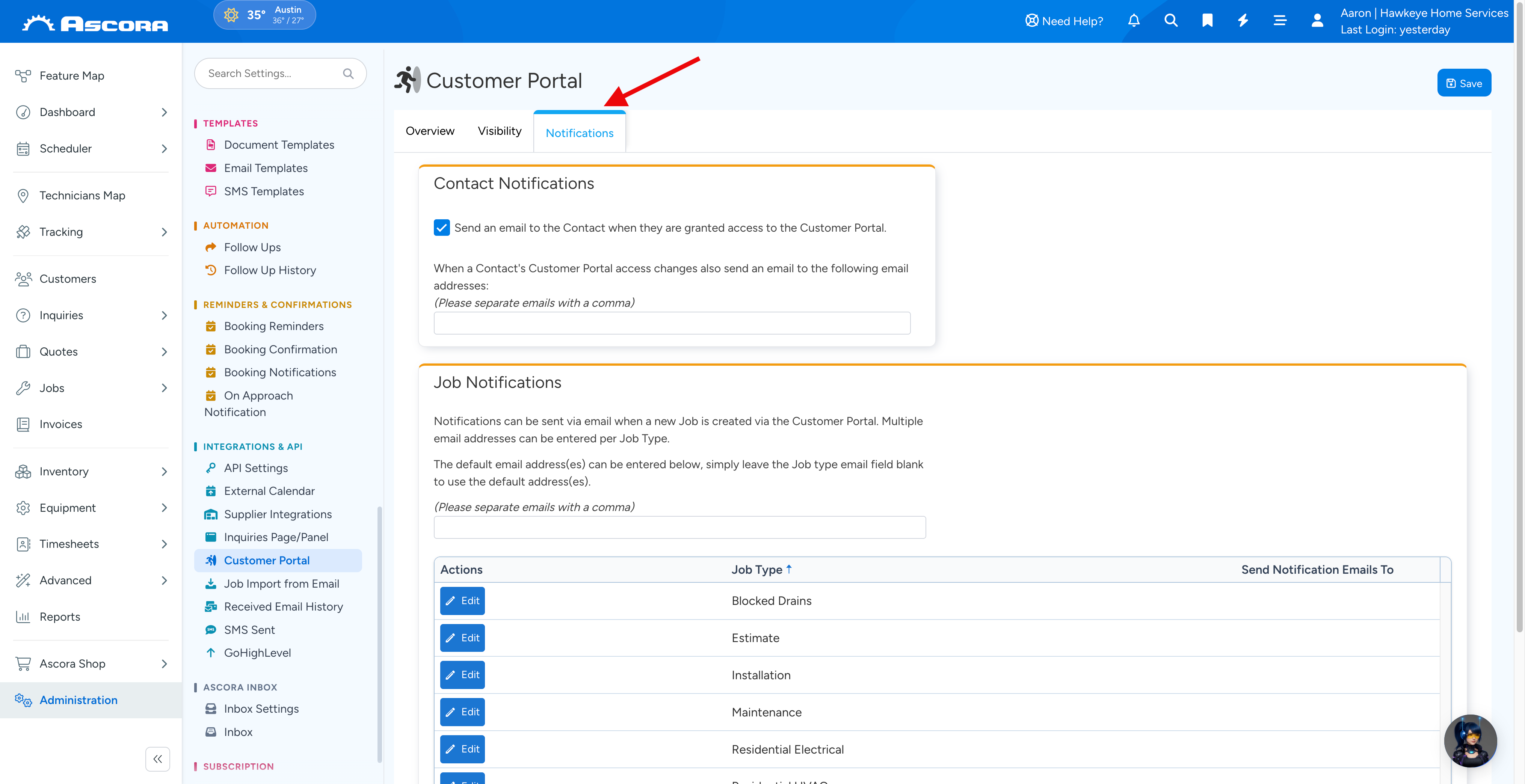
📨 Receive Alerts When New Jobs Are Created
- Automatically send email notifications to specific team members when a customer submits a new job request via the portal.
- Multiple email addresses can be added to receive alerts for different Job Types (e.g., Electrical Jobs, Plumbing Jobs).
This ensures the right team members are instantly notified and can take action on new customer requests.
Sub Pages
Got a question?
Submit an Idea
💡 Go to Ideas Portal