









How to
Time that is not on a Job goes on the Scheduler in one of two ways. Leave is time a person is away. An Activity is time at work that is not a Job, such as training, a meeting or office work.
This article is for schedulers and Administrators.
Record leave
On the Scheduler, select an empty slot for the person. In the Schedule window, choose Leave.
You can also open the user under Administration > Users, go to the Leave tab and select Add Leave.
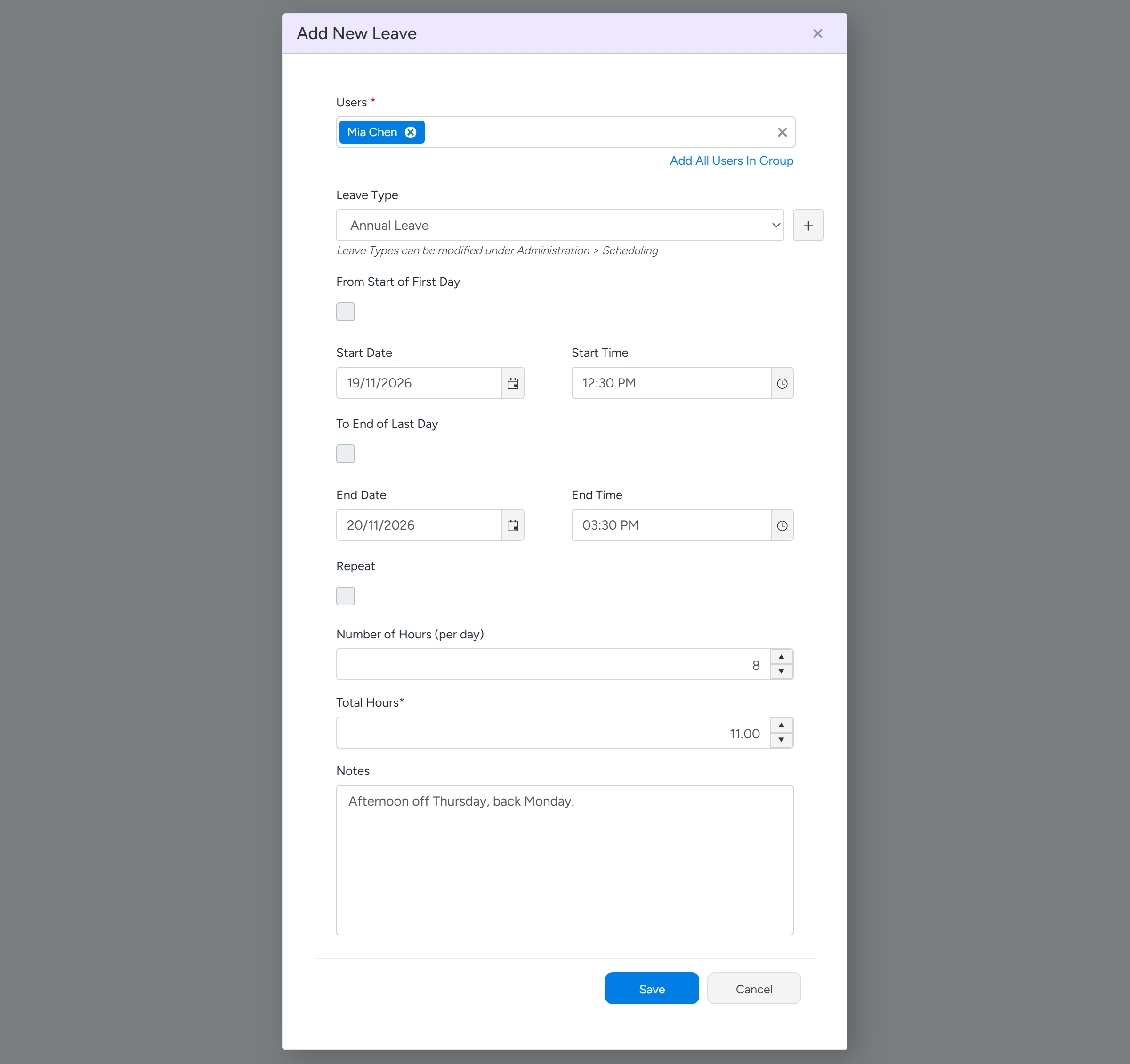
Choose the Users and the Leave Type.
Add All Users In Group adds everyone in a group at once.
Set the dates.
For a part day in the Add New Leave window, untick From Start of First Day or To End of Last Day and enter the time.
Untick From Start of First Day or To End of Last Day to enter a part day. Sample data. Select Save.
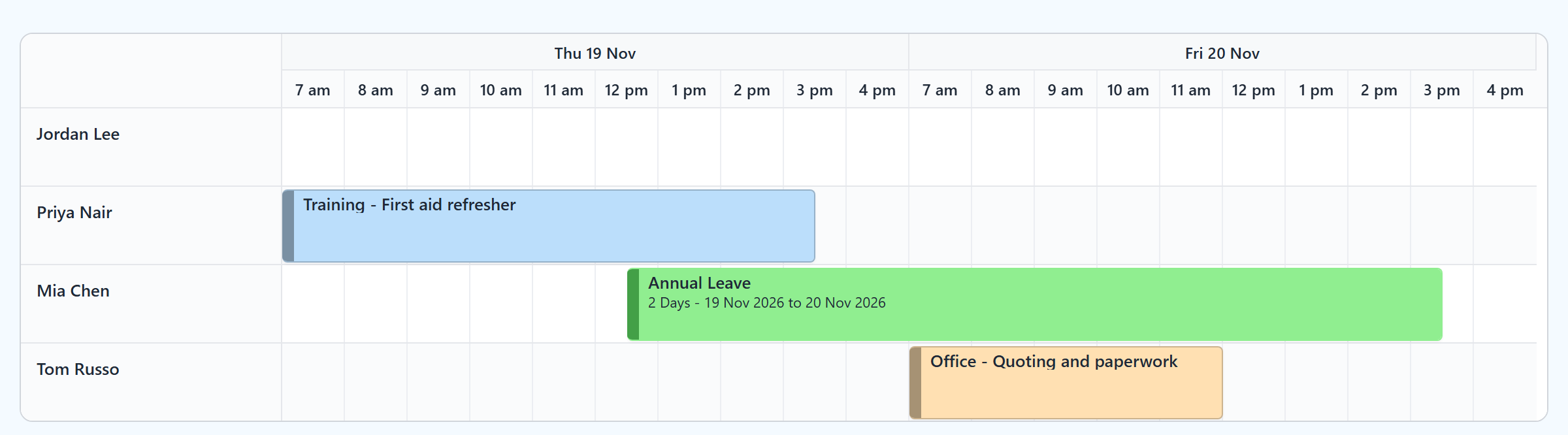
Leave shows as a green bar with its type and dates. Right-click the bar to edit or remove it.
Note
Adding leave for other people needs the permission Can Add & Edit Upcoming Leave for all Users. Leave Types are set up under Administration > Scheduling, in the Leave Types box.
Public holidays and company shutdowns
Ascora does not have a public holiday calendar for the Scheduler. To show a holiday, add leave for everyone: create a Leave Type such as Public Holiday, then add one leave entry with all users chosen, using Add All Users In Group.
The working calendar on the Timesheet Settings page is used by the Project Gantt only. It does not affect the Scheduler.
Book non-Job time as an Activity
On the Scheduler, select an empty slot. In the Schedule window, choose Activity.
Choose the Activity Type and who it is Booked For.
Choosing several people makes one booking for each.
Set the Start Time and End Time, and add a Title and Description.
Tick Private to hide the details from other users, then select Schedule Activity.
To repeat it, right-click the booking and choose Repeat Activity.
Leave shows as a green bar with its type and dates. An Activity takes the colour of its Activity Type. Sample data.
Tip
Activity Types, each with its own colour, are set up under Administration > Scheduling, in the Activity Types box. Other users see a private Activity as Private Activity, unless they have the permission Can View Private Activities.
Does leave stop a Job being booked?
No. On the Scheduler you can book a Job over leave without a warning, so look for the green bar first. The Job Whiteboard warns that the user is on leave that day and asks whether to schedule anyway.
To block booking outside someone's working days, open the user, go to the Pay Template tab and, under Working Hours, tick Restrict Working Hours In Scheduler and set the days and times they work. Time outside those hours is shaded on the Scheduler and cannot be booked. This is also the way to show a regular day off, such as a rostered day off.
Leave, timesheets and payroll
Leave does not create timesheet entries. Timesheet reports and the Timesheet Editor show leave as its own rows, taken from the leave record.
Leave is sent to Xero or MYOB only when its Leave Type is matched to a leave type in your payroll package, under Administration > Timesheets & Payroll > Payroll Integration. A type set to Do Not Push stays in Ascora only.
Common questions
Can staff request leave for approval?
There is no approval step on the website. Leave is entered by someone with the permission to add it.
Can I drag leave to another day?
No. Right-click the leave bar and choose Edit Leave.
Can leave repeat?
Yes. Tick Repeat in the Add New Leave window and set how often and when it ends.