









How to
You can email a Custom Form to someone outside your company, such as a customer or a site contact, for them to fill in and sign. They open a link, with no sign-in, and the completed form comes back onto the Job or Quote.
This article is for office staff who send forms out for completion.
Before you start
- The form belongs to a Job or a Quote, so open that first.
- Your company's email settings must be working, under Administration > System Settings. The form goes by email only.
Send the form
Open the Job or Quote and go to the Forms tab.
Select New Form and choose the form, or select Open on a form already there.
In the form window, select Send externally.
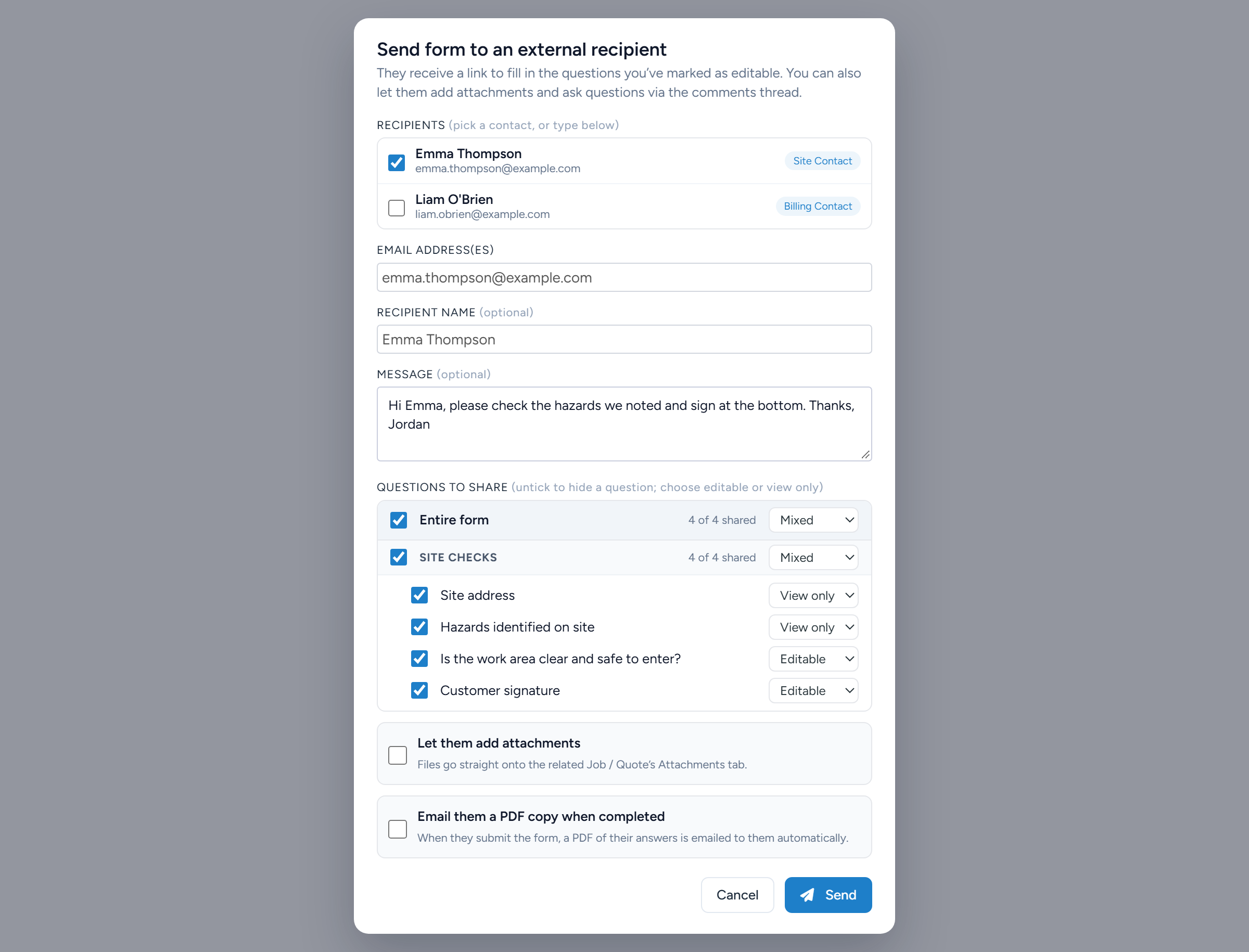
Tick a contact under Recipients, or type one or more addresses in Email address(es).
Separate several addresses with commas or semicolons.
Under Questions to share, choose what the recipient can see and change.
Every question starts as shared and Editable. Set a question to View only to show it without letting them change it, or untick it to leave it out.
Tick who receives the form, then set each question to Editable or View only before selecting Send. Sample data. Tick Let them add attachments if you want files back, and Email them a PDF copy when completed if you want a PDF produced.
Files they upload go onto the Attachments tab of the Job or Quote.
Add a Message if you want one, then select Send.
The Forms tab shows the form as having an external recipient pending until it is submitted.
What the recipient does
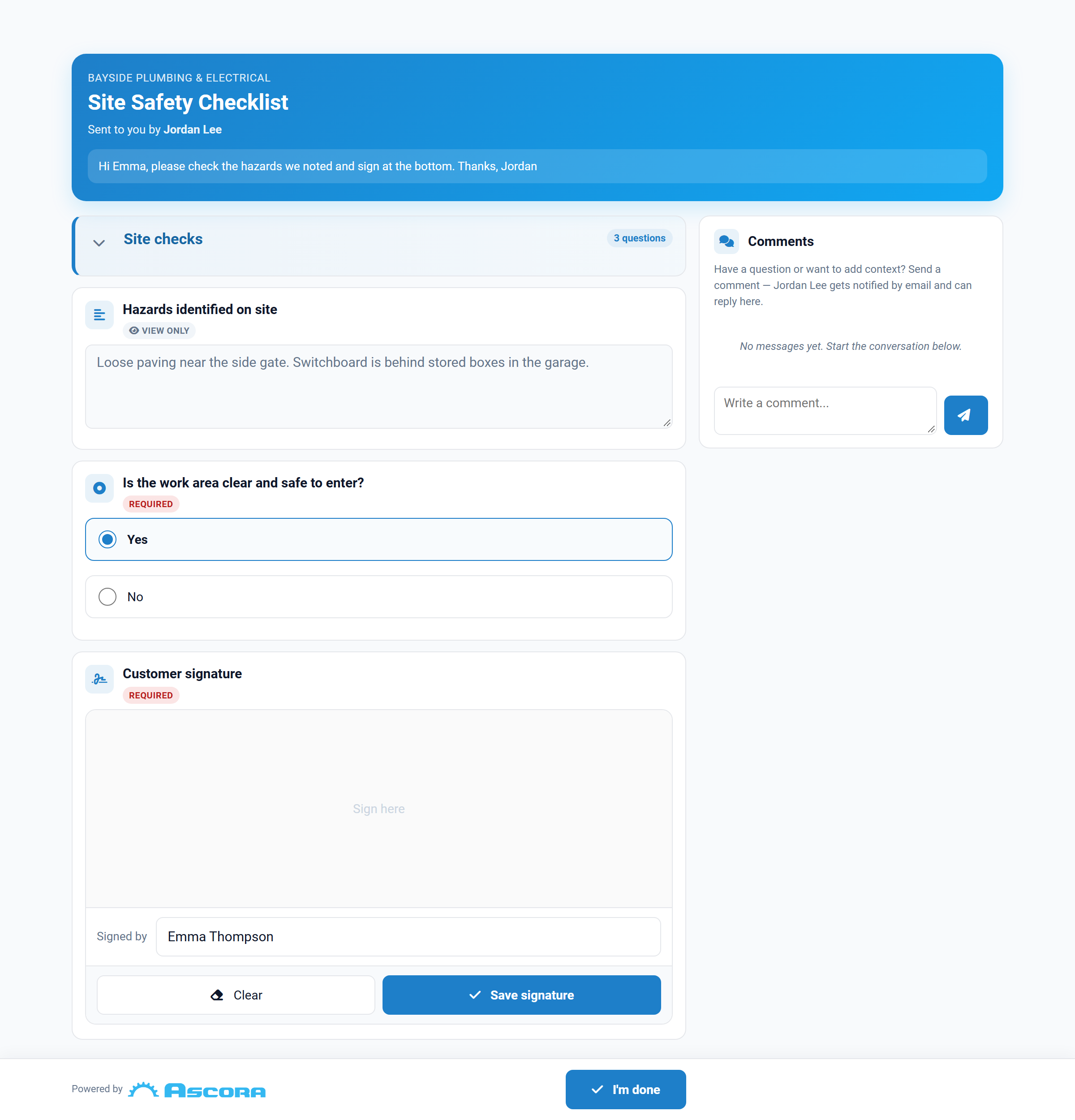
The email has an Open the form link. The page shows your company name, the form and your message, with no sign-in.
They can answer the questions you made editable, add photos to photo questions, sign with their finger or mouse and type the name of the person signing. Answers save as they go, so they can close the page and come back to the same link.
A Comments panel lets them ask you a question. You are emailed, and you reply from the Chat tab of the form window.
When they are finished they select I'm done, enter their name and email, and select Submit form. After that the link shows that the form has already been submitted.
What you get back
You get an email when the link is first opened and another when the form is submitted, plus a notification in Ascora.
The form is marked Completed on the Forms tab of the Job or Quote.
If you ticked Email them a PDF copy when completed, the PDF is emailed to the recipient and saved to the Attachments of the Job or Quote. If you did not, use Download PDF in the form window when you need one.
Note
Check the answers when the form comes back. The recipient sees which questions are marked Required, but the form can still be submitted with one left blank.
Common questions
Does the recipient need an Ascora sign-in?
No. The link opens the form directly.
Can I send the link by text message?
No. The form is sent by email.
Which questions can an outside person not fill in?
Questions that are filled from the Job, such as its supplies, labour and timesheets, are shown but cannot be changed.
Does the link expire?
It works until the form is submitted.