









📝 Setting up Automated Reminders for Scheduled Jobs or Quotes
By setting up SMS and Email reminders, you can ensure that your team and clients receive timely notifications about upcoming appointments and changes, reducing manual follow-ups and improving overall efficiency. In this guide, you'll learn how to enable, customize, and test both SMS and Email reminder templates through the Administration → Booking Reminder (Auto) section, so that you can tailor notifications to your business needs.
You are able to set up reminders for scheduled jobs or quotes in a form of SMS or Email reminder. To enable this feature, you must first complete some settings in Administration area.
1. Go to Administration → Booking Reminder (Auto).
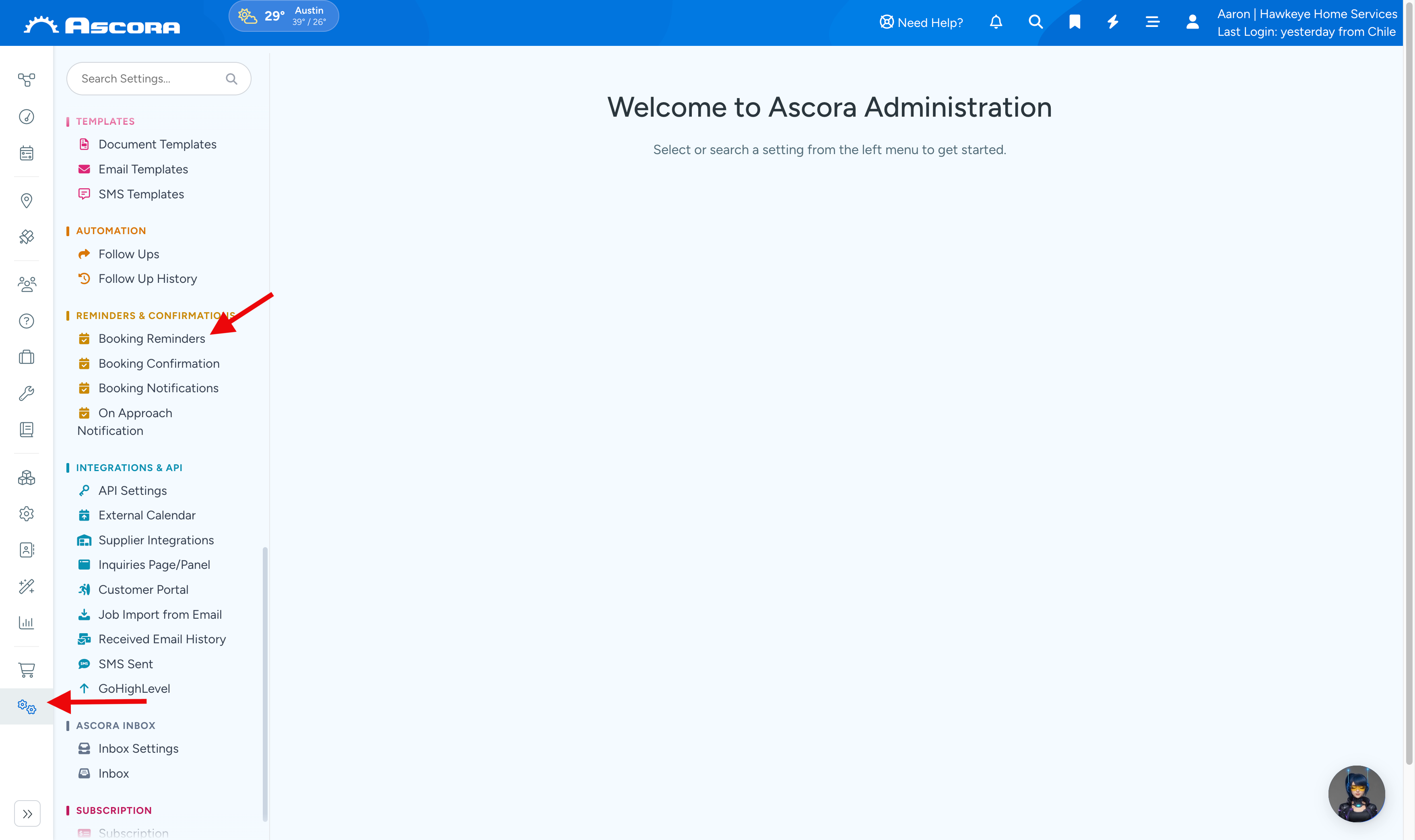
2. Under Booking Reminders, you will see Quote SMS Reminders, Job SMS Reminders, Quote Email Reminders, and Job Email Reminders.
The process of enabling SMS reminder or Email reminder is the same for both Quotes and Jobs and it does not matter which one you enable first. You can also enable quote reminders but choose not to enable job reminders or the other way around depending on your requirements.
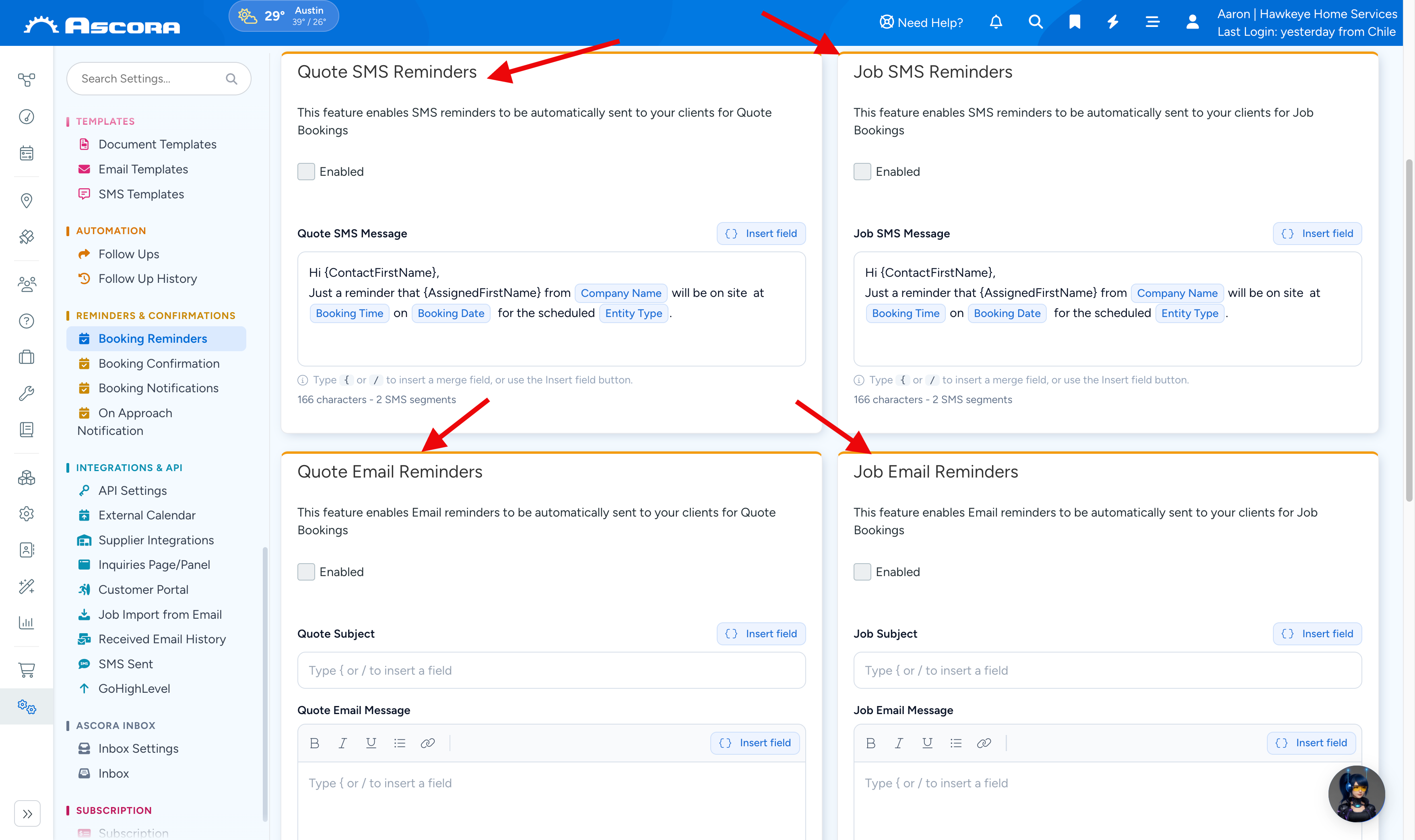
Example - Enabling Job SMS Reminders
1. Tick the box beside Enabled.
2. Enter the number of hours as to when the SMS reminder is sent. In this example, we're setting it to be sent 2 hours prior to booking start time.
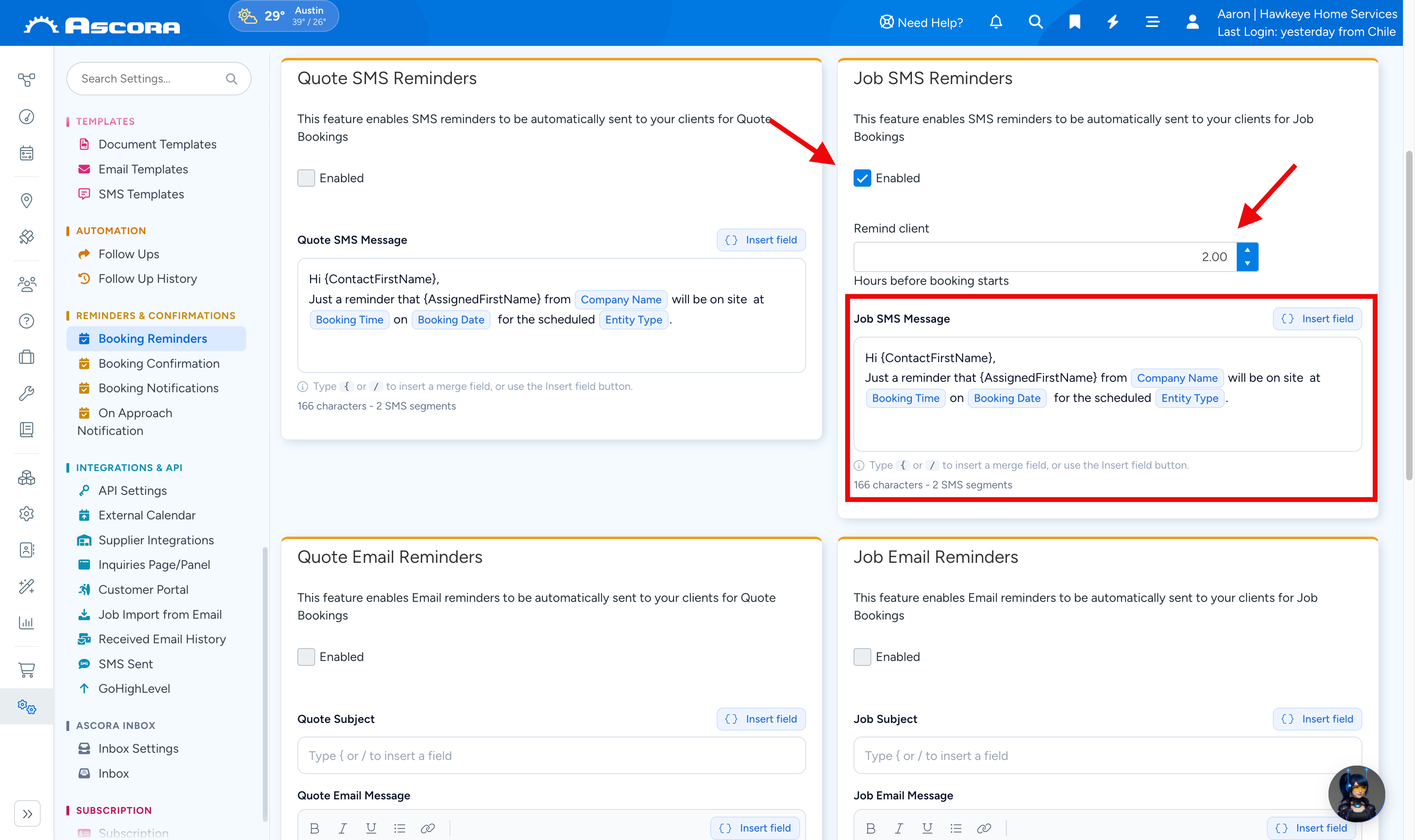
3. Create your SMS Message and you can utilise the Insert Field to auto-populate certain information when the SMS reminder is sent.In this example, we configure it to send the SMS 2 hours prior to job booking start time and we've also added a few automatic fields and one of them is Booking Time as highlighted below.
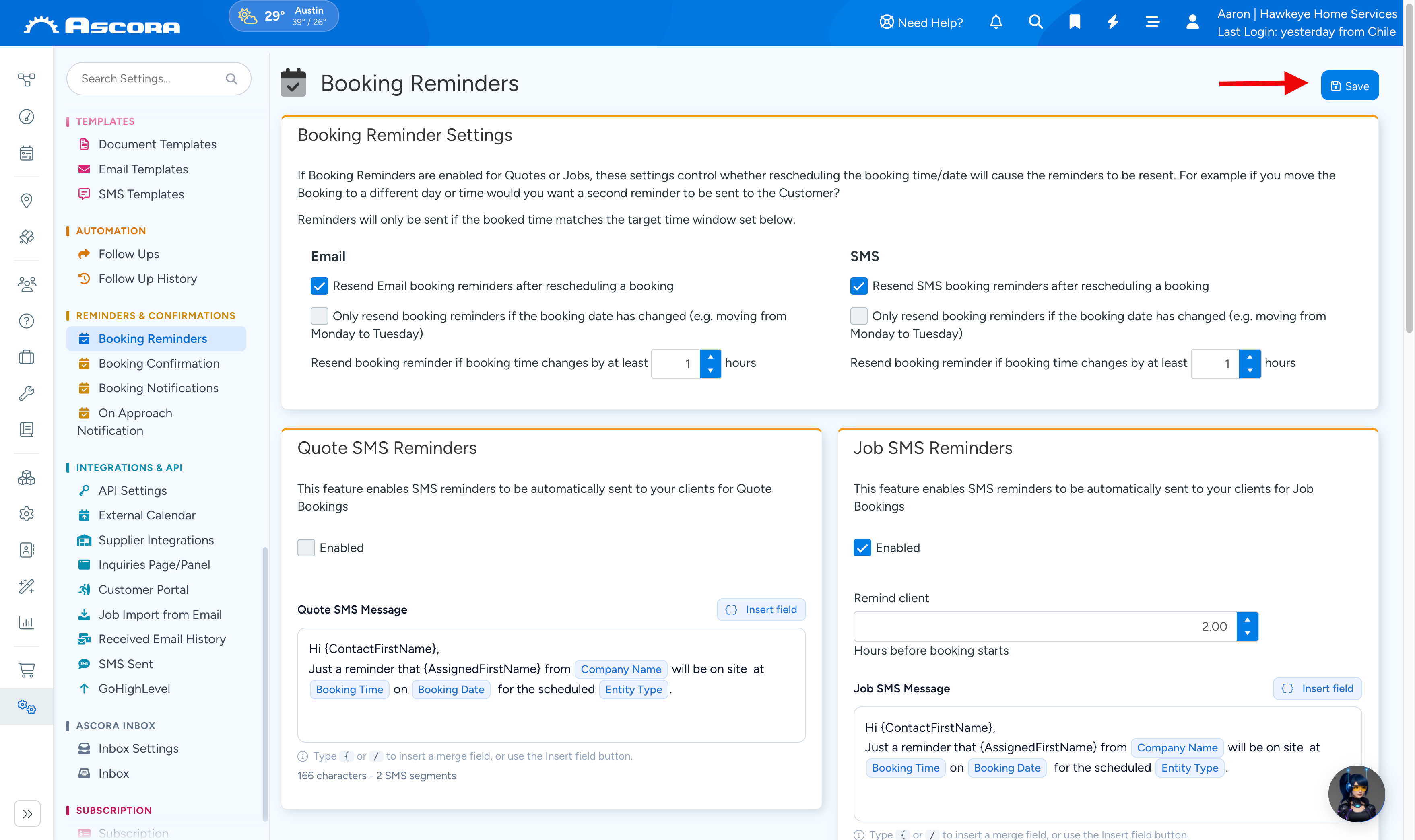
4. Make sure to click the Save button located at the upper right portion of the page after completing the configuration.
Sub Pages
Got a question?
Submit an Idea
💡 Go to Ideas Portal
Was this article helpful?
Contact support