









Guide
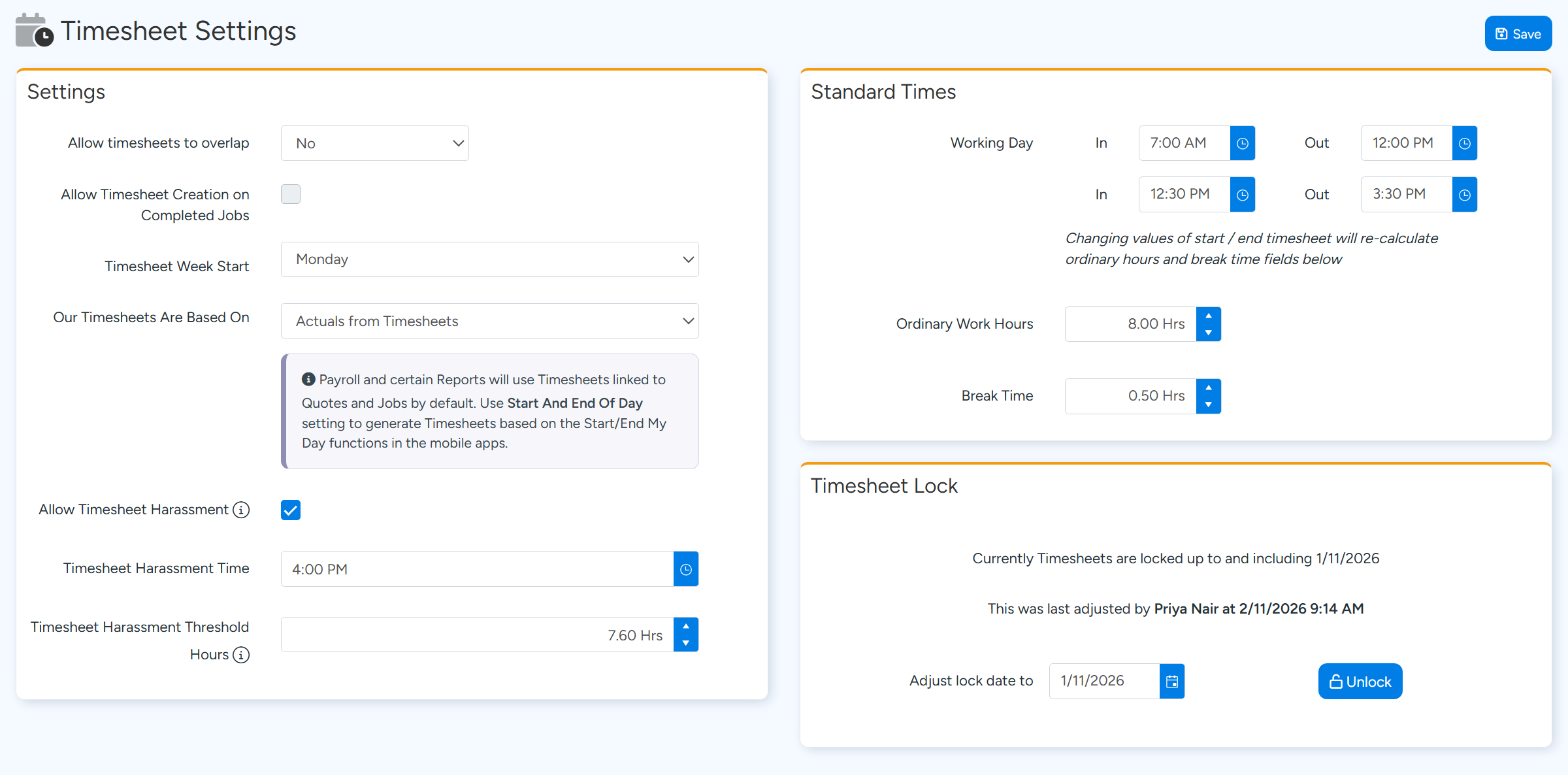
Timesheet behaviour is set on two pages under Administration > Timesheets & Payroll: Timesheet Settings and Timesheet Rules.
This article is for Administrators and payroll staff.
Timesheet Settings
- Allow timesheets to overlap. Set to No, an entry that overlaps another for the same user cannot be saved on the website. Set to Yes, Ascora warns that an overlapping timesheet was found and asks you to confirm.
- Timesheet Week Start. The day the working week starts. Weekly overtime is counted from this day.
- Standard Times. Your usual working day, Ordinary Work Hours and Break Time. Break Time is the default meal break offered on a new entry.
- Timesheet Lock. Locks every entry up to and including a date.
Lock timesheets after a pay run
Go to Administration > Timesheets & Payroll > Timesheet Settings.
In Timesheet Lock, set Adjust lock date to to the last day of the pay period.
Select Lock.
The box shows the date timesheets are locked up to and who last changed it. Entries on or before that date cannot be edited or deleted. To correct one, select Unlock or move the date back, make the change, then lock again.
Overtime rules
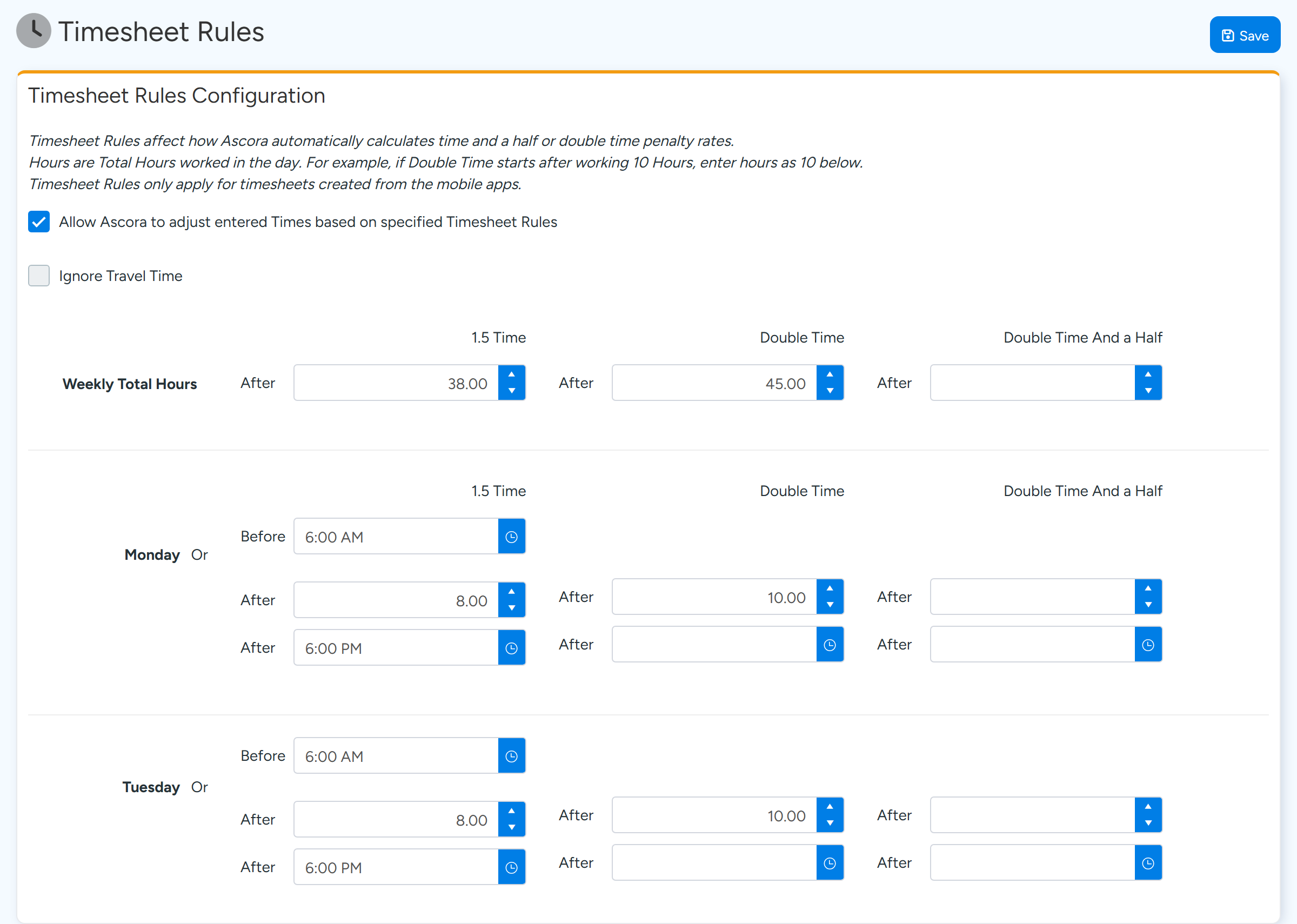
On Timesheet Rules, tick Allow Ascora to adjust entered Times based on specified Timesheet Rules to have Ascora rate time as 1.5 Time, Double Time or Double Time And a Half.
Weekly Total Hours sets the hours in a week after which each rate starts. Each day, Monday to Sunday, then has its own thresholds: hours worked in the day, and times of day before or after which a rate applies.
Hours are total hours worked in the day. If double time starts after 10 hours, enter 10. An entry that crosses a threshold is split into two entries at that point.
Tick Ignore Travel Time to leave travel entries out of the count.
Note
Timesheet Rules apply to time recorded in the mobile apps. For an entry typed in on the website, choose its Rate Type yourself. On the Payroll screen, Re-Run Timesheet Rules applies the rules again. Entries already sent to payroll, or whose labour has been invoiced, are not re-rated.
Meal breaks
On a timesheet entry, tick Includes Meal Break and enter the hours. The break is taken off the hours worked and does not count toward overtime thresholds.
Why a time entry cannot be edited or deleted
- It is in the locked period. Move the Timesheet Lock date back first.
- The Job is Closed or Cancelled. Reopen the Job.
- You do not have permission. Deleting needs Timesheet set to View, Edit & Delete on your user, and edit access to the Job.
Chargeable and non-chargeable time
A timesheet entry records time worked and its cost. Whether the customer is charged is set on the Job's labour line, with Is Chargeable in the Add or Edit Labour window. It defaults from the Labour Role.
An unticked line is left out of the Job's labour value and shows on the Invoice with its hours and a zero amount. Its cost still counts against the Job.
Common questions
Where do I see where someone checked in?
On the Job's Check In grid, show the columns Clock In Location and Clock Out Location, or run the Check In/Out Report under Timesheets > Timesheet Reports. A location is blank when the phone did not send one.
Which report shows hours by employee and by Job?
Under Timesheets > Timesheet Reports, open User Timesheet and select Export Timesheet to Excel. Each row is one entry with its Job number.
A pay period is missing from the Payroll screen.
With Xero, only pay periods that are still pending or draft in Xero are listed. A period already posted in Xero no longer appears.
Where is Timesheet Hours Display?
That one setting is under Administration > Defaults.