









Guide
Ascora exports data list by list. There is no single button that exports everything, so plan which lists you need.
This article is for Administrators and accounts staff.
Before you start
- Your user needs the permission Can Export Data Lists, on the Permissions tab under Web Permissions > Data.
- A list export contains the rows that match your current filters, across every page, with the columns currently shown. Clear the filters and add columns first if you want everything.
Export a list
Open the list, for example Jobs.
Set the filters and columns you want.
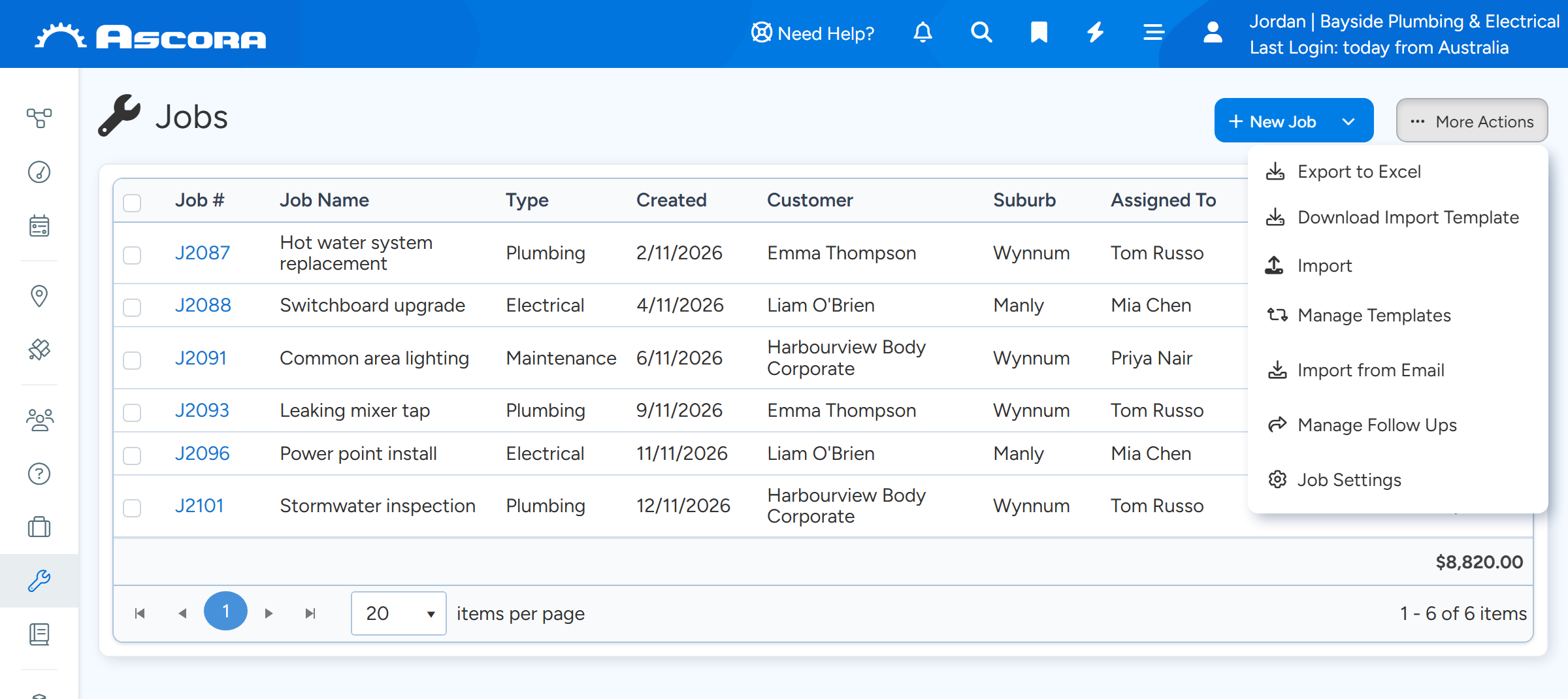
Select More Actions > Export to Excel.
The file downloads as an Excel spreadsheet.
Export to Excel is under More Actions and exports the Jobs that match the current filters. Sample data.
Where each export is
- Jobs, Quotes, Invoices, Enquiries and Suppliers: More Actions > Export to Excel.
- Customers: More Actions > Export From List for the filtered list, or Export All Customers for every customer with their notes, in a layout that can be imported again.
- Purchase Orders: More Actions > Export.
- Supplies: More Actions > Export Supplies, and Export Inventory Report for stock.
- Kits: Export All Kits, with sheets for the kits, their Supplies and their labour.
- Equipment: Export Equipment, or Export Equipment with all Custom Fields.
- Supplier Invoices: Export Supplier Invoices, using the current filters.
- Timesheets: Reports > Timesheets > Export Timesheet to Excel.
- Inside a Job or Quote: the Supplies, Labour, Invoices and Notes tabs each have their own Export to Excel.
What cannot be exported in bulk
- Attachments and photos across the whole account. On one record use Download Zip on the Attachments tab. Reports > Job Attachments > Generate Attachment Zip covers one week at a time.
- Notes across all Jobs or Quotes. Notes export from one record at a time.
- Completed Custom Form answers. Completed forms can be downloaded as PDFs one at a time. Exporting Custom Forms gives the form templates, not the answers.
- History and audit logs.
- A single file with everything for one customer. Use the Customer Invoices, Jobs List and Job Bookings reports filtered to the customer, and Download Statement.
Warning
If you cancel your subscription, your account stays active until the end of the current billing period and is then locked. There is no read-only access afterwards. Export everything you need before that date.
Common questions
There is no Export option under More Actions.
Your user does not have Can Export Data Lists. Ask an Administrator to tick it.
The export is missing columns.
A list export contains only the columns shown on the list. Add the columns, then export again.
Can Ascora send me a full backup of my data?
There is no backup export in the product. Please use the list exports or our API to extract the data you need.
I cancelled by mistake.
Until the end of the billing period the Subscription page has Restore my Ascora Account.