









How to
A Tiered Quote offers your customer a choice of tiers, such as Good, Better and Best. Each tier has its own items and its own price. Your customer picks one on the online quote, and only that tier goes onto the Job.
This article is for office staff who prepare and send Quotes.
Before you start
- Tiered Quotes must be switched on for your account by Ascora Support. If the Create New Quote window has no Tiered Quote card, ask Ascora Support to turn on Good, Better, Best.
- Your user needs permission to edit Quotes.
- A Quote that is broken down into sections cannot be Tiered.
Create the Quote and its tiers
Select Create New Quote.
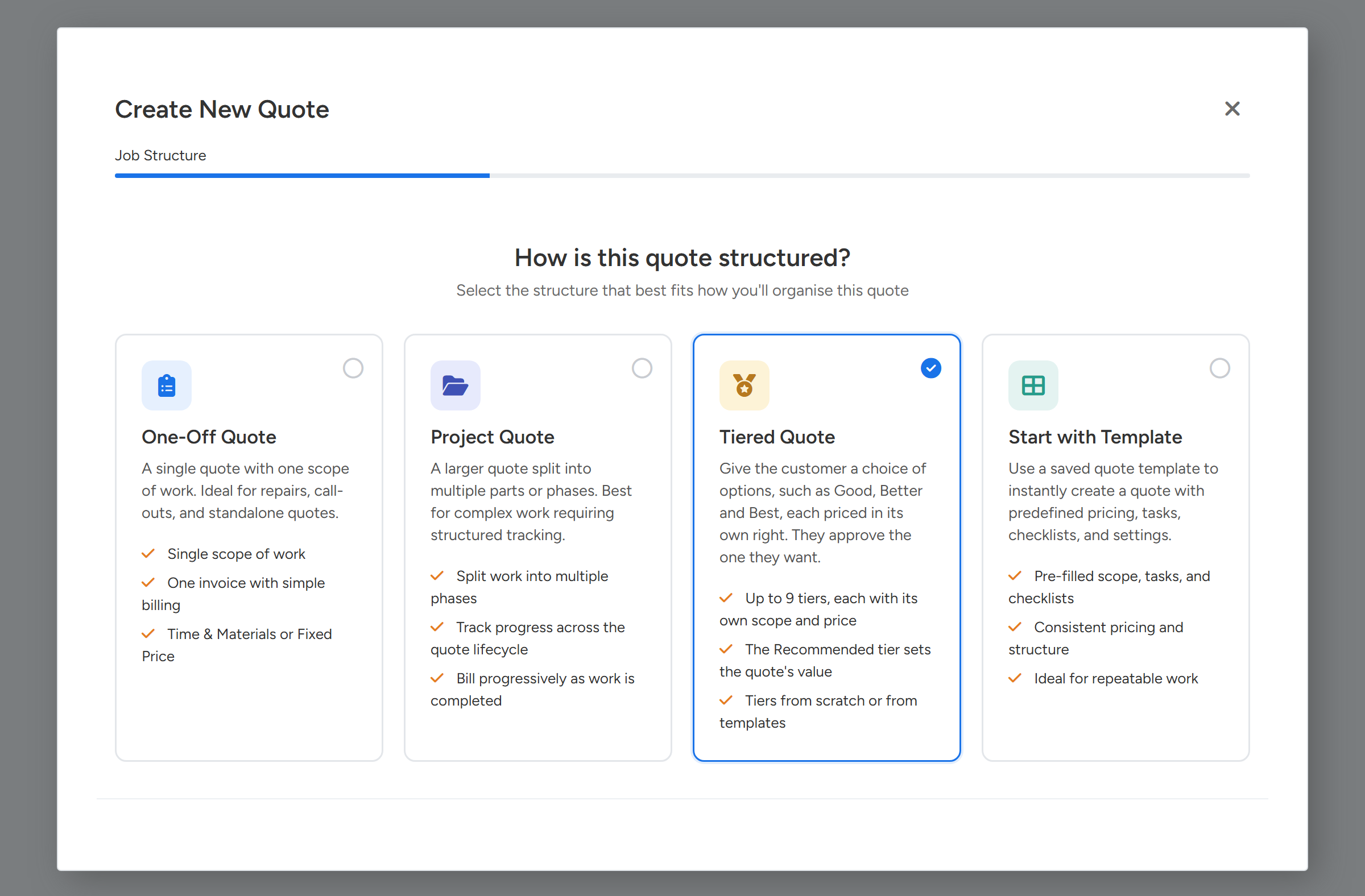
Under "How is this quote structured?", choose Tiered Quote.
The window moves straight on to the quote's details. A Tiered Quote has no pricing step, because each tier is priced on its own.
Choose Tiered Quote. The pop-up moves straight on to the quote's details. Sample data. Complete the details and select Create Tiered Quote.
Open the Tiers tab.
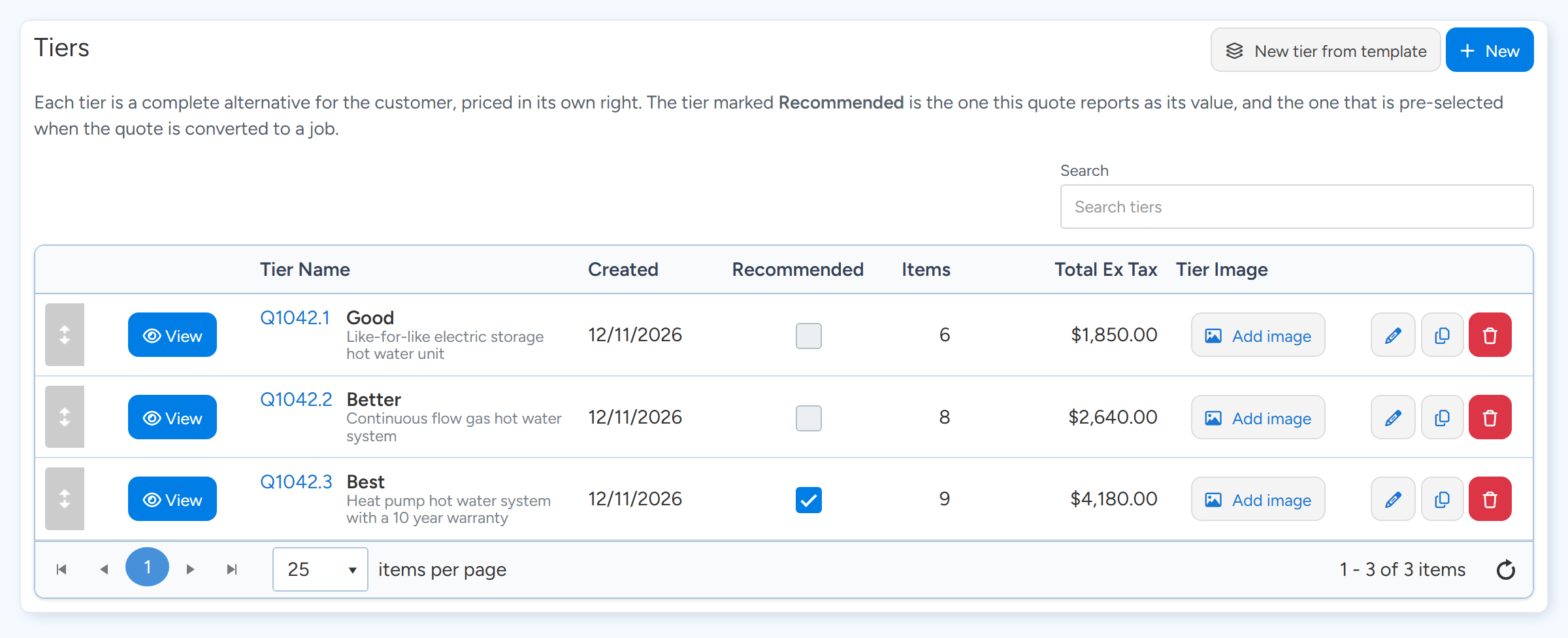
Each row is one tier. The tick in Recommended marks the tier the quote reports as its value. Sample data. Select New, type the tier name (for example Good) and, if you want one, a short description. Select Save.
The first tier you add is marked as the Recommended tier.
Tip New tier from template builds a tier from a Job Template instead of starting empty.
Repeat for each tier you want to offer.
A Quote can have at most 9 tiers.
Add the items to each tier
On the Tiers tab, select View on the tier.
The tier opens in a new browser tab as a quote of its own, numbered from the parent, for example Q23.1.
Set the tier's Pricing Method to Fixed Price or Time and Materials.
A tier cannot use Sections or Stages.
Add the supplies, kits and labour for that tier, as you would on any Quote.
Select View Parent Quote on the Details tab to go back, then do the same for the next tier.
Tip The copy button on a tier's row copies the tier with its priced items, which is a quick way to build the next tier up.
Choose the Recommended tier and the order
Tick Recommended on the tier you want to lead with. One tier is always Recommended, and its total is the value of the Quote.
Drag tiers on the Tiers tab to change their order. Once the Quote has been sent or accepted the order is kept, because your customer knows each tier by its number.
Select Add image in the tier image column to give a tier a picture. You can create a placement image or use the image of the tier's most expensive item.
Send the Quote
Select Send Email as you would for any Quote.
The document used is the default set under Administration > Quotes, in the Default Templates box, field Tiered Quote. When Tiered Quotes is switched on, your account is given three starter templates: Quote - Tiered Proposal (Blue), Quote - Tiered Cards (Blue) and Quote - Tiered Presentation (Landscape).
A document template lays out every tier only when it contains at least one merge field that starts with Tier, such as TierHeading. See the Document Template User Guide for how merge fields work.
What your customer sees
The online quote opens under the heading "Choose your option", with one card per tier. Each card shows the tier number, its image, its price and what is included. Your Recommended tier carries a Recommended badge.
Your customer selects Choose Tier on the one they want, then Accept Quote. If the Quote asks for a deposit, it is worked out from the tier they chose.
The tier your customer accepts becomes the Recommended tier on the Quote.
Convert the accepted Quote to a Job
Open the Quote and select Convert to Job.
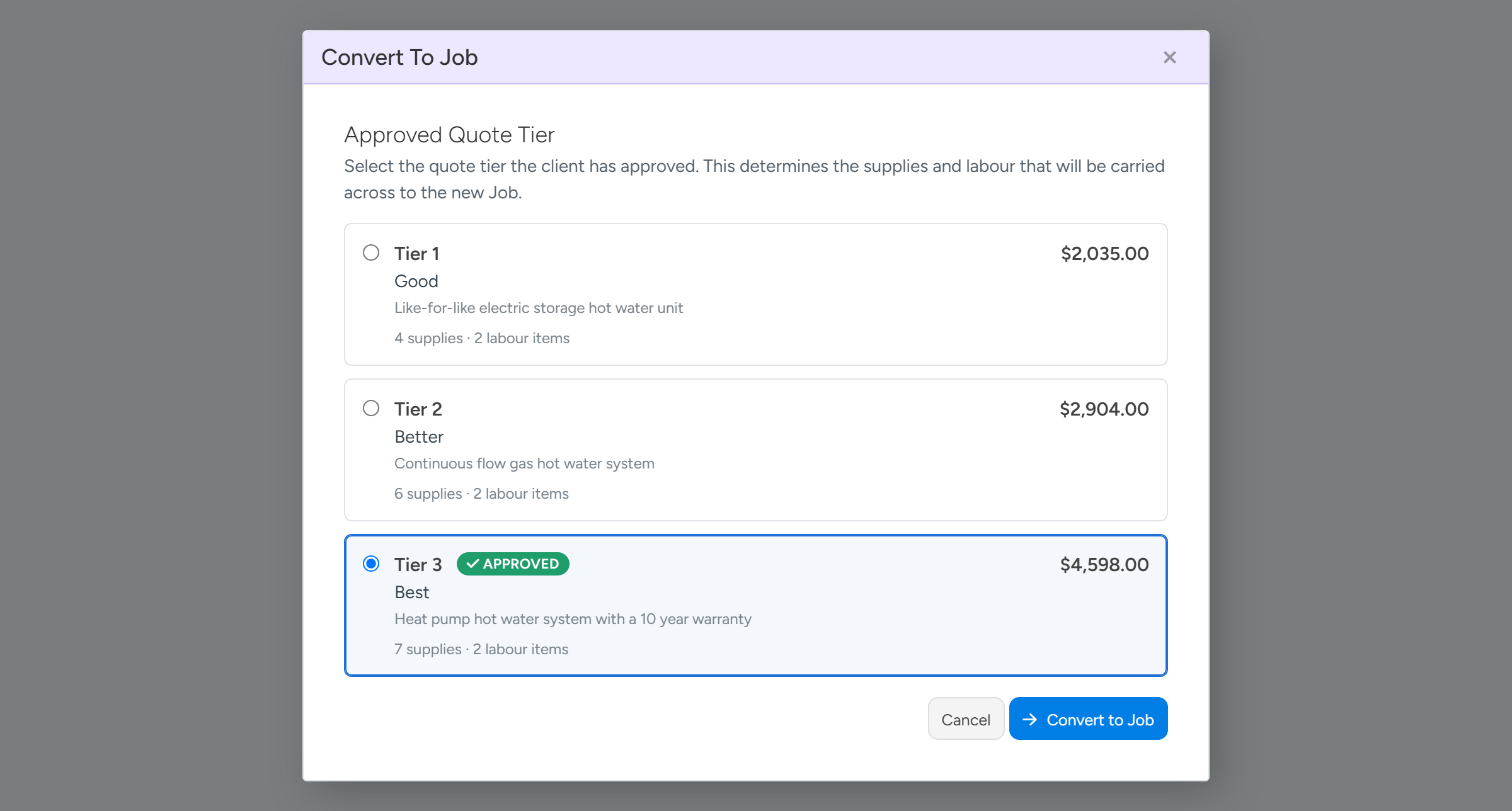
The Convert To Job window opens with the heading Approved Quote Tier. A tier your customer accepted online is marked Approved.
The tier the customer accepted online is marked Approved and already selected. Pick another if needed, then select Convert to Job. Sample data. Select the tier the customer approved.
Select Convert to Job.
Only that tier's items go onto the Job. The other tiers stay on the Quote, unchanged.
Warning
Removing a tier removes its priced items with it.
Common questions
Can I turn an existing Quote into a Tiered Quote?
Yes. Set Pricing Method to Tiered on the Details tab and save. The Quote's existing items move into the first tier. A Quote with sections has to have its sections removed first.
Can I change a Tiered Quote back?
Only when one tier is left. Remove the tiers you no longer need, then change the Pricing Method.
Can I add a Tiered Quote to a Job as a Variation?
Not with its lines. You can link it to the Job without adding its lines, or link it as the Job's original Quote.
Can I reuse a set of tiers?
Yes. On the Quote, use the option to create a Job Template from the Quote. Next time, choose Start with Template in the Create New Quote window.