









How to
When you have many Supplies or Equipment items you no longer use, you can archive them in one go with an import file. Archiving is what the Delete buttons in Ascora do: the item leaves your lists, and the records that already use it are kept.
This article is for whoever maintains your Supplies or Equipment lists.
Before you start
- Your user needs the Import Data and Export Data permissions.
- For a handful of Supplies, it is quicker to tick them in the Supplies list and select Delete Selected Supplies.
- Archived Equipment cannot be brought back. Read the warning in the Equipment part before you start.
Archive Supplies
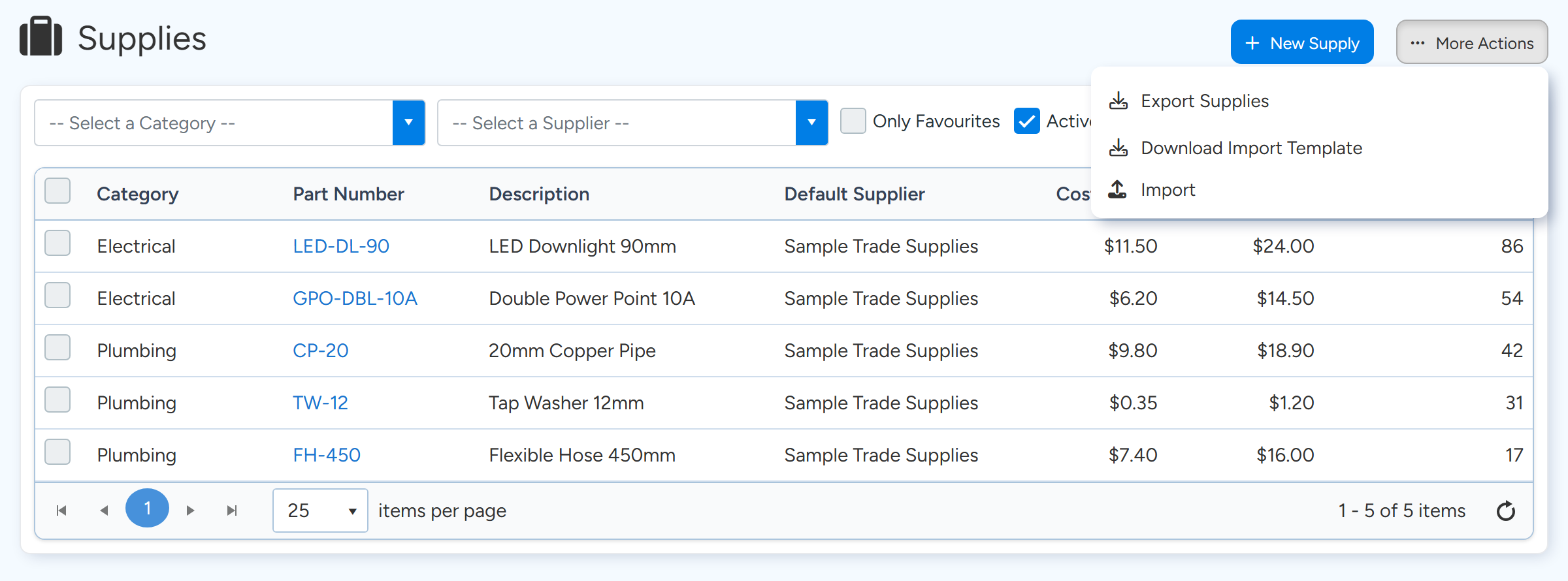
Go to Inventory > Supplies and select More Actions > Export Supplies.
The export is already in the layout the import expects. Starting from it keeps every other detail of each Supply as it is.
More Actions is at the top right of the Supplies list. Export Supplies downloads the spreadsheet and Import uploads it again. Sample data. Open the file and delete the rows for the Supplies you want to keep.
What is left is the list to archive. A Supply with prices from more than one supplier has one row per supplier: leave all of its rows in.
Type Yes in the ARCHIVED column of every remaining row.
Leave the other columns, SUPPLIER included, exactly as they were exported.
Type Yes in the ARCHIVED column for each row to archive, and leave PART NUMBER and SUPPLIER as exported. Sample data. Save the file.
Back on the Supplies list, select More Actions > Import and choose the file.
The file is queued and processed shortly afterwards.
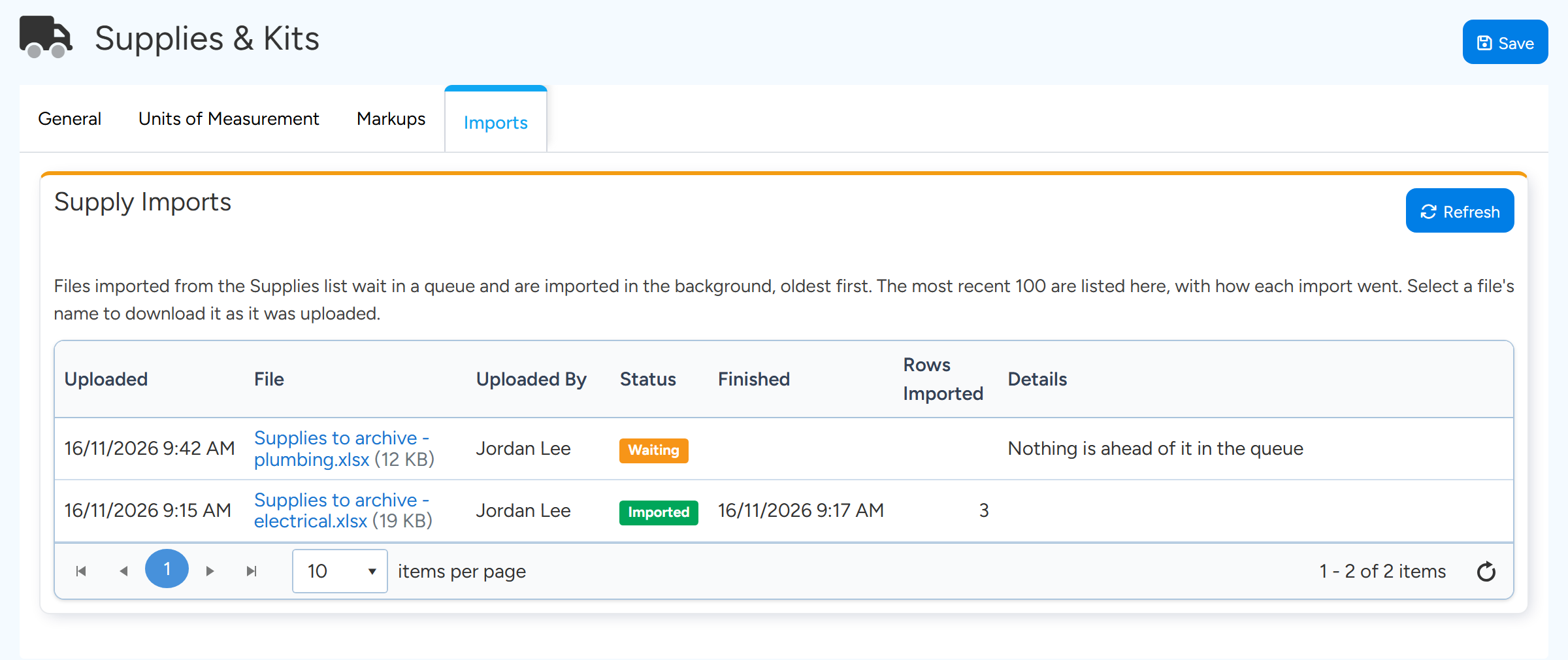
Check the result under Administration > Supplies & Kits, on the Imports tab.
The grid shows each upload with its Status, Rows Imported and Details.
Each upload shows Waiting until it has been processed, then Imported with the number of rows. Select Refresh to update the list. Sample data.

Bringing a Supply back
Import the Supply again with ARCHIVED blank or No. There is no list of archived Supplies in Ascora, so keep the file you archived from.
Hide a Supply without archiving it
If you only want Supplies out of the way, tick them in the Supplies list, select Bulk Edit and set Active to No. They stay in Ascora and show again when you untick Active Only on the list.
Archive Equipment
Go to Advanced > Import and select Download templates > Equipment.
Add one row for each item to archive, with its Equipment Number and Site Customer.
Ascora finds the item by its Equipment Number. Cells you leave blank keep their current values.
Type Yes in the Archived column of each row.
Save the file, then select Import Equipment on the Equipment card and choose it.
Check the column mapping and run the import.
Warning
Archived Equipment cannot be restored or listed. Importing the same Equipment Number again creates a new item; it does not bring the old one back. Check your file before you import.
What archiving Equipment changes
Service Jobs are no longer created for archived Equipment. Jobs that were already created stay as they are.
Common questions
What happens to Quotes, Jobs and Invoices that use an archived Supply?
They keep their lines. Archiving changes the Supply, not the records that already use it.
Which values count as Yes in the Archived column?
Yes, Y, True, T, 1 or X. Anything else, or a blank cell, means not archived.
My import file marks a Supply as Archived but the Supply does not exist. What happens?
The row is skipped. Marking a row Archived only archives a Supply that already exists.