









📝 How to Add Timesheet Details, Supply Details, and Labour Details in a Custom Form
Ascora allows you to enhance your Custom Forms by integrating essential job-related details such as Timesheets, Labour, and Supply information. This feature ensures that all job records are comprehensive, reducing manual data entry and improving reporting accuracy.
This guide will cover:
- How to add Timesheet details to a Custom Form
- How to capture Supply details in a Custom Form
- How to test the updated form in the Ascora mobile app
By following these steps, you can automate data collection for job-related resources, making it easier for technicians and staff to track work hours, costs, and materials used on each job.
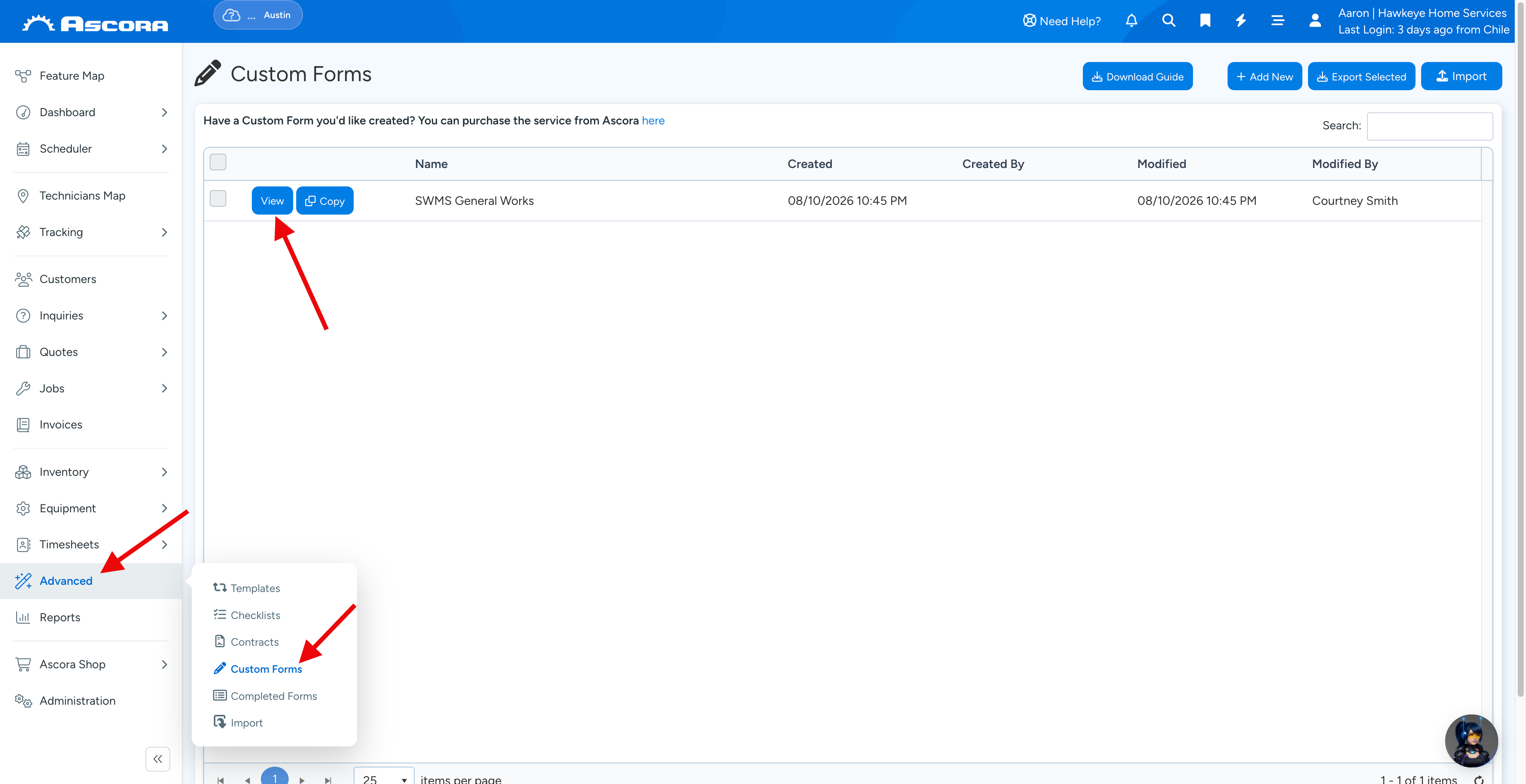
1. Download your custom form by going to Advanced → Custom Forms and click View beside the Custom Form Name which is basically the form that you need to update.
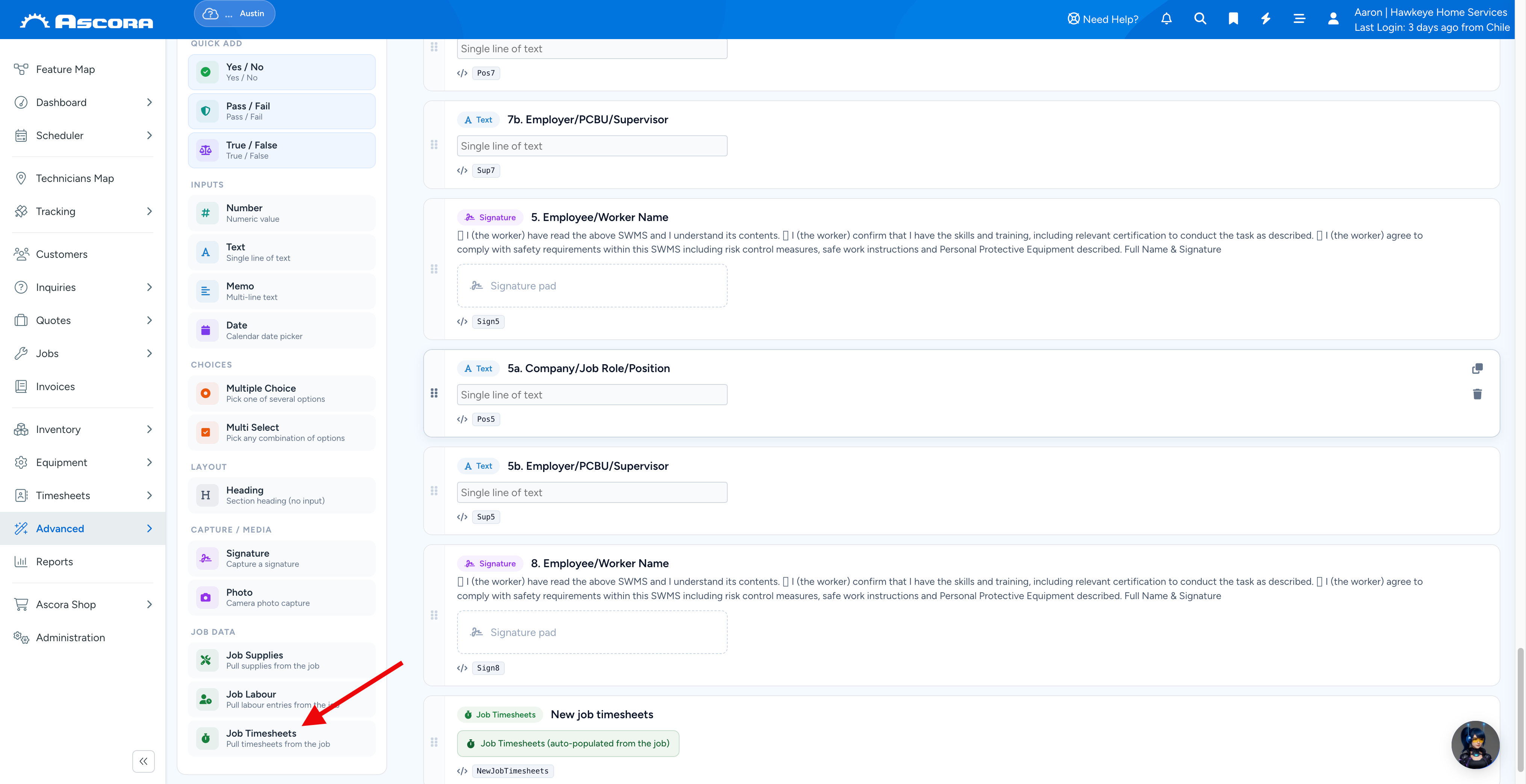
2. Under "Quick Add", select Job Timesheets to create the field.
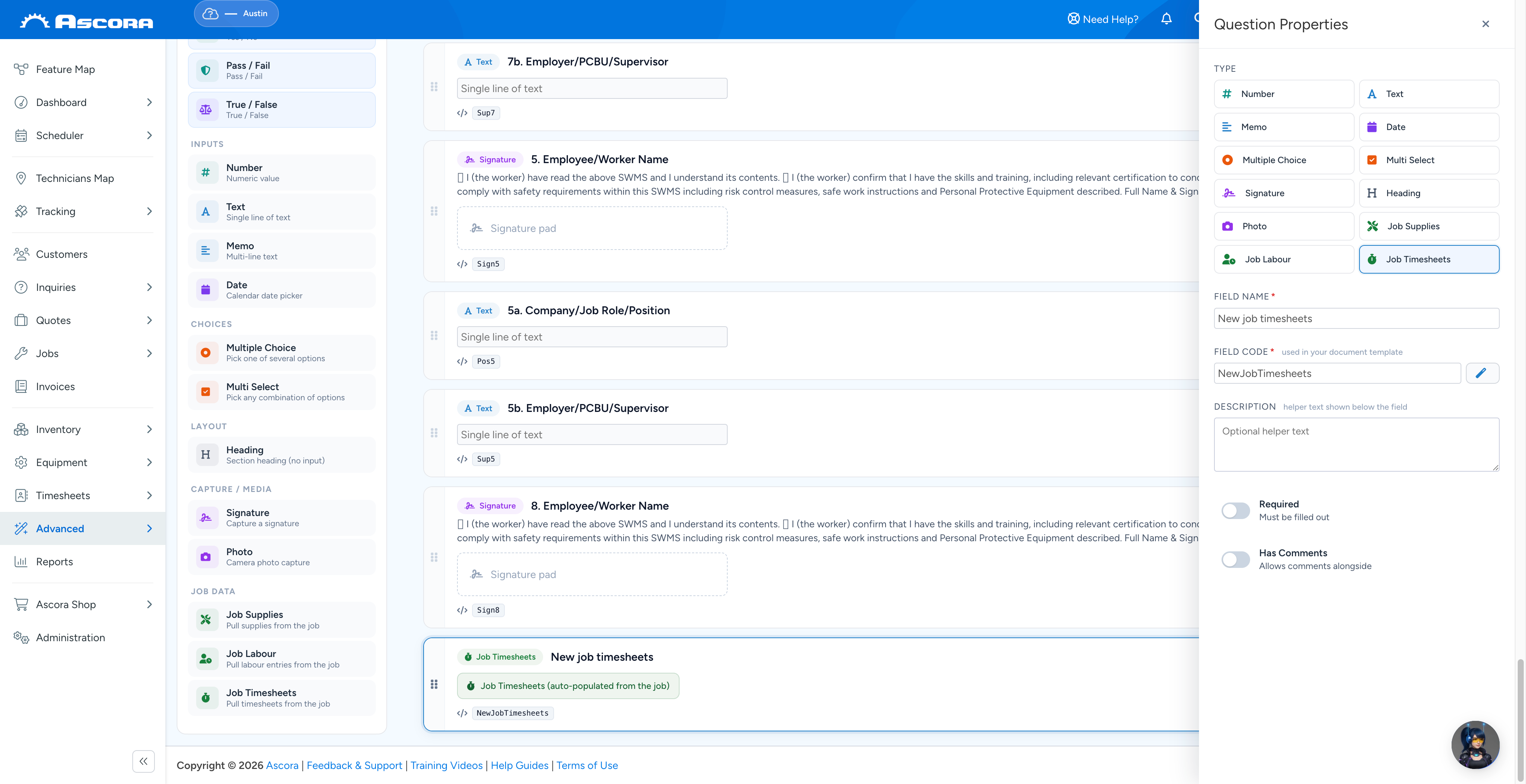
3. Fill out the details of the field and drag and drop it among others to choose its placement.
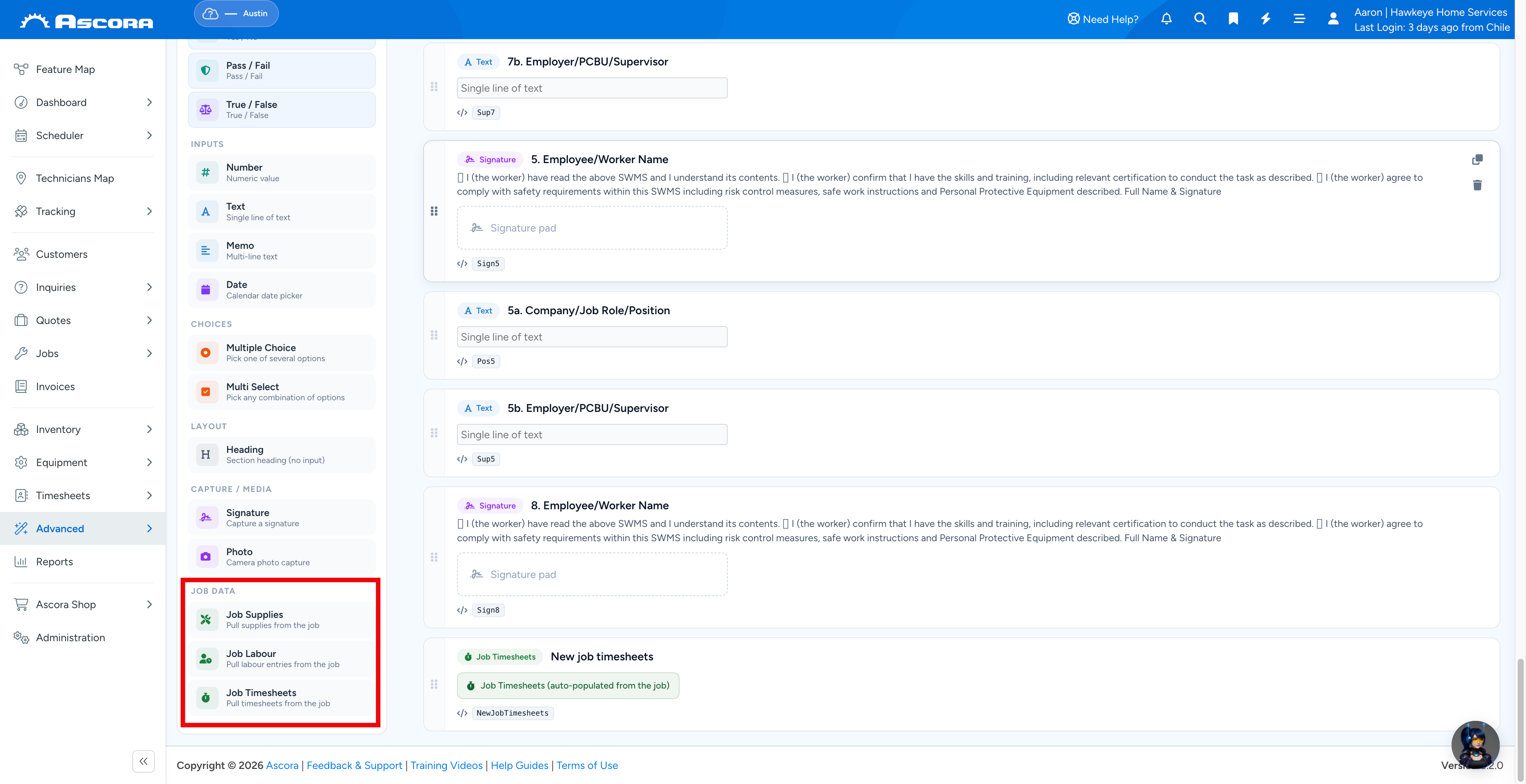
PS: You can follow the same steps to add Job Supplies and Job Labour fields.
Testing your Custom Form on your Mobile App
Make sure to do synchronisation first before running a test.
1. Access your job from the mobile app.

2. Navigate to Custom Forms tab and tap the + button and select the form that you are testing.

3. Tap Go button in Timesheets if you're adding timesheet details, and the other Go buttons buttons if you're also adding labour and supply details.
Click Generate and it should create a PDF version.

4. After generating the form, you should immediately see timesheet details and also labour and supply details if you've added them.

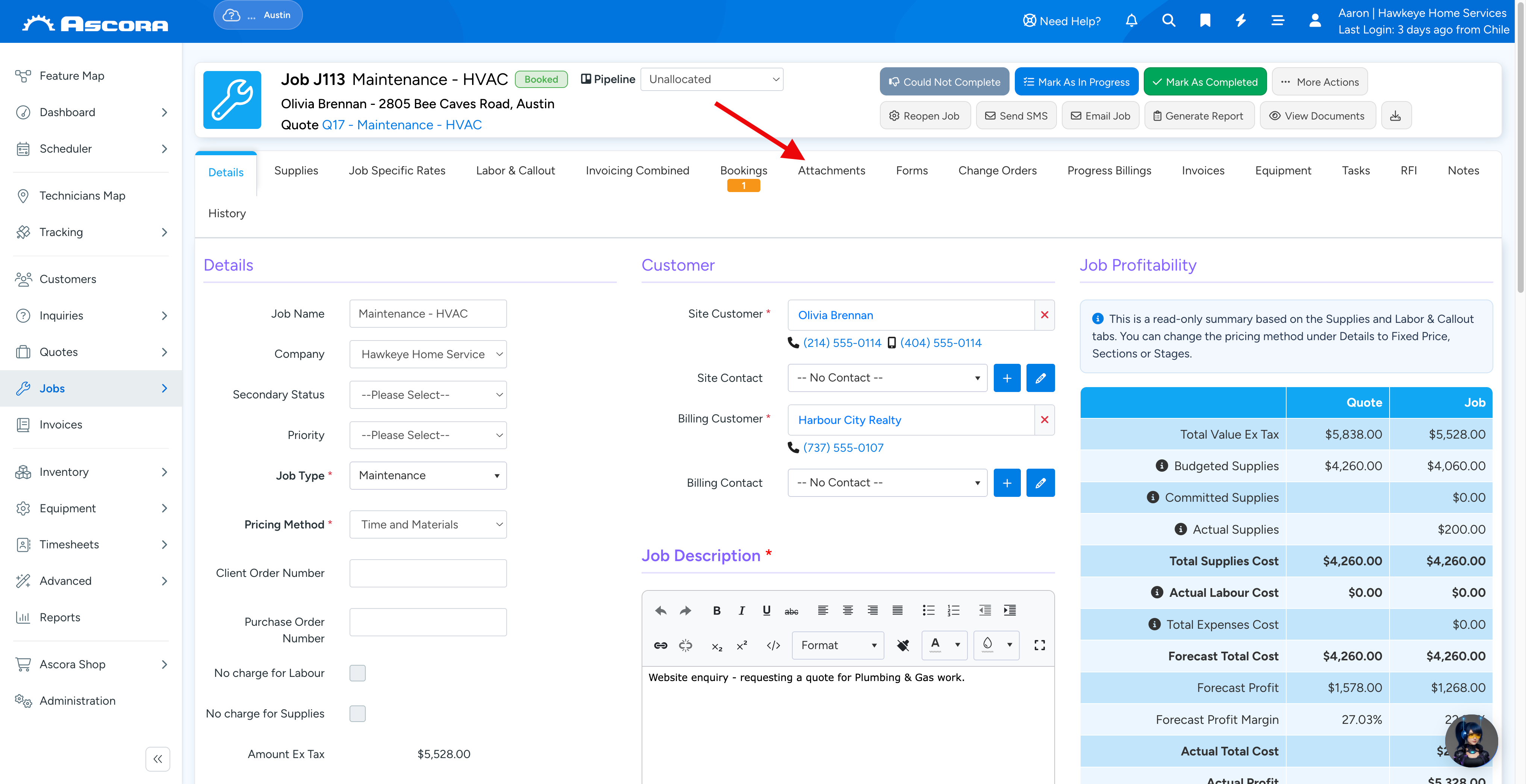
ℹ Note: This PDF form is also accessible in Ascora web by going to the Job screen → Attachments tab.
Sub Pages
Got a question?
Submit an Idea
💡 Go to Ideas Portal
Was this article helpful?
Contact support