









How to
A Statement lists a customer's Invoices with what has been paid and what is still owed. Ascora has two kinds, Outstanding and Activity, and they list different Invoices.
This article is for office and accounts staff who send Statements.
Download or email a Statement
Go to Administration > Accounting > Send Statements.
The list has one row for each customer who has Invoices to show.
Choose Outstanding or Activity and set the date or dates.
To send several at once, tick the customers, then select Email Statements or Download Statement.
Ascora asks you to confirm how many Statements will be sent.
To check one customer first, select View Details on their row.
The customer's Statement screen lists the Invoices that will be on it, with the same buttons.
Outstanding lists every Invoice dated on or before the as at date that still has a balance, including ones not yet due. Sample data. Tick Include Invoices to attach a copy of each Invoice after the Statement.
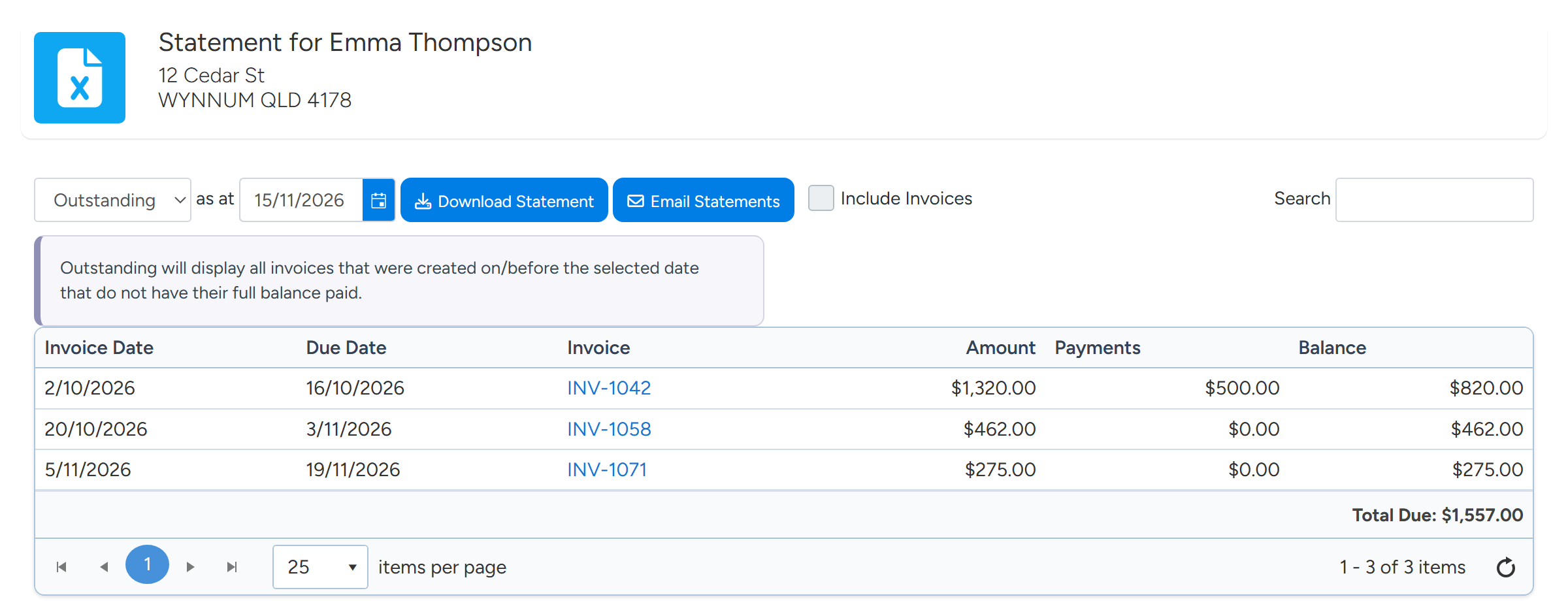
What an Outstanding Statement lists
Outstanding takes one date, as at. It lists every Invoice dated on or before that date that still has a balance owing. Invoices that are not yet due are included.
The balance shown is the balance today, not the balance on the as at date. An Invoice that was unpaid on the date but has been paid since is not listed, and a part payment made since is already taken off.
Credits on the customer's account are added together and shown as one Account Credit row.
What an Activity Statement lists
Activity takes two dates, between and and. It lists every Invoice dated inside the range, whether paid or not.
An Invoice dated before the range is listed only when a payment was recorded on it inside the range and it still has a balance owing. An older Invoice that was paid in full inside the range is not listed.
Activity does not show an opening balance, and it shows the total paid on each Invoice, not each payment on its own line.
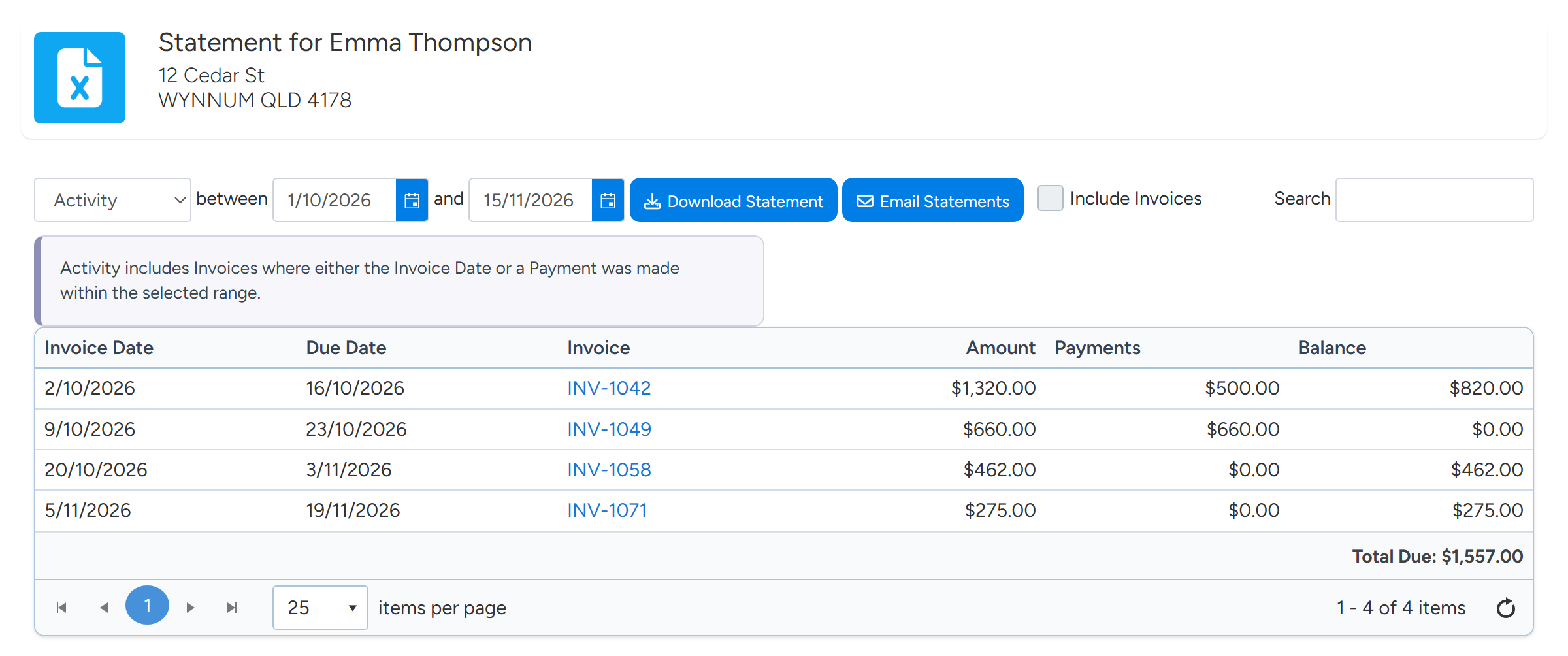
On both kinds
- Archived and cancelled Invoices are never listed.
- An Invoice appears on the Statement of its Billing Customer.
- Amount and Payments include any card surcharge.
- The printed Statement shows Overdue, Current and Total Due. Overdue is the total of balances whose due date is before the Statement date. Current is the rest. There are no 30, 60 and 90 day columns.
Statement Settings
Go to Administration > Accounting > Statement Settings.
Don't Include Invoices in Overdue Statements Below leaves an Invoice off when its balance is under the amount you enter. Use it to keep rounding differences of a few cents off Statements.
Don't Show Overdue Statements Below and Don't Include Outstanding Invoices in Follow Ups Below apply to automatic Statement Follow Ups.
Statement Reference sets what prints in the Reference column for each Invoice. Select fields from the Invoice Fields list to add them, then select Save.
Tip
To stop Invoice copies being attached for one customer whenever Statements are emailed, tick Do Not Include Invoice Copies On Statements on that Customer. It applies to emailed Statements. A downloaded Statement follows the Include Invoices tick box.
Common questions
An Invoice I expected is missing from an Outstanding Statement. Why?
Check that it is dated on or before the as at date, that it still has a balance today, that the balance is not under the amount in Statement Settings, and that it is not archived or cancelled. Also check which customer is its Billing Customer.
Can I produce a Statement as it stood at the end of last month?
Only partly. The as at date controls which Invoices are listed by their date, but balances are always today's.
Is there a Statement button on the Customer?
No. Statements are produced from Send Statements. Use Search there to find one customer.
Why is a paid Invoice on the Statement?
You are looking at an Activity Statement, which lists every Invoice dated in the range. Switch to Outstanding to list only what is owed.