









How to
A GPS tracker shows in Ascora once it is linked to an Asset, such as a vehicle. Ascora registers each tracker to your account; you then choose which Asset it belongs to.
This article is for whoever manages your vehicles and trackers.
Link a tracker to an Asset
Go to Tracking > Assets.
Purchase GPS on this page orders more trackers.
Select New, or open an existing Asset.
Enter the Asset Code and Asset Name.
Select Set GPS Device and choose the tracker.
The list shows trackers registered to your account that are not yet linked to an Asset. You cannot type a serial number in yourself.
Save the Asset.
Note
If the list reads No GPS Devices Available, the tracker has not been registered to your account yet, or it is already linked to another Asset. Check your other Assets, then contact Ascora Support with the tracker's serial number.
What Last Connected tells you
The Assets list has a Last Connected column. It shows how long ago the tracker last reported, such as a few minutes or several days.
Never Connected means Ascora has not received a single report from that tracker. The Status column shows a satellite icon with a line through it.
On Tracking > Live Tracking, a tracker that has sent nothing for more than 48 hours is dimmed and described as not reporting, with where it was last seen.
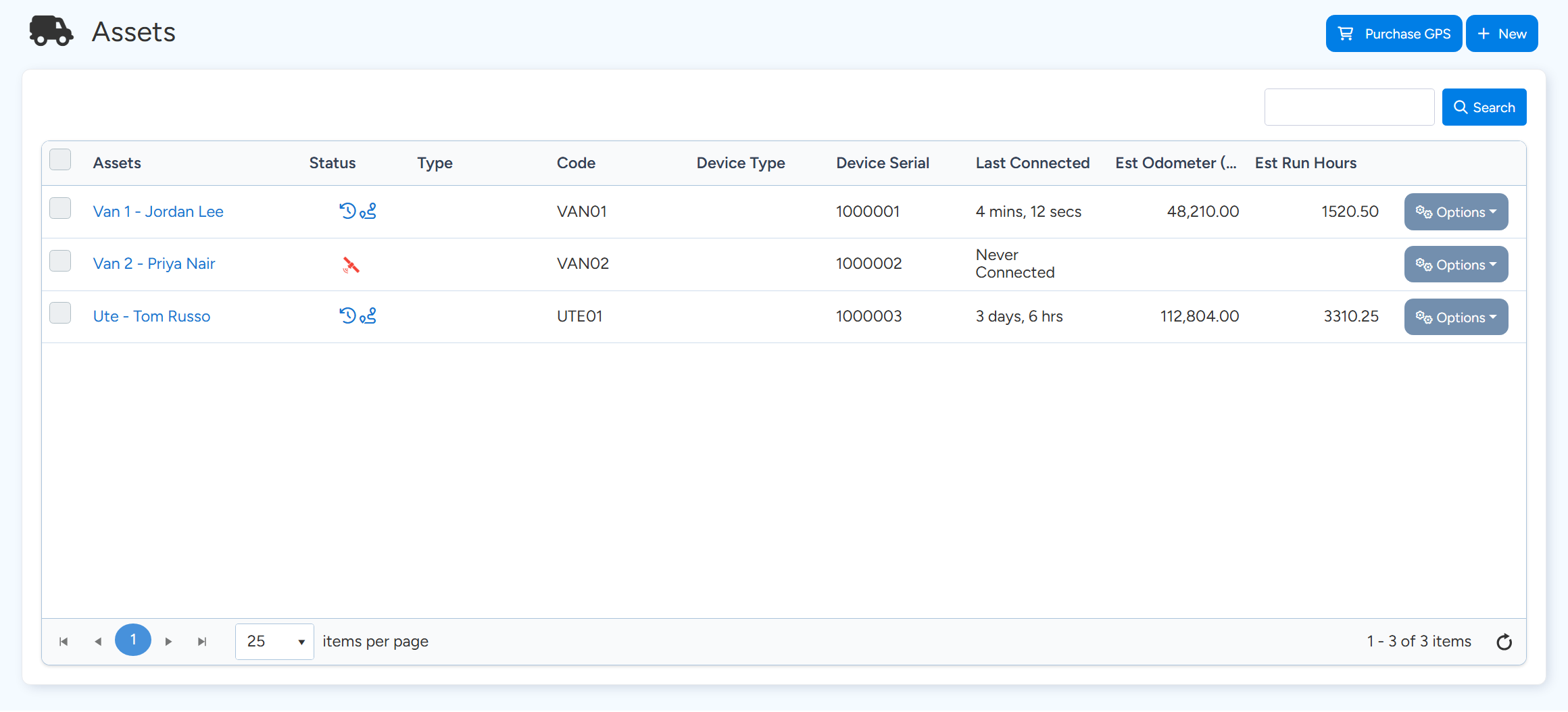
If a tracker shows Never Connected
- Check that Device Serial on the Asset is filled in and matches the serial number on the tracker itself. If the wrong tracker is linked, use Clear GPS Device, then Set GPS Device.
- Check that the tracker is installed and has power. A plug-in tracker must be pushed fully into the vehicle's port. A wired tracker needs its power connected.
- Drive the vehicle outdoors for 10 to 15 minutes. A tracker needs a clear view of the sky for its first position.
- Check that the Asset is not disabled. A disabled Asset has a warning triangle before its name. Use Options > Enable.
If a tracker has stopped reporting
- On Live Tracking, set Order By to Connectivity Alert to bring trackers that are not reporting to the top.
- Open Tracking > Telemetry, choose the Asset and a date, and look at the latest rows. No rows for today means nothing has arrived from the tracker.
- Open Tracking > IO Telemetry and check External Voltage and Battery Voltage on the last rows received. A low external voltage points to the tracker being unplugged or losing power.
- Under Tracking > GPS Notifications, turn on GPS Power / Unplugged with an email address to be told when a tracker loses power.
Moving or removing a tracker
To move a tracker to another vehicle, open its Asset and select Clear GPS Device. Then open the other Asset and select Set GPS Device.
Options > Disable keeps the Asset but stops it being used. Delete archives the Asset. Deleting an Asset does not release its tracker, so clear the GPS device first.
To cancel a tracker's service, contact Ascora Support. It cannot be cancelled from these screens.
Common questions
How often does Live Tracking update?
The page refreshes about every 20 seconds. Trip View and Telemetry load when you choose an Asset and date.
Is there an alert when a tracker stops reporting?
Not for a tracker that simply goes quiet. GPS Notifications cover harsh braking, harsh acceleration, a possible accident and loss of power.
The tracker shows the wrong vehicle.
The tracker is linked to the wrong Asset. Clear the GPS device on that Asset and set it on the right one.