









Guide
Two things decide what a person can do in Ascora: their User Type, which sets where they can sign in, and their Permissions, which set what they can see and change once signed in.
This article is for Administrators who set up users. It covers the user types, what a Timesheet Only user can do, and how to hide costs and prices from a user.
The three user types
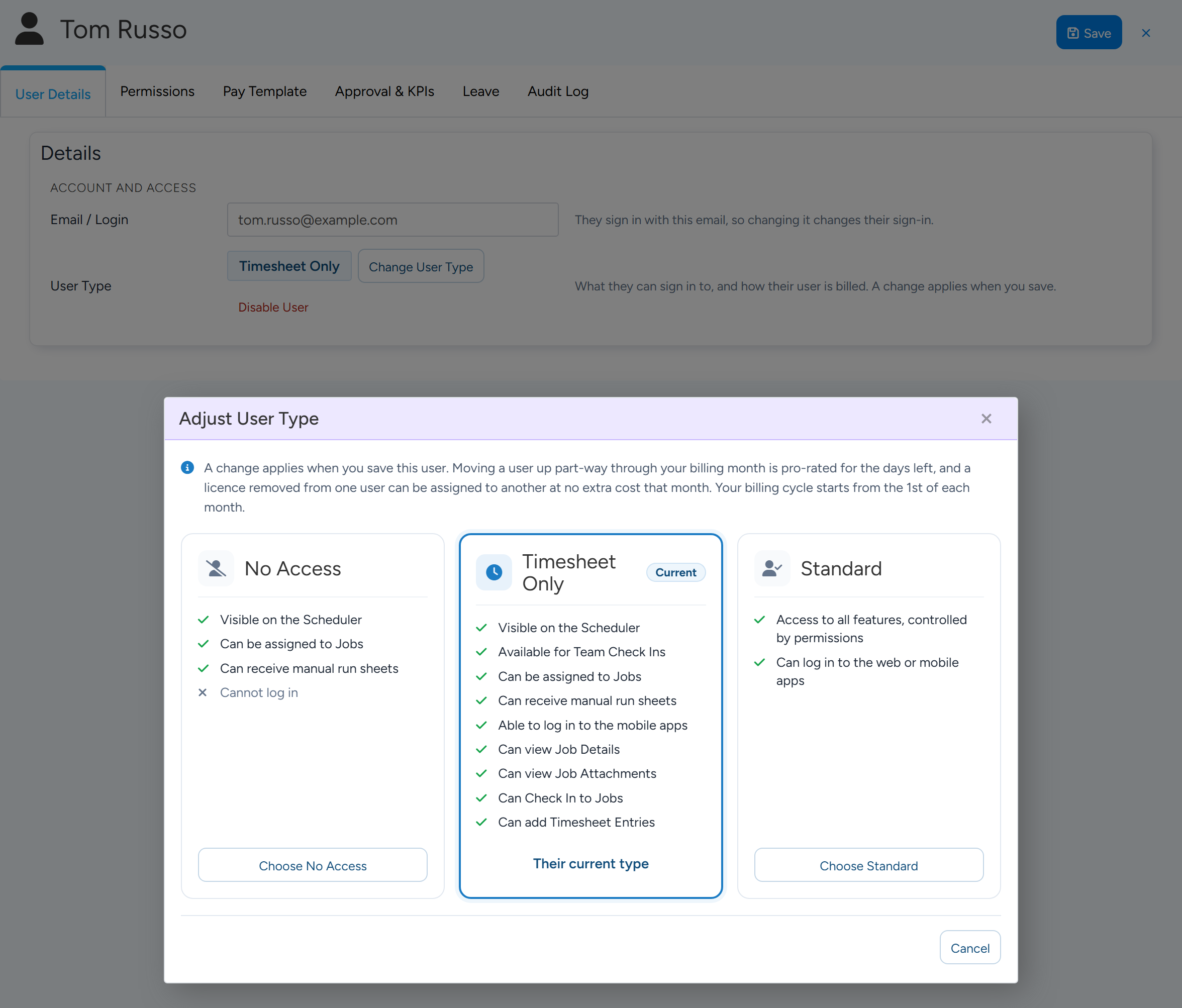
No Access. The person appears on the Scheduler, can be assigned to Jobs and can be sent manual run sheets. They cannot sign in.
Timesheet Only. Everything above, plus they can sign in to the mobile apps, be included in Team Check Ins, view Job details and Job attachments, check in to Jobs and add timesheet entries. They cannot sign in to the Ascora website.
Standard. Can sign in to the website and the mobile apps. What they can do is controlled by their permissions.
Change a user's type
Go to Administration > Users and open the user.
On the User Details tab, find User Type and select Change User Type.
Change User Type opens this window. Each card lists what that type of user can do. Sample data. Choose No Access, Timesheet Only or Standard.
Select Save.
The change applies when you save the user. The window explains how a change part-way through your billing month is charged.
Note
If you do not see the Timesheet Only card, it is not switched on for your account. Contact Ascora Support to ask about it. Accounts on older plans see Mobile Access Level in place of User Type, with the levels No Access, Timesheet Only and Full Access.
What a Timesheet Only user cannot do
- Sign in to the Ascora website. They see a message that their user does not have access to the web portal.
- Add or edit attachments and Job photos. They can view them.
- Create or edit Supplies on a Job.
- See prices. The permissions that show pricing in the apps are switched off for this type.
Hide costs and prices on the website
Open the user, go to the Permissions tab and find Costs and Prices under Web Permissions. Untick what the user should not see, then select Save.
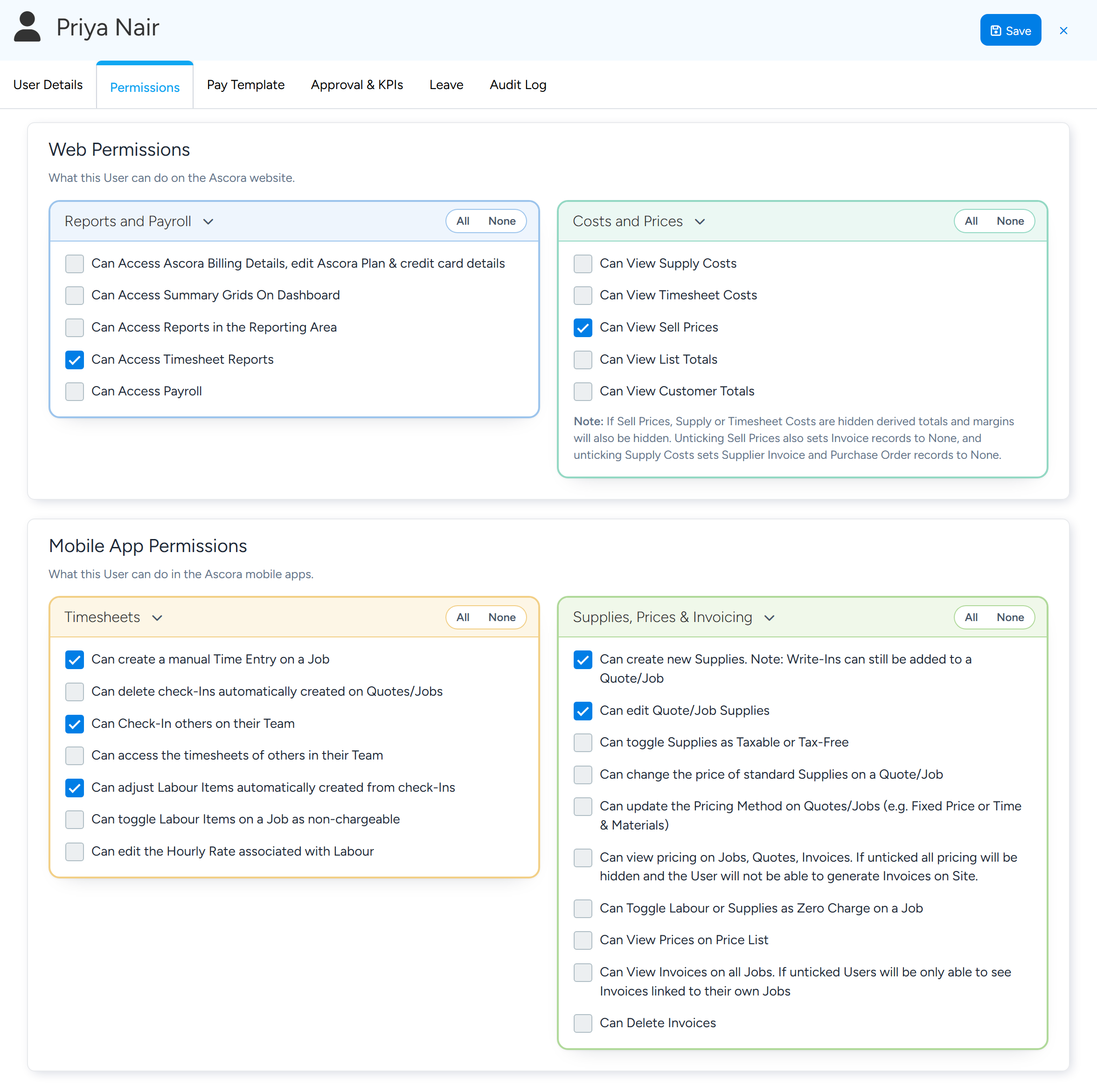
- Can View Supply Costs. Unticked, the cost of Supplies is hidden. Supplier Invoice and Purchase Order records are also set to None for the user.
- Can View Timesheet Costs. Unticked, the cost of labour is hidden.
- Can View Sell Prices. Unticked, sell prices and invoiced amounts are hidden, including the price columns on the Jobs list. Invoice records are also set to None for the user.
- Can View List Totals. Unticked, the totals under lists such as a Customer's Invoices and Payments are hidden.
- Can View Customer Totals. Unticked, the totals on the Customers list are hidden.
Note
When sell prices, Supply costs or timesheet costs are hidden, totals and margins worked out from them are hidden too. With all three unticked, the profitability figures on a Job are hidden.
Other web permissions that show money
Under Reports and Payroll: Can Access Reports in the Reporting Area, Can Access Summary Grids On Dashboard, Can Access Timesheet Reports, Can Access Payroll, and Can Access Ascora Billing Details, edit Ascora Plan & credit card details, which controls who can open your own Ascora subscription page.
The Shared Records grid sets, for each kind of record such as Invoices, whether the user has None, View, View & Edit or View, Edit & Delete.
Hide or lock prices in the mobile apps
- Can view pricing on Jobs, Quotes, Invoices. Unticked, all pricing is hidden in the apps and the user cannot generate Invoices on site.
- Can View Prices on Price List.
- Can change the price of standard Supplies on a Quote/Job.
- Can update the Pricing Method on Quotes/Jobs, for example Fixed Price or Time & Materials.
- Can toggle Supplies as Taxable or Tax-Free.
- Can Toggle Labour or Supplies as Zero Charge on a Job.
- Can View Invoices on all Jobs. Unticked, the user sees only Invoices linked to their own Jobs.
- Can Delete Invoices.
- Under Timesheets: Can edit the Hourly Rate associated with Labour and Can toggle Labour Items on a Job as non-chargeable.
Tip
The mobile permissions are under Mobile App Permissions > Supplies, Prices & Invoicing on the same Permissions tab. A user needs to sync the app, or sign out and in again, to pick up a change.
Common questions
Is there a subcontractor user type?
No. Set a subcontractor up as one of the three user types and use the permissions above to limit what they see. Timesheet Only suits a subcontractor who only needs to see their Jobs and record time.
Can I stop an office user changing the Pricing Method on a Job?
Not separately. On the website, anyone who can edit Jobs can change it. The Pricing Method permission applies to the mobile apps.
Does the Web Role hide prices?
No. The Web Role (Administrator or Standard) does not restrict prices. Use Costs and Prices.
A user says a screen or button is missing. Where do I look?
Open the user and check the Permissions tab: first Shared Records for that kind of record, then the permission cards. The search box at the top of the tab finds a permission by name.