









How to
In Ascora a credit note belongs to the customer, not to one Invoice. You create the credit on the customer, then use it as a payment on any of that customer's Invoices.
This article is for office and accounts staff.
Create a credit note
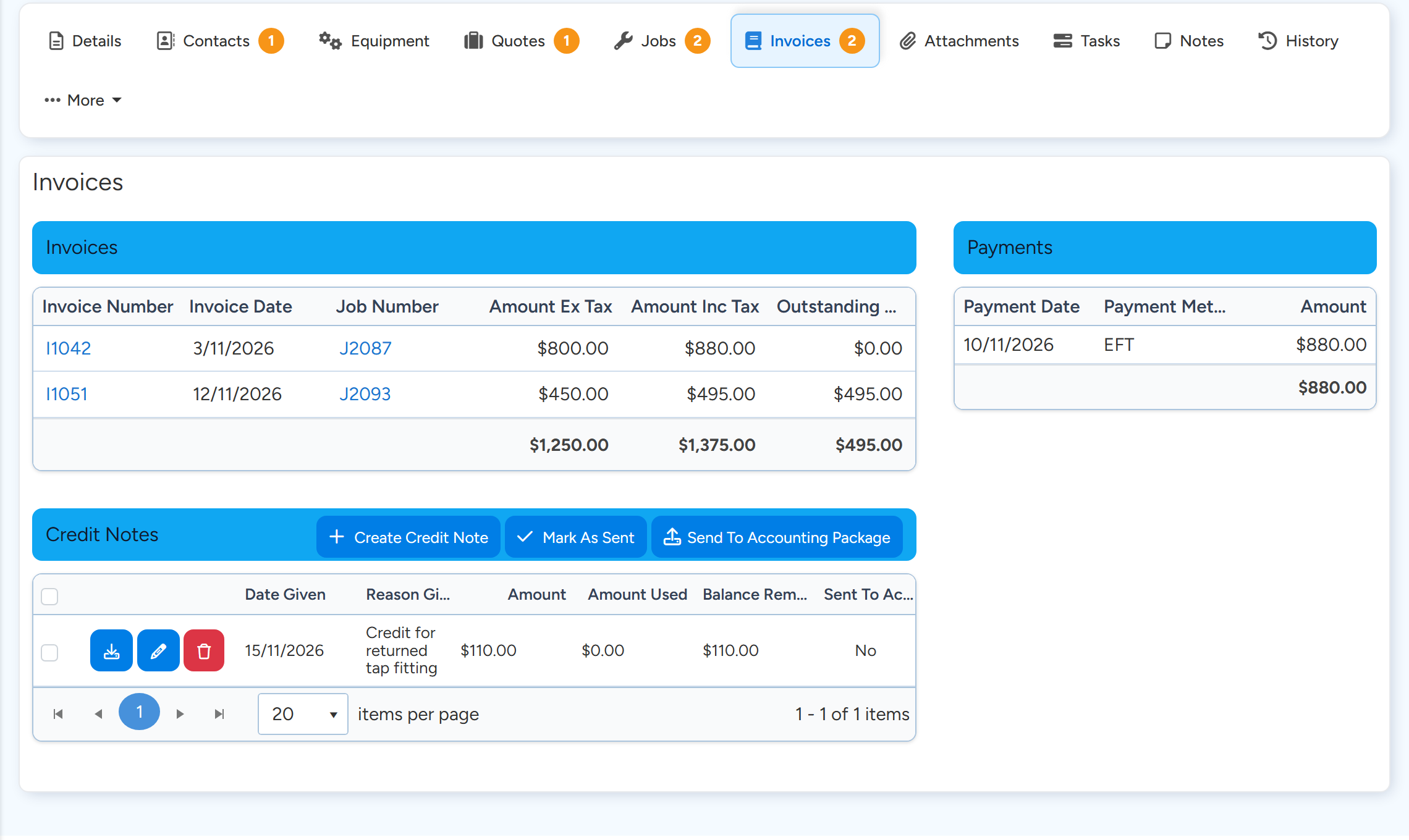
Open the Customer and go to the Invoices tab.
In the Credit Notes box, select Create Credit Note.
You can also use Administration > Accounting > Credit Notes, where you choose the customer in the window.
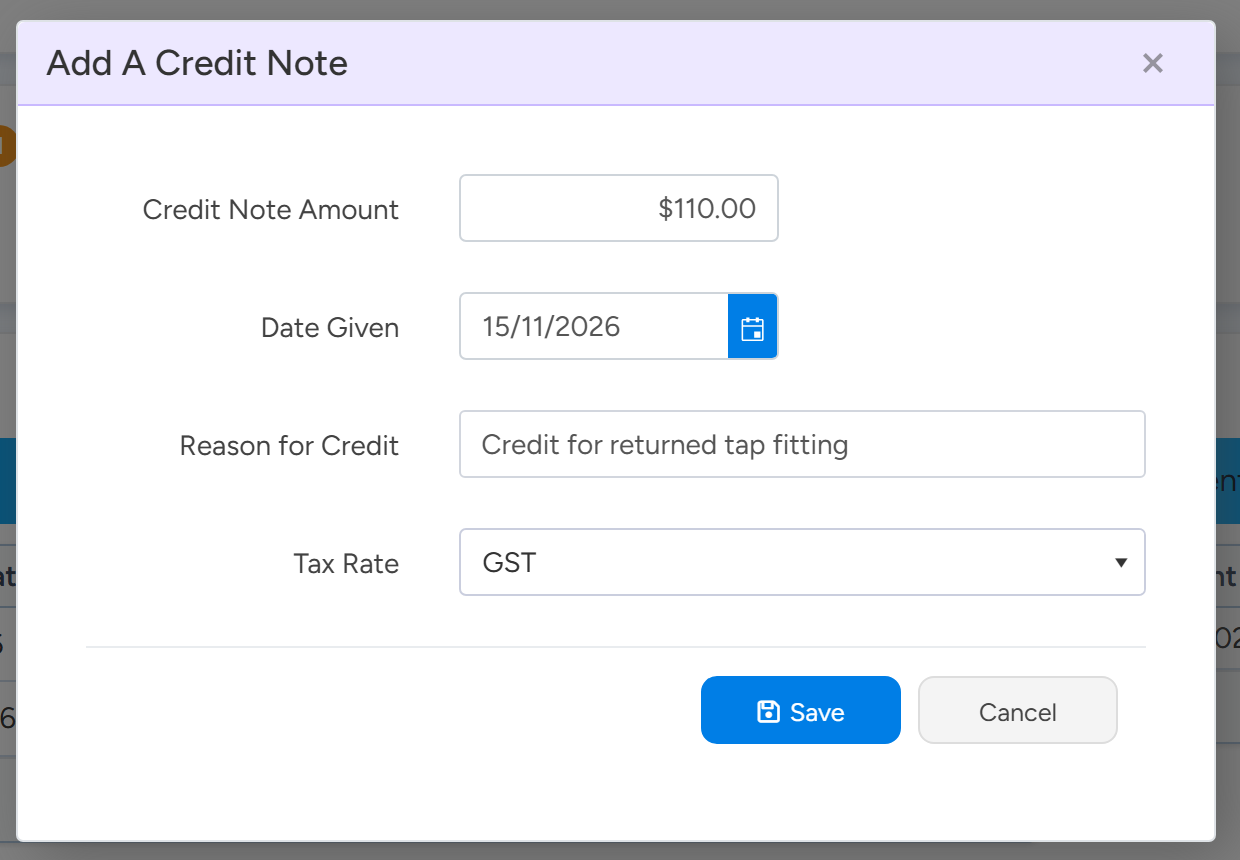
Credit notes are created on the customer's Invoices tab, in the Credit Notes box. Sample data. Enter the Credit Note Amount, Date Given, Reason for Credit and Tax Rate.
Enter the amount, the date and a reason, then Save. Sample data. Select Save.
The credit note is listed with its Amount, Amount Used and Balance Remaining. The download button on its row produces a credit note document, if you have a Credit Note document template.
Apply the credit to an Invoice
Open the Invoice and select Add Payment.
Set Payment Method to Credit Note.
Choose the credit in the Credit Note list.
The list shows the Billing Customer's credit notes that still have a balance.
Enter the amount and save.
You cannot use more than the credit has left. If you enter more, the amount is reduced to the balance of the credit note. A credit can be spread across several Invoices.
A customer has paid too much
Ascora lets you record a payment larger than the Invoice. The Invoice shows as paid in full with a negative balance. The extra is not turned into a credit automatically.
To keep the extra for the customer's next Invoice, record the payment for the Invoice amount only, create a credit note for the difference, and apply that credit to the next Invoice.
Refunds
There is no refund button on an Invoice or a payment. If you have refunded a payment outside Ascora and want the Invoice to show as unpaid again, delete the payment from the Invoice's payments list.
Deleting a payment that was taken by card in Ascora does not send money back to the card. Refund the card through your payment provider.
If you record the refund against a credit note in your accounting package, the next sync reduces that credit note in Ascora.
Write off an Invoice as a bad debt
Open the Invoice and select More Actions > Mark As Bad Debt.
Confirm with Yes, write off this invoice.
Ascora sets the Invoice to Bad Debt, creates a credit note for the outstanding balance, applies it to the Invoice and sends it to your accounting package.
Note
Set the account the write-off is posted to under Administration > Accounting > Accounts Integration, in Bad Debt Account. Mark As Bad Debt is not offered on a locked Invoice.
With an accounting package
- Credit notes and payments are sent to your accounting package when they are saved.
- Xero does not allow a credit note to be changed or deleted once it has been sent. Change it in Xero.
- A credit note that has been used on an Invoice cannot be deleted in Ascora.
- A payment taken by card in Ascora cannot be changed apart from its comments.
Common questions
Can I create a credit note from the Invoice itself?
No. Create it on the customer, then apply it to the Invoice with Add Payment.
The credit note will not download.
You need a document template of the type Credit Note. Add the starter Credit Note template under Administration > Document Templates.
The Credit Note list is empty when I add a payment.
The credit must belong to the Invoice's Billing Customer and must have a balance remaining.
Can I reduce an Invoice instead of crediting it?
Yes, if the Invoice is not locked you can edit its lines. Use a credit note when the Invoice should stay as issued.