









How to
Users are never deleted in Ascora, because their name stays on the Jobs, Timesheets and notes they worked on. A user who has left is deactivated instead.
This article is for Administrators.
Deactivate a user who has left
Go to Administration > Users and select View on the user.
On the User Details tab, select Disable User.
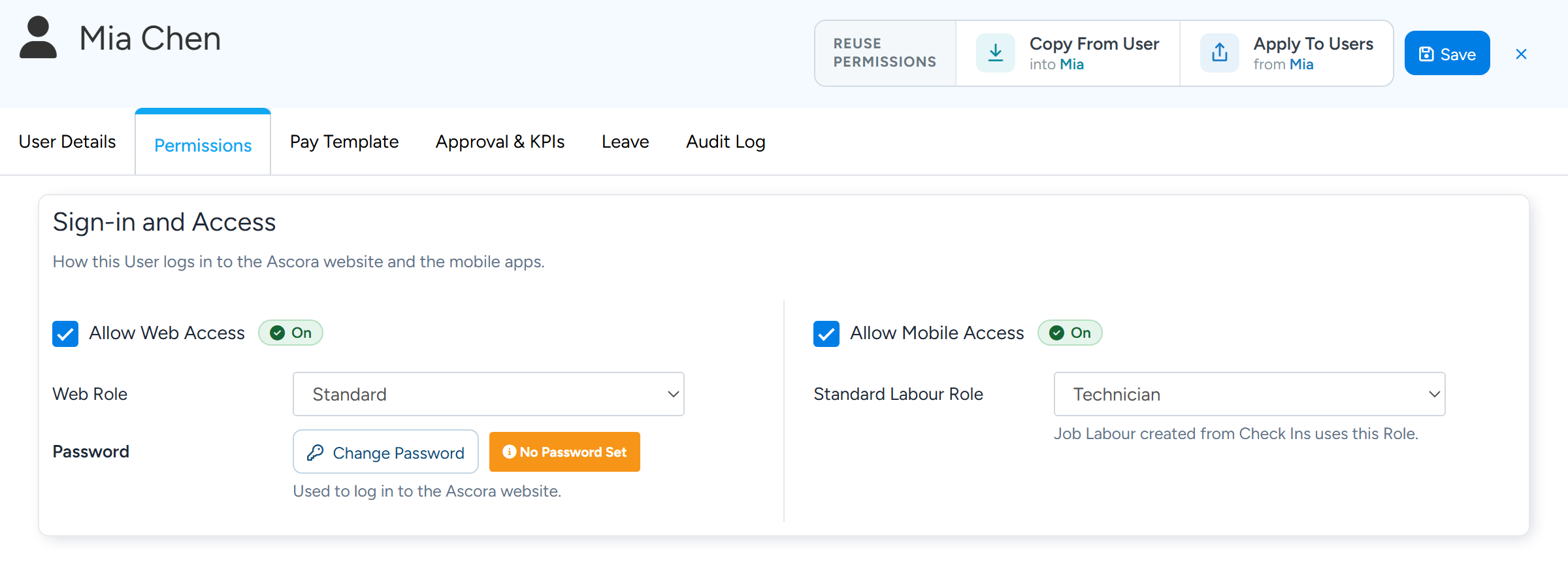
If your account does not show this button, go to the Permissions tab and, under Sign-in and Access, untick Allow Web Access and turn off mobile access.
Sign-in and Access holds the access tick boxes and Change Password, which sets a new user's first password. Sample data. Select Save.
The user is signed out of the website and can no longer sign in.
What happens when a user is deactivated
- Their history stays. Jobs, Timesheets, notes and bookings keep their name.
- Future bookings are not moved or removed. Reassign them on the Scheduler.
- They are removed as a Purchase Order approver.
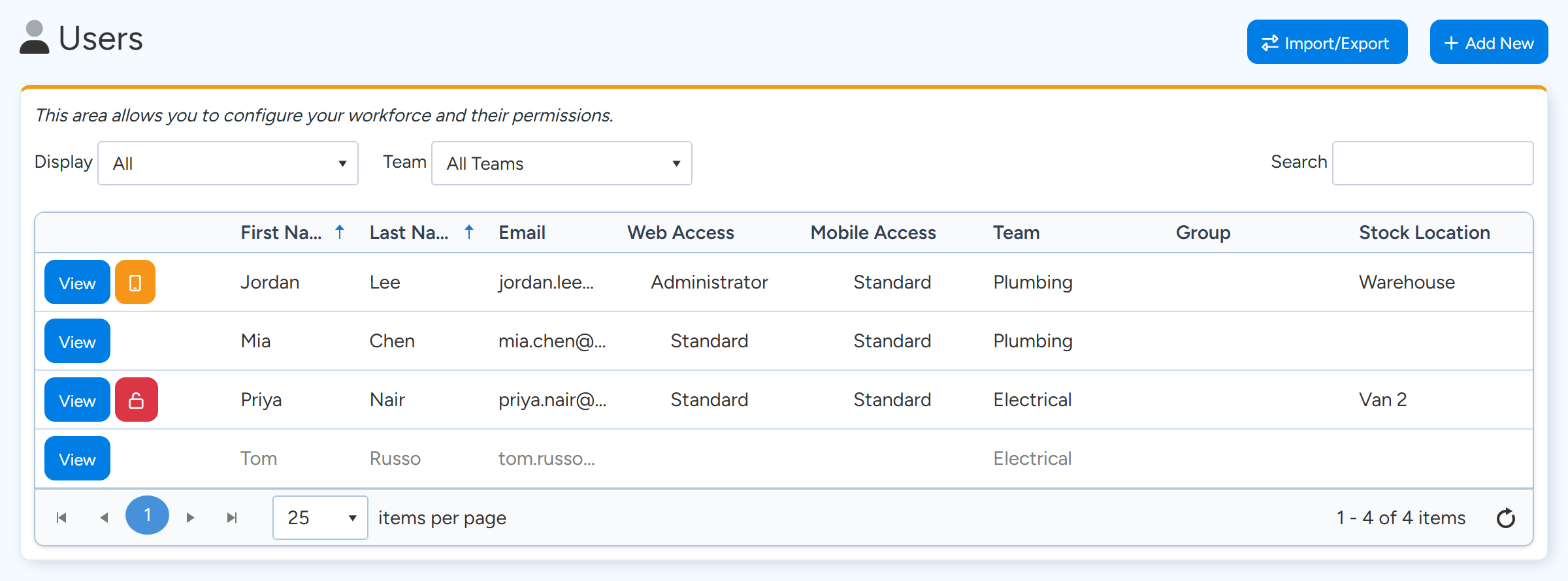
- They drop out of the Users list, which shows All Active by default. Set Display to All or Inactive Only to see them. Inactive users are shown in grey.
- Your subscription is based on the number of enabled users at the start of each billing period. A licence taken off one user can be given to another in the same month at no extra cost.
Note
The last Administrator on an account cannot be deactivated. Make another user an Administrator first.
The email address is refused as already in use
Each sign-in email can belong to only one user across all of Ascora. The message is A user with this login email already exists. An inactive user still holds their address, and so does a user in an old trial account or in another company's account.
If the address belongs to a deactivated user in your own account, open that user and change their Email / Login to something else, save, then use the address for the new user.
If you cannot find the address in your account, it is held in another account. Contact Ascora Support to have it released.
A sign-in email can be up to 50 characters long.
Get a new user signed in
On the Users list, select Add New and enter the first name, last name and email.
Adding a user does not send them an email.
Open the user, go to the Permissions tab and make sure Allow Web Access is ticked.
Select Change Password, enter a password twice, and save.
An orange No Password Set badge shows until a password has been set. Give the password to the user yourself.
For the mobile apps, set their Mobile Pin Number on the User Details tab.
They sign in to the apps with their email and this 4-digit PIN.
Tip
Instead of setting a password for them, you can ask the new user to select Forgot Password on the sign-in page. It emails a link to choose their own password, as long as Allow Web Access is ticked and saved. Users brought in with Import Users from your accounting package are sent an invitation email automatically.
Change a user's email address
Change Email / Login on the User Details tab and save. They sign in with the new address from then on, with the same password. The new address must not be in use anywhere else in Ascora.
Common questions
Can I delete a user added by mistake?
No. Deactivate them, and change their Email / Login if you need the address for someone else.
What do the buttons beside View on the Users list mean?
A red padlock means the user is locked out after too many failed sign-ins; select it to unlock them. An orange phone resets their Two-Factor Authentication.
How do I remove a licence added to a user by mistake?
On the User Details tab, find the Licences box and select the red bin on that licence.
A user who left is coming back.
Find them with Display set to Inactive Only, open them, give back their access and set a new password.