









How to
Most details of a Purchase Order can be changed while it is open. A few cannot, and some changes are blocked once the order is approved, closed or invoiced by the supplier.
This article is for office and purchasing staff.
Move an order to another Job
Open the Purchase Order.
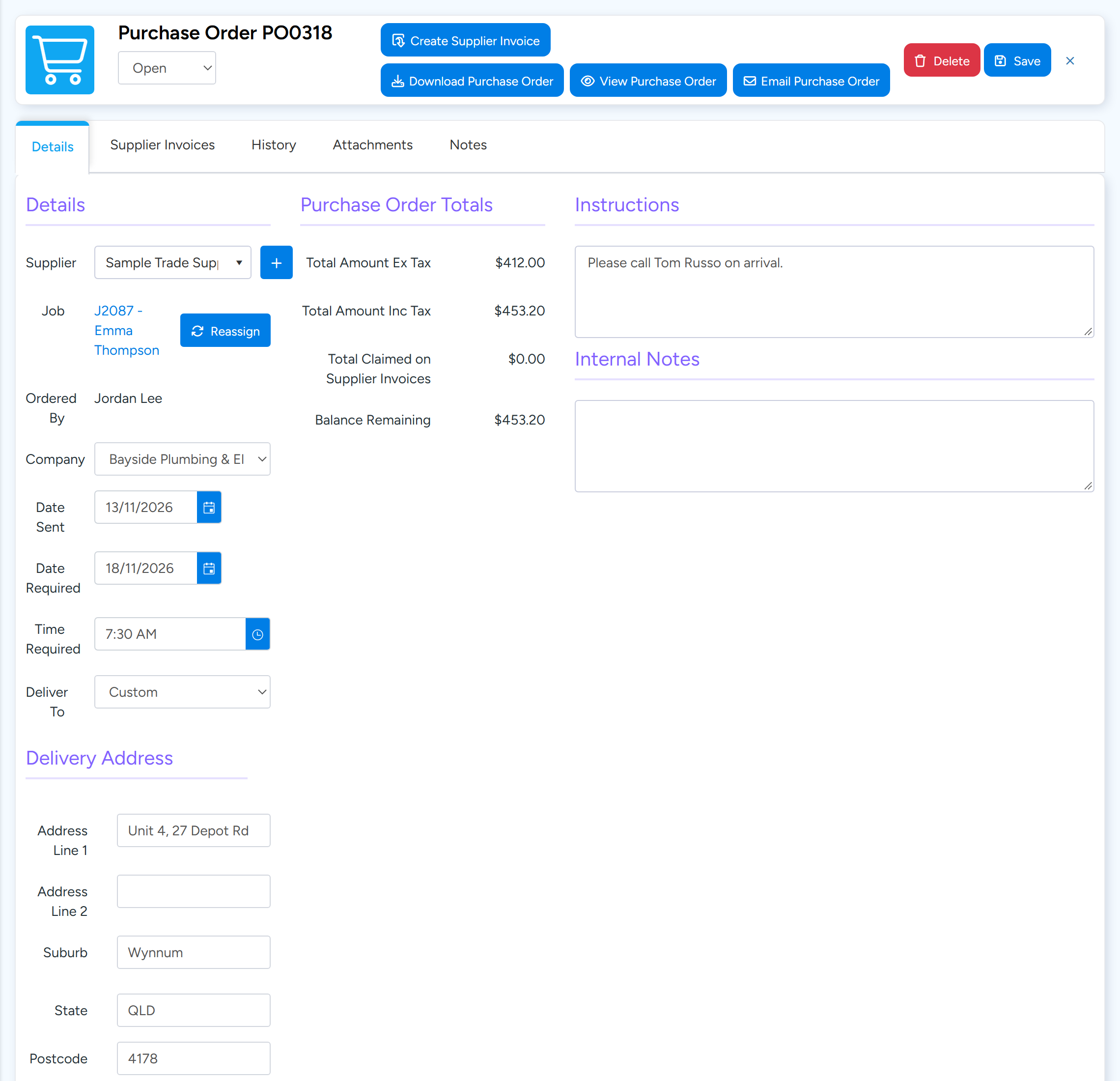
Beside Job, select Reassign.
On an order with no Job the button is Assign.
Reassign moves the order to another Job. Deliver To offers Site, Yard, Pickup and Custom; Custom opens the Delivery Address fields. Sample data. Choose the Job and select Assign Job.
Confirm.
The whole order moves, with its Supplies and Kits, and the totals of both Jobs are recalculated.
When Reassign is not available
- The order is Closed.
- The order is approved. Unapprove it first.
- A Supplier Invoice has been raised against the order.
- You do not have edit permission on both Purchase Orders and Jobs.
- A single line cannot be moved to another Job. Remove the line and add it to an order on the other Job.
Where the order is delivered
Deliver To has four choices. Site prints the Job's address. Yard prints your default company's name and address from Company Details. Pickup prints that you will pick the order up. Custom opens Delivery Address fields for any other address.
There is no separate yard or warehouse address. If your yard is not at your company address, choose Custom and type it.
To set which choice new orders start with, go to Administration > Defaults > Purchase Orders > Default Purchase Order Delivery Location.
Received quantities
Receive is offered on an order with the status Ordered. Each time you receive, the quantity is added to what was received before.
A receipt cannot be undone or edited, and Qty Received on the lines cannot be typed over. Check the quantity before you save a receipt.
Quantities received through a Supplier Invoice are reversed if that Supplier Invoice is unaccepted or deleted.
Sending Job attachments with the order
In the Email Purchase Order window, open the Attachments tab. It lists the files on the order and on its Job, all unticked. Tick the ones to send.
The Include all Job attachments switch on the order's own Attachments tab only changes what that tab lists. It does not add files to the email.
Deleting an order
Purchase Orders have three statuses: Open, Ordered and Closed. There is no Cancelled status. To cancel an order, select Delete.
Deleting archives the order and marks the Supplies on its Job as needing to be ordered again. Ascora does not stop you deleting an order that has been received or invoiced, so check first.
Common questions
Can I change Ordered By?
No. It always shows the user who created the order.
Why does a new order have no Job?
An order created from the Purchase Orders list starts as Not Assigned. Create it from the Job to have the Job filled in, or use Assign.
Does Stock Location set the delivery address?
No. Stock Location is where the stock is received into. The address comes from Deliver To.