









How to
When an Invoice does not arrive in Xero, Ascora records the reason on the Invoice. This article shows where to read that reason, how to send the Invoice again, and what to do when Xero has ended its connection to Ascora.
It is for office and accounts staff. Connecting Xero again needs an Administrator.
Find out why an Invoice did not reach Xero
Open the Invoice.
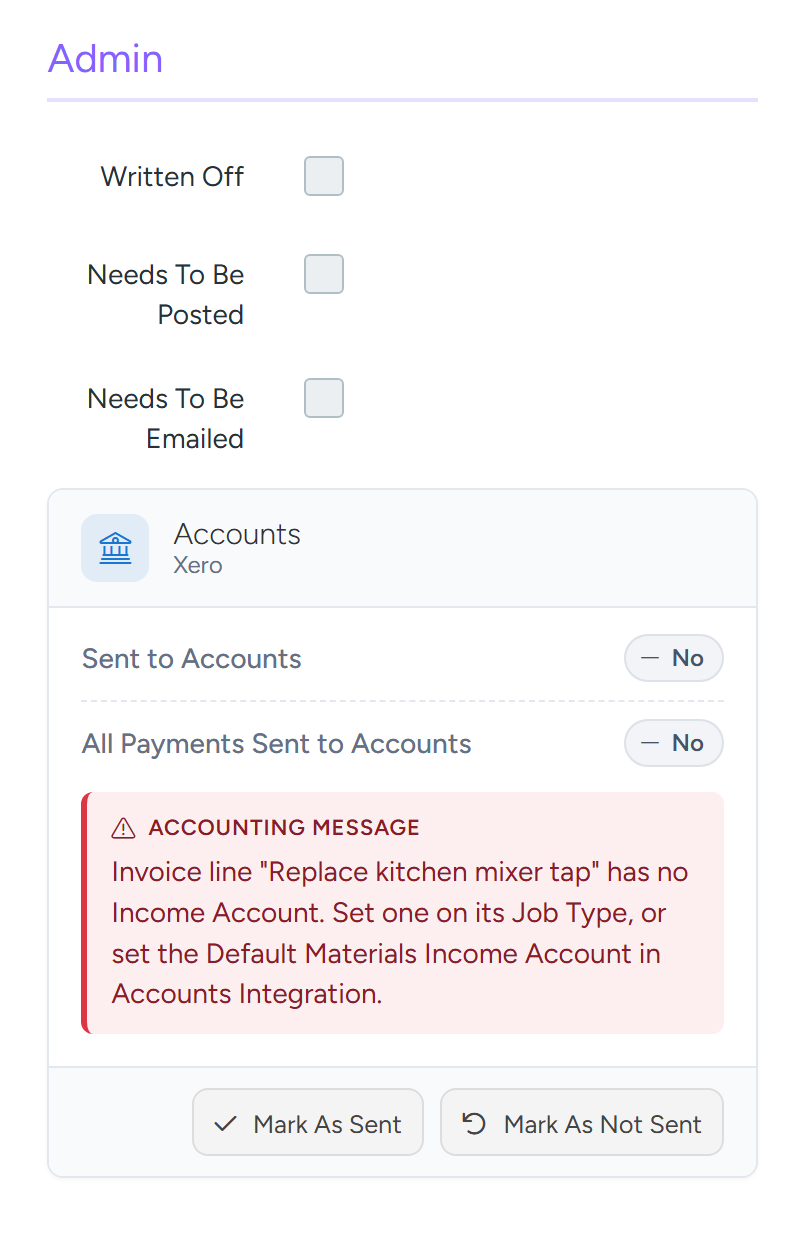
In the right-hand column, under Admin, find the Accounts card.
Sent to Accounts shows Yes or No. Accounting Message shows what Xero or Ascora said the last time the Invoice was sent. The message is red while the Invoice is not sent.
The Accounting Message says why the Invoice did not reach Xero and where to fix it. Sample data. Fix what the message describes, then send the Invoice again (next section).
See every Invoice that is waiting
On the Invoices list, set Invoice Status to To Be Sent To Accounting Package. The list then shows every Invoice that has not been sent, whatever its date, with the columns Sent To Accounts, Sent To Accounts On and Message.
Payments that have not been sent are listed under Administration > Accounting > Payments To Send, also with a Message column.
What the common messages mean
- An Invoice line has no Income Account. Ascora checks this before sending. Set an income account on the line's Job Type (or on the Role for a labour line, or the Kit for a kit line), or set the default labour and materials income accounts on the Accounts Integration page.
- Xero has ended the connection, or Ascora is not connected to Xero. Nothing will send until an Administrator connects again. See Connect Xero again, below.
- A message starting with Xero Returned. The words after it are Xero's own. They usually point to something in Xero: a locked period, an archived account or a problem with the contact. Fix it in Xero, then send again.
- The Invoice has been voided in Xero. Ascora cannot update a voided Invoice. Cancel the Invoice in Ascora and create it again as a new Invoice.
- The Invoice has a reconciled payment in Xero. Xero will not accept a change to it.
- The Invoice Date is before the Accounting Start Date. Ascora does not send Invoices dated before the start date set on the Accounts Integration page.
- The rate limit for Xero has been exceeded. Wait a few minutes and send again.
Send an Invoice to Xero again
On the Invoices list, set Invoice Status to To Be Sent To Accounting Package.
Tick the Invoices to send.
Select Send To Accounting Package and confirm.
The Invoices are sent in the background. Give it a minute, then refresh the list. An Invoice that fails again shows a new message.
Note
Saving an Invoice, or changing its lines, also sends it again. Mark As Not Sent on the Accounts card only clears the sent flag. It does not send the Invoice. Mark As Sent and Mark As Sent To Accounting Package only flag the Invoice as sent, for an Invoice you have entered in Xero yourself.
Connect Xero again
Go to Administration > Accounting > Accounts Integration.
If your account has Related Companies, choose the company first.
Select Connect to Accounting Package and sign in to Xero.
You do not need to select Disconnect first.
When Xero has ended the connection, select Connect to Accounting Package. You do not need to disconnect first. Sample data. At Xero's access screen, choose the same Xero organisation as before, then allow access.
If your Xero login has several organisations, check the Organization field on the page afterwards. Changing it reloads the chart of accounts from that organisation.
Check the account settings on the page and select Save Accounting Settings.
The page shows a prompt to update your account settings until they are saved. Your default account codes and payment settings are kept when you connect again.
Send the waiting Invoices again, as above.
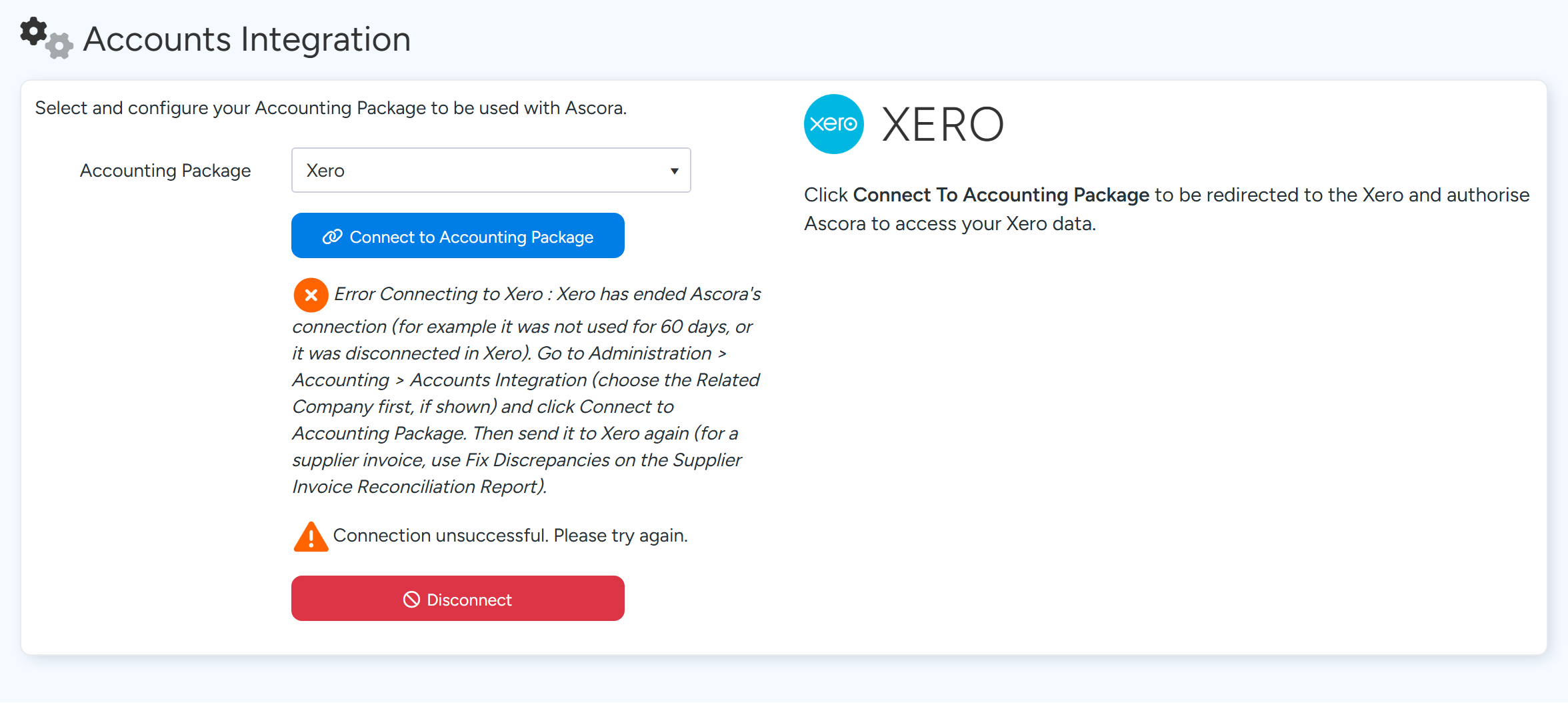
Warning
Xero ends a connection that has not been used for 60 days, and when someone disconnects Ascora inside Xero or the Xero user who connected it loses access. Ascora does not send an email when this happens. The signs are the status line on the Accounts Integration page and the Accounting Message on each Invoice that did not send.
Check for anything missed
Open Reports and find Invoice Reconciliation Reporting under Invoicing & Payments. You need the permission to access reports.
Generate Reconciliation Report compares Ascora's Invoices with Xero. Generate Reconciliation Report And Fix Discrepancies also sends Invoices that are missing in Xero or whose totals differ, marks as sent the ones that already match, sends unsent payments, and brings payments entered in Xero back into Ascora.
Cancelled and archived Invoices are left out, and Invoices dated before the Accounting Start Date are not fixed.
For supplier invoices use Supplier Invoice Reconciliation Report, and for payments use Payment Reconciliation Reporting.
Common questions
Is there a button on the Invoice to send it to Xero?
No. Save the Invoice, or use Send To Accounting Package on the Invoices list.
Do payments entered in Xero come back into Ascora?
Yes, automatically, while the connection is working. A payment is skipped when its Invoice number does not exist in Ascora, or when the Invoice is already fully paid by a payment of the same amount.
Will I lose my account codes if I connect again?
No. Connecting again keeps your default accounts and payment settings. Choosing a different Xero organisation reloads the chart of accounts, so check the settings if you do that.
Why does connecting Xero ask about two-factor authentication?
Connecting Xero requires two-factor authentication to be enforced for your company. If it is not already on, Ascora asks you to confirm before turning it on.