









Guide
Ascora emails your staff when certain things happen, such as a Job being assigned or a customer paying online. Each email has its own setting, and the settings apply to the whole company. A user cannot switch an email off for themselves only.
This article is for Administrators.
Where most of the settings are
Go to Administration > Defaults and open the Notifications tab. Where a setting has a Send notification to box, type one or more email addresses, separated by commas. Those addresses receive the email whoever caused it.
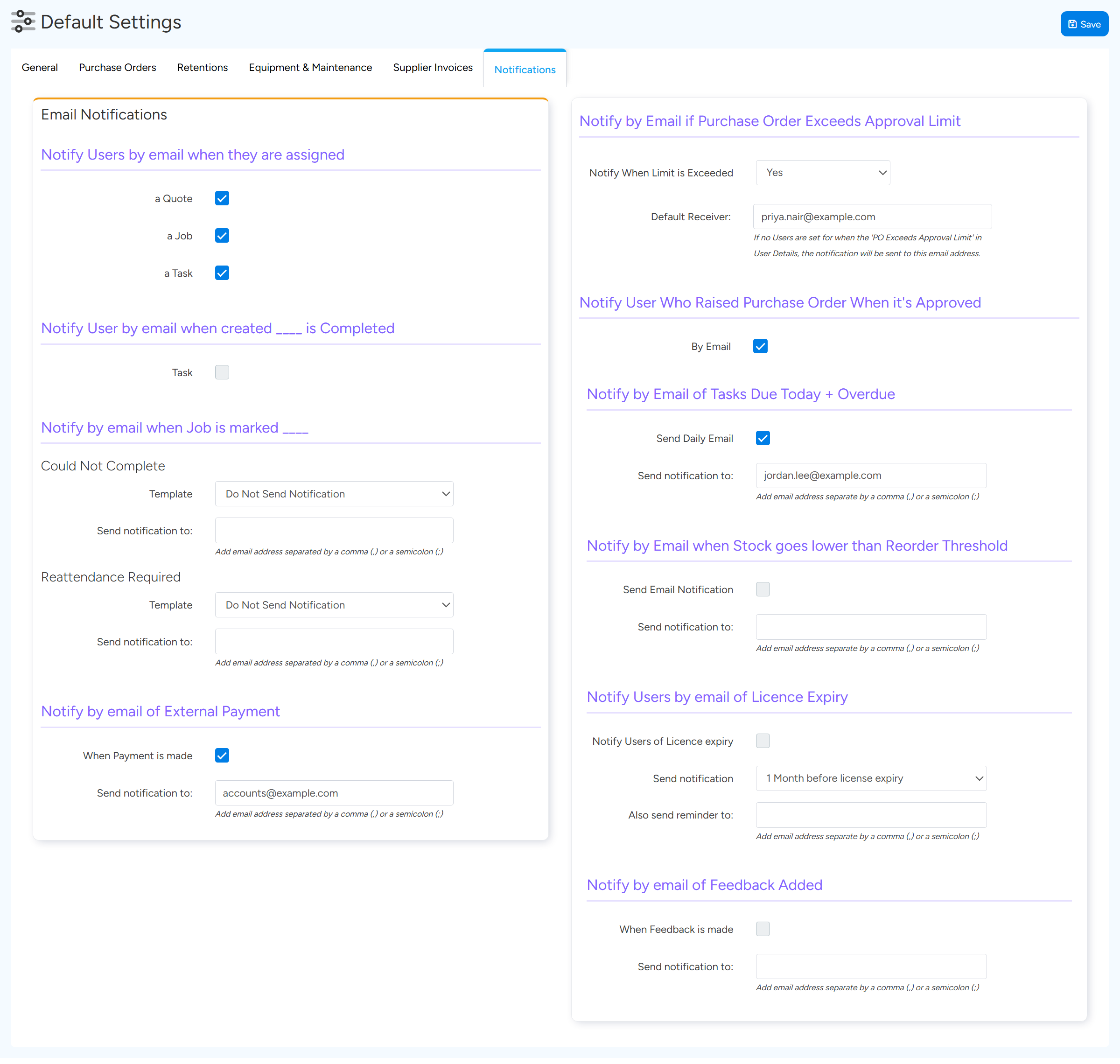
On the Notifications tab
- Notify Users by email when they are assigned a Quote, a Job or a Task. The email goes to the person assigned.
- Notify User by email when created Task is Completed. The person who created a Task is told when someone else completes it.
- Notify by email when Job is marked Could Not Complete or Reattendance Required. Choose a template and the addresses to tell.
- Notify by email of External Payment. Sent to the addresses you type when a customer pays an Invoice online.
- Notify by Email if Purchase Order Exceeds Approval Limit. Sent to the approvers of the user who raised the order, or to the Default Receiver when they have none.
- Notify User Who Raised Purchase Order When it's Approved.
- Notify by Email of Tasks Due Today + Overdue. Each user gets a morning email of their own tasks. Addresses in the box are copied on every user's email.
- Notify by Email when Stock goes lower than Reorder Threshold.
- Notify Users by email of Licence Expiry.
- Notify by email of Feedback Added.
Emails set on other pages
- A customer accepts a Quote online. Administration > Quotes: choose Quote Assigned Users, Other Recipients, or both.
- A technician has not checked in. Administration > Scheduling > Non Check-In Notification: a daily summary sent at the time you set to the addresses you enter.
- A Job or Quote is requested through the Customer Portal. Administration > Integrations & API > Customer Portal > Notifications, where each Job Type can have its own address.
- An Enquiry comes in from your website. Sent to the company Email Address under System Settings > Enquiry Options, and to the assigned user when Notify Users when Assigned is ticked in the Enquiries settings.
- Who approves a user's Purchase Orders. Set on the user's Approval & KPIs tab under Purchase Order Approval.
The bell at the top of the screen
The bell shows notifications inside Ascora, such as a form being submitted, a Quote being accepted, a deposit being paid or an online booking. It is separate from the emails above.
Selecting an item opens it and marks it as read. Mark all read clears the list. Read items are not shown again.
Common questions
One person wants to stop getting an email. Can they?
Not for themselves alone. Remove their address from the setting's box, or switch the setting off for everyone.
Why am I getting emails about other people's overdue tasks?
Your address is in the Send notification to box under Tasks Due Today + Overdue, so you are copied on every user's daily email.
Nobody was told when a customer paid a Statement online.
The external payment email is sent for Invoice payments only.
A user is not getting an email they should.
Check the setting is on, check the email address on their user record, and ask them to check their junk folder.