









How to
Ascora can store the barcodes already printed on your stock and use them to find a Supply when you scan. This article shows where barcodes are recorded and scanned, and what label printing is available.
It is for whoever looks after your stock.
Before you start
- Enable Inventory Tracking must be on, under Administration > Inventory. The Barcodes tab on a Supply only shows when it is.
- A scanner that types like a keyboard works in any barcode field.
Add a barcode to a Supply
Go to Inventory > Supplies and open the Supply.
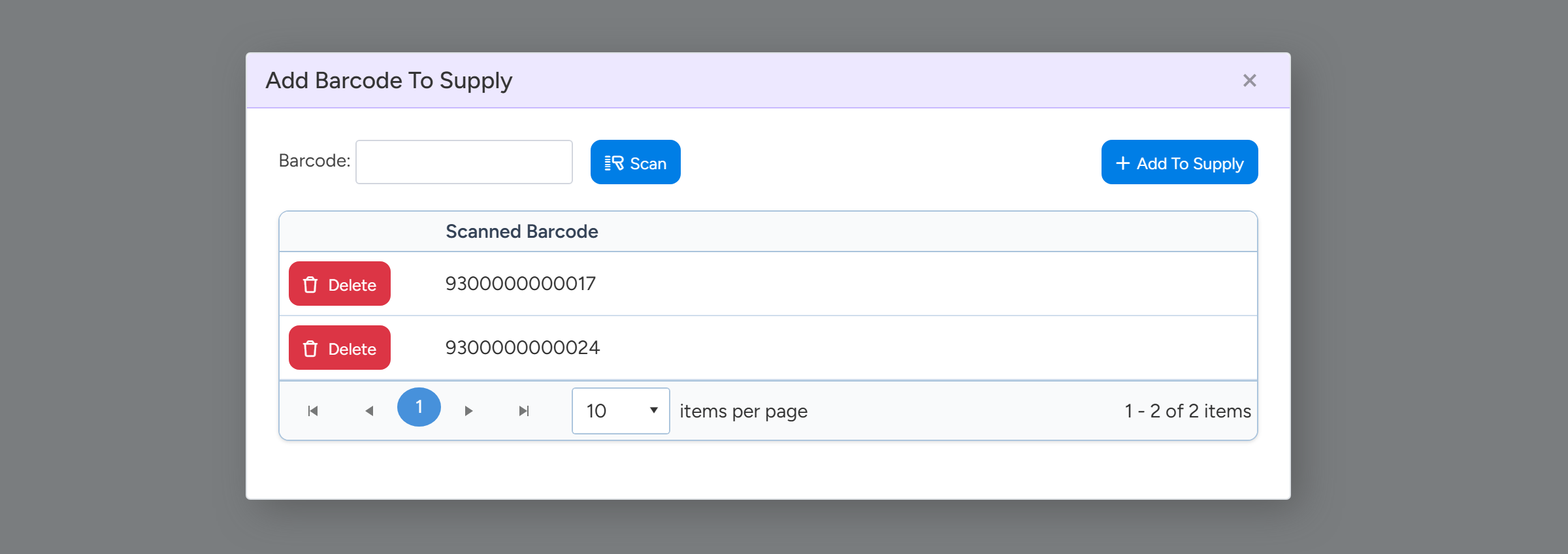
Open the Barcodes tab and select Add Barcodes.
Scan the item, or type the code into Barcode and press Enter.
Each code you scan is listed. A Supply can hold more than one barcode, for example when two suppliers label the same part differently.
Scan or type each barcode, then choose Add To Supply to save them all. Sample data. Select Add To Supply.
If a code is already on another Supply, Ascora tells you it found a duplicate.
Where you can scan
- On a Job's Supplies tab: Scan Barcode to Add Supply.
- In a Stock Take: Scan Barcode to Add Supply.
- In Quick Sale: Add by Barcode.
Import barcodes in bulk
The Supply import template has a BARCODE column. Fill it in beside each part number and import the file to load barcodes for many Supplies at once. See Supply Import Template - References for the other columns.
Printing labels
Ascora does not print barcode labels for Supplies or stock locations, and it has no connection to label roll printers. The barcode features above are for scanning labels your stock already has, or labels you print with your label printer's own software.
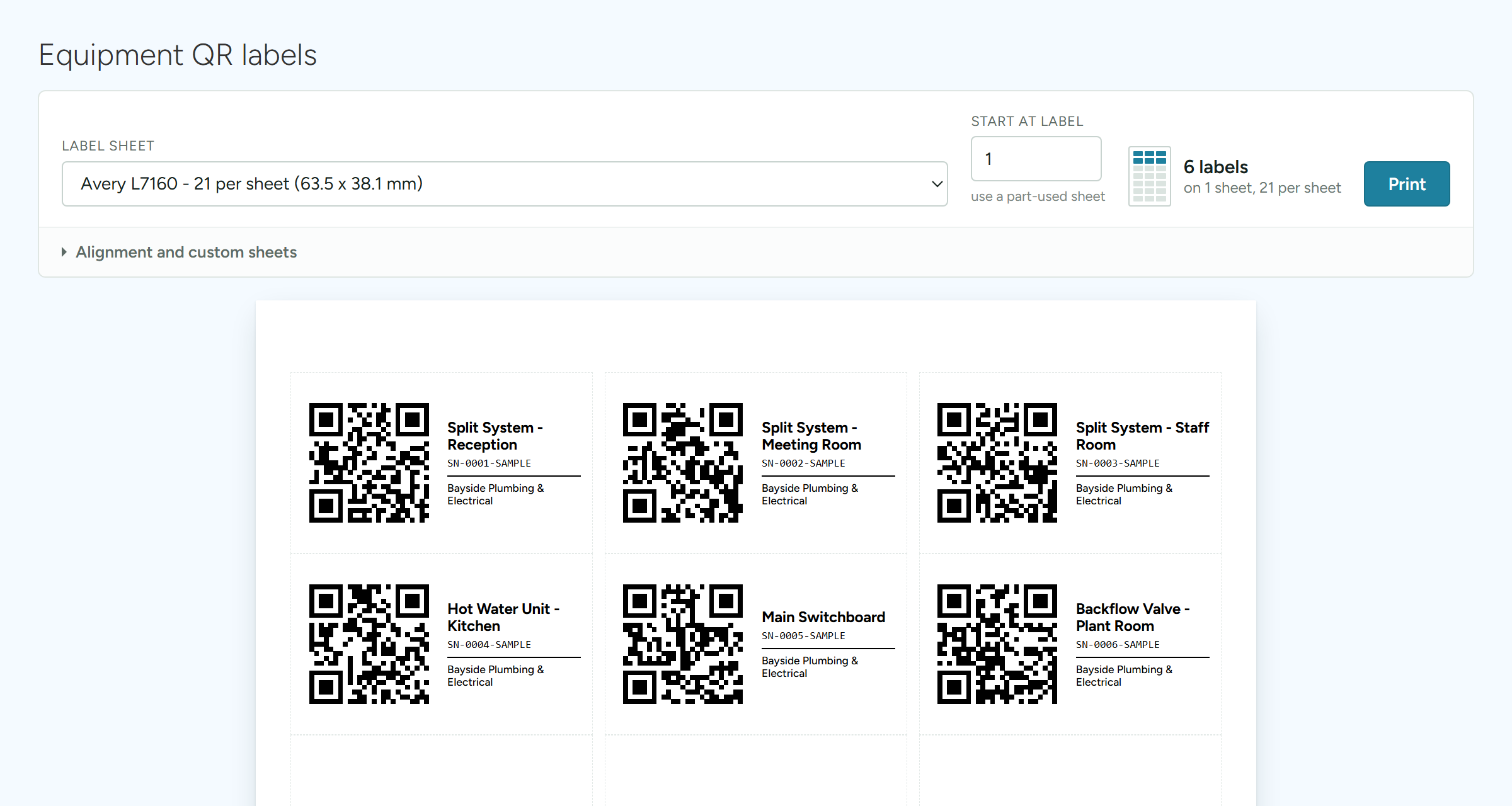
Ascora does print QR code labels for Equipment, when the Memberships and Equipment Servicing module is switched on for your account. Scanning one opens that item's service history.
Print QR labels for Equipment
Open the Equipment list and tick the items you want labels for.
Select Print QR Labels.
A label page opens in a new browser tab. One page holds up to 50 items.
Choose your sheet under Label sheet.
The list has common A4 label sheets, One label per page and Custom sheet.
Pick the label sheet you have, set Start at label if the sheet is part used, then choose Print. Sample data. Select Print and use your browser's print window.
Tip Start at label lets you begin part-way down a sheet you have already used.
Common questions
Can I print a barcode sticker for a Supply from Ascora?
No. Record the barcode on the Supply and print the sticker with your label printer's own software.
Is the barcode the same as the Part Number?
No. Barcodes are stored separately from the Part Number, so a Supply keeps its Part Number whatever is printed on the packaging.
I cannot see the Barcodes tab on a Supply.
Turn on Enable Inventory Tracking under Administration > Inventory.