









How to
A surcharge is added when a customer pays an Invoice by card. It is set on each payment method that accepts cards, as a percentage, a fixed amount, or both.
This article is for Administrators who manage payment settings.
Change or remove the surcharge
Go to Administration > Accounting > Payments & Tax.
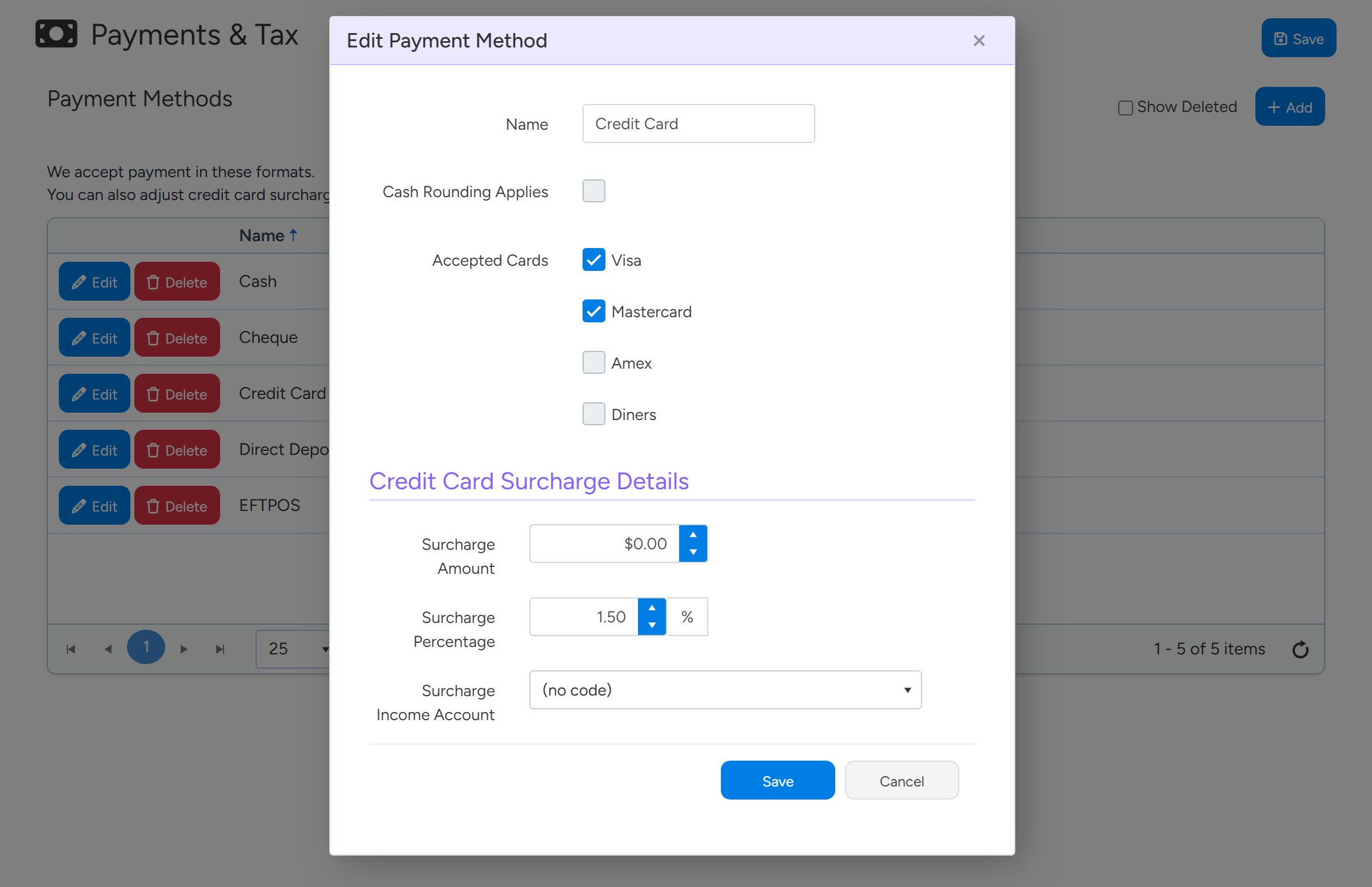
In Payment Methods, select Edit on the method that accepts cards.
Under Credit Card Surcharge Details, change Surcharge Percentage and Surcharge Amount.
The surcharge is the amount being paid multiplied by the percentage, plus the fixed amount. To charge no surcharge, set both to zero. There is no separate on and off switch.
Set Surcharge Percentage and Surcharge Amount to zero to stop charging a surcharge on these cards. Sample data. Select Save.
If more than one of your payment methods accepts cards, repeat this on each.
Note
Credit Card Surcharge Details shows only when at least one card is ticked under Accepted Cards. Surcharge Income Account is the account the surcharge is posted to in your accounting package.
Charge a different rate for one card type
Each card type (Visa, Mastercard, Amex, Diners) can be ticked on only one payment method. To charge a different rate for Amex, for example, untick Amex on your main card method, then select Add to create a second method, tick only Amex on it and enter its own surcharge.
When a customer pays online, the card number decides which method's rate applies.
Where the surcharge applies and shows
- Online payments. When a customer pays from the online Invoice, the fee is shown before they pay, as part of the Total. With no surcharge, the Total equals the amount outstanding and no fee line is shown.
- Payments entered in the office. In Add Payment on an Invoice, Credit Card Surcharge is worked out when you choose a card payment method.
- Mobile apps. Card payments taken in the apps use the same rates.
- Documents. The Invoice can print the total card surcharge, receipts can include the surcharge amount, and Statement amounts include it.
Stop taking card payments online
Go to Administration > Accounting > Payments & Tax.
In Real-Time Credit Card Payments, set Payment Gateway to None.
Select Save.
The online Invoice no longer has a Pay now button. It tells the customer that online card payment is not available and to contact you to arrange payment.
Warning
Do not remove online card payments by unticking the Accepted Cards. That leaves the Pay now button in place with no card accepted. Set the Payment Gateway to None instead.
Common questions
Can I remove the surcharge for one customer or one Invoice?
No. The surcharge is set on the payment method and applies to every card payment made with it.
Can I keep the link to view the Invoice online but not take cards?
Yes. With the Payment Gateway set to None, the online Invoice still opens but has no Pay now button.
How do I take the online link out of my Invoice emails?
Edit the email template and remove the Invoice link and payment link fields from it.
I ticked a card and Ascora says that payment method already exists.
That card type is already ticked on another payment method. Untick it there first.